Guide · 2 min read
How to Insert Pages into a PDF
The oMyPDF Insert Pages tool adds pages to a PDF — pull in pages from another PDF, or drop in blank pages, at any position you choose. A live preview shows the result with every new page badged, and files under 60 MB are processed right in your browser.
Quick overview
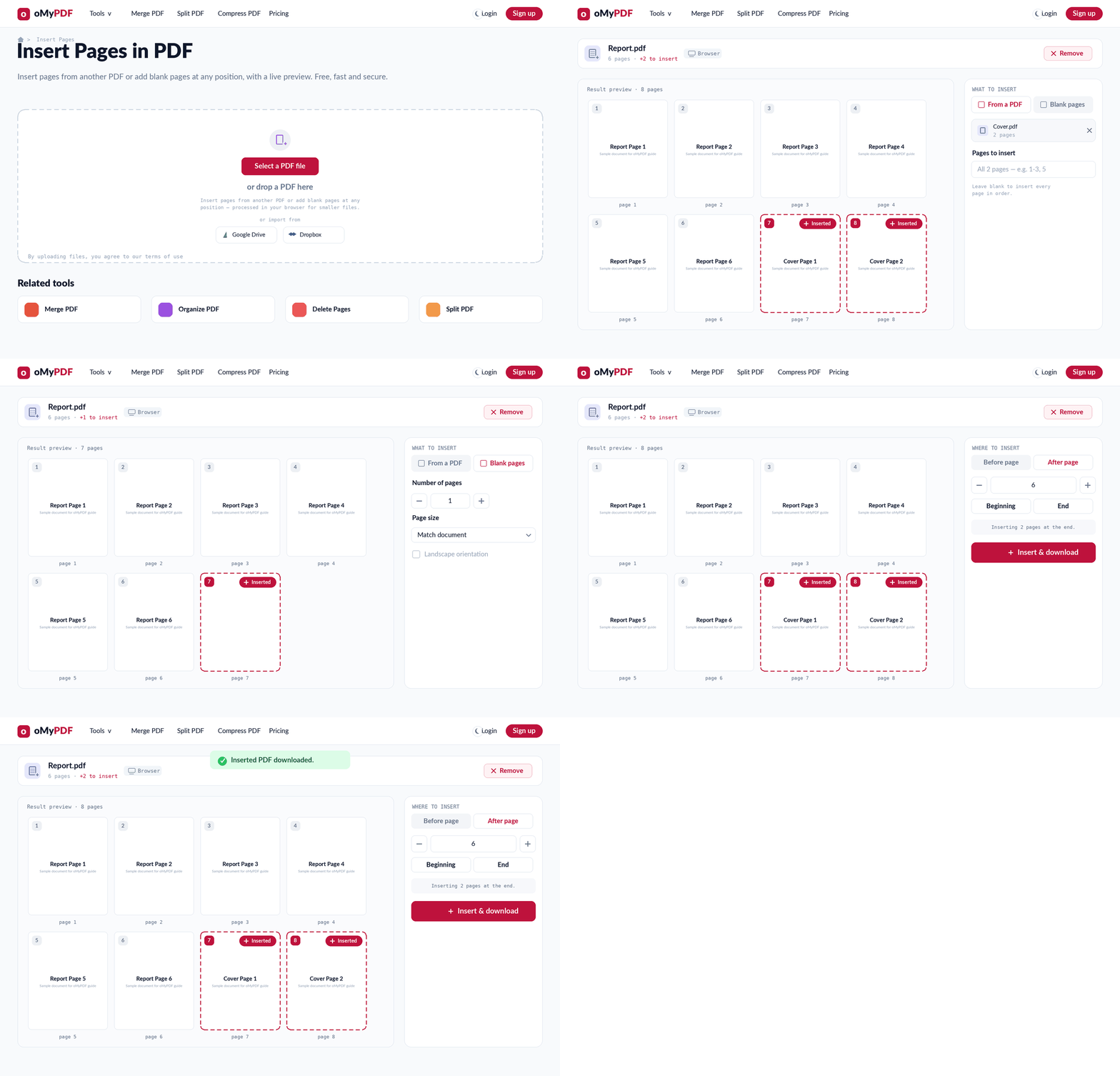
The full workflow: add your PDF, insert pages from another PDF or add blank pages, pick the position, then insert and download.
Step-by-step
- 1
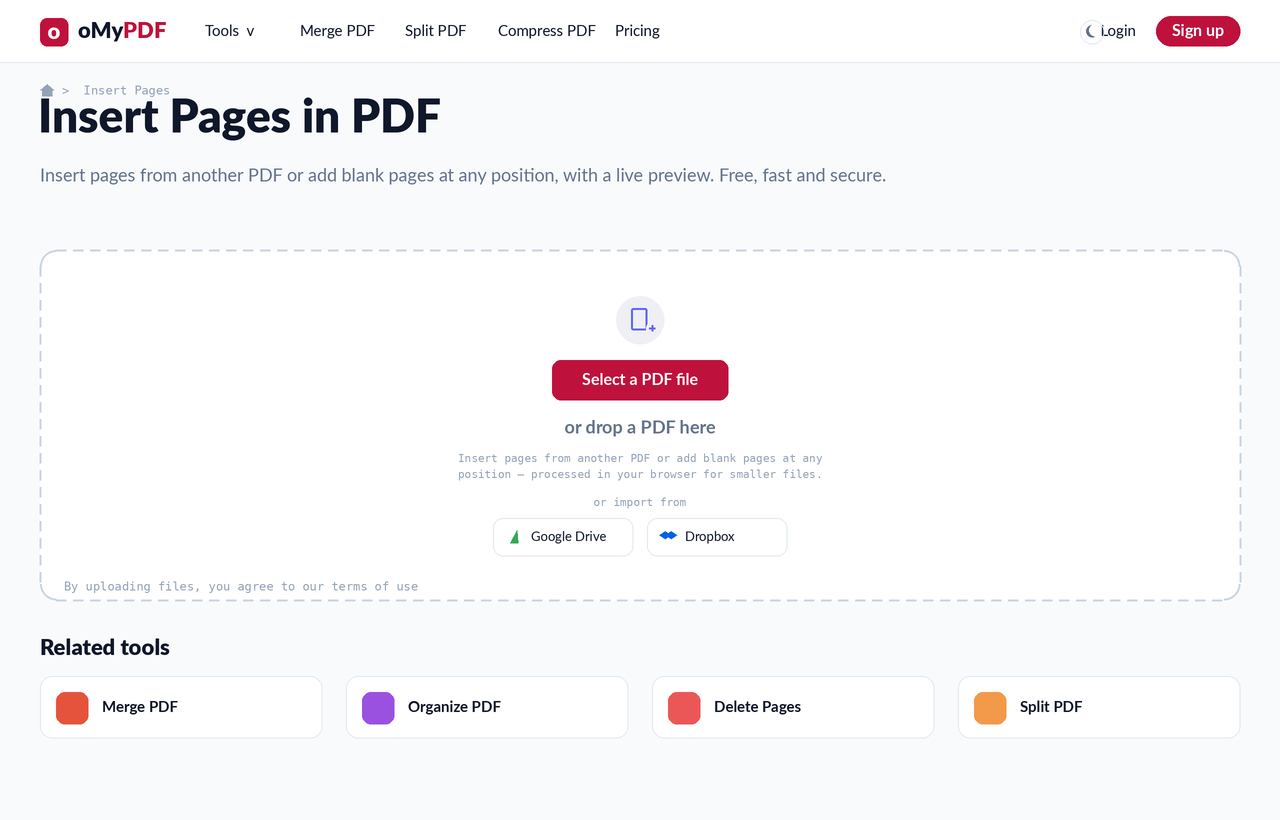
Open the tool
Go to the Insert Pages in PDF page. Click Select a PDF file, or drag the document you want to add pages to onto the upload area. Smaller files are processed entirely in your browser.
- 2
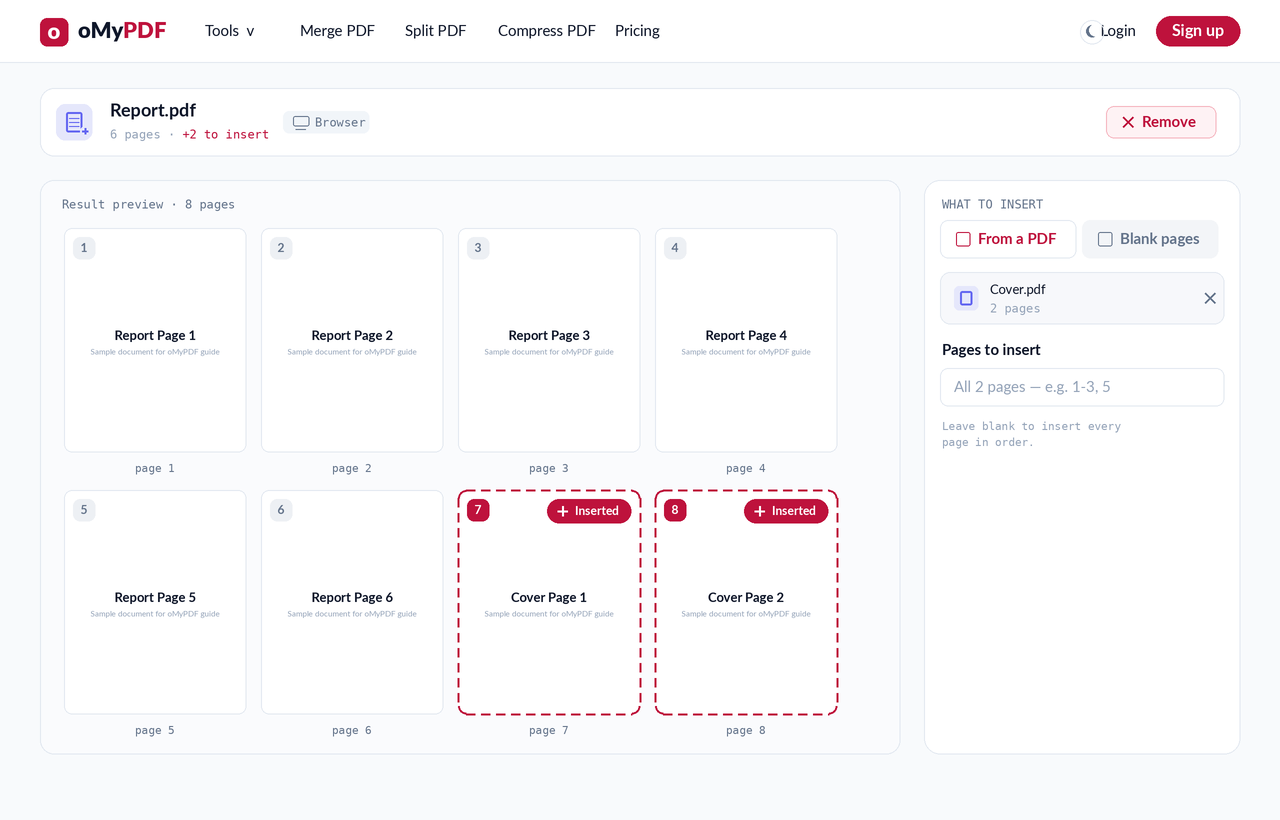
Insert pages from another PDF
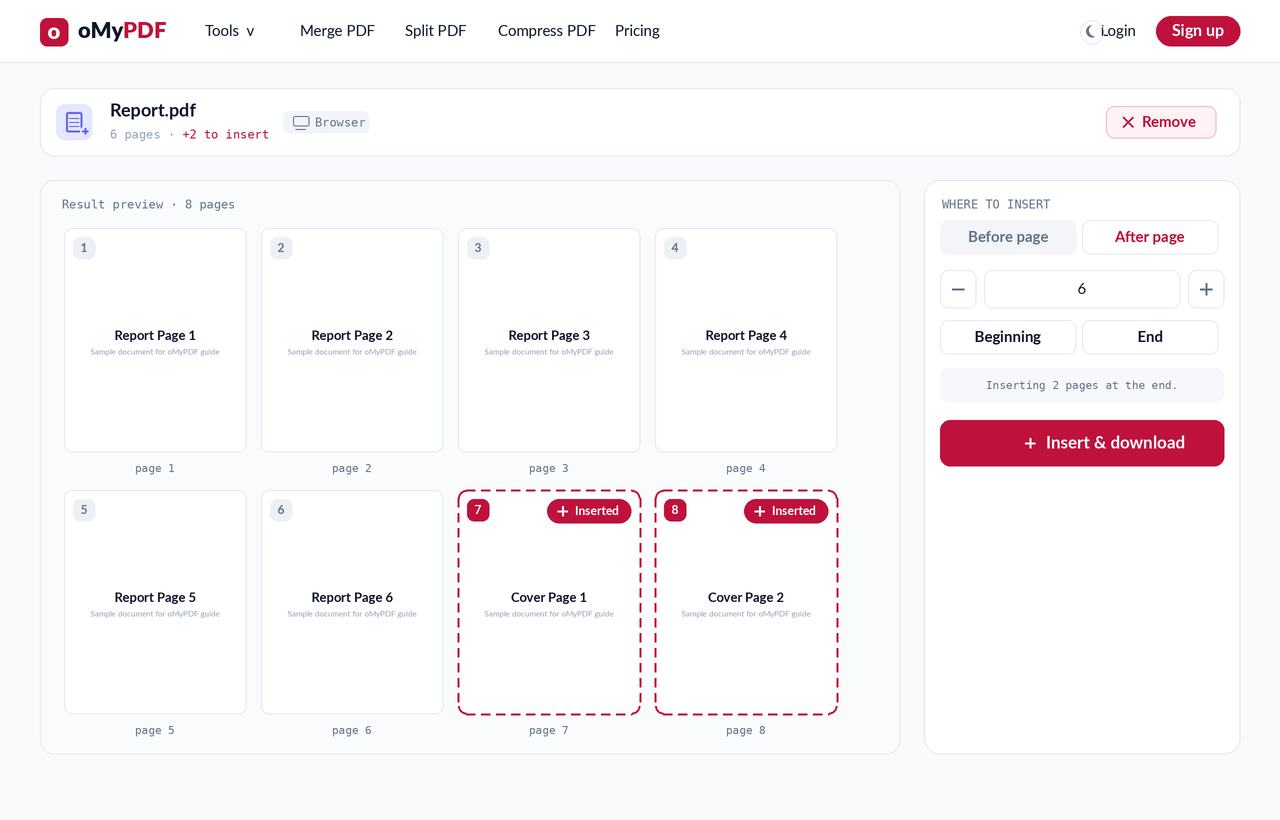
Keep the “From a PDF” tab selected and choose a second PDF. Its pages slot into your document and the live preview updates instantly, with each new page badged “Inserted”. Leave “Pages to insert” blank to add every page, or type a range like 1-3, 5 to add only some.
- 3
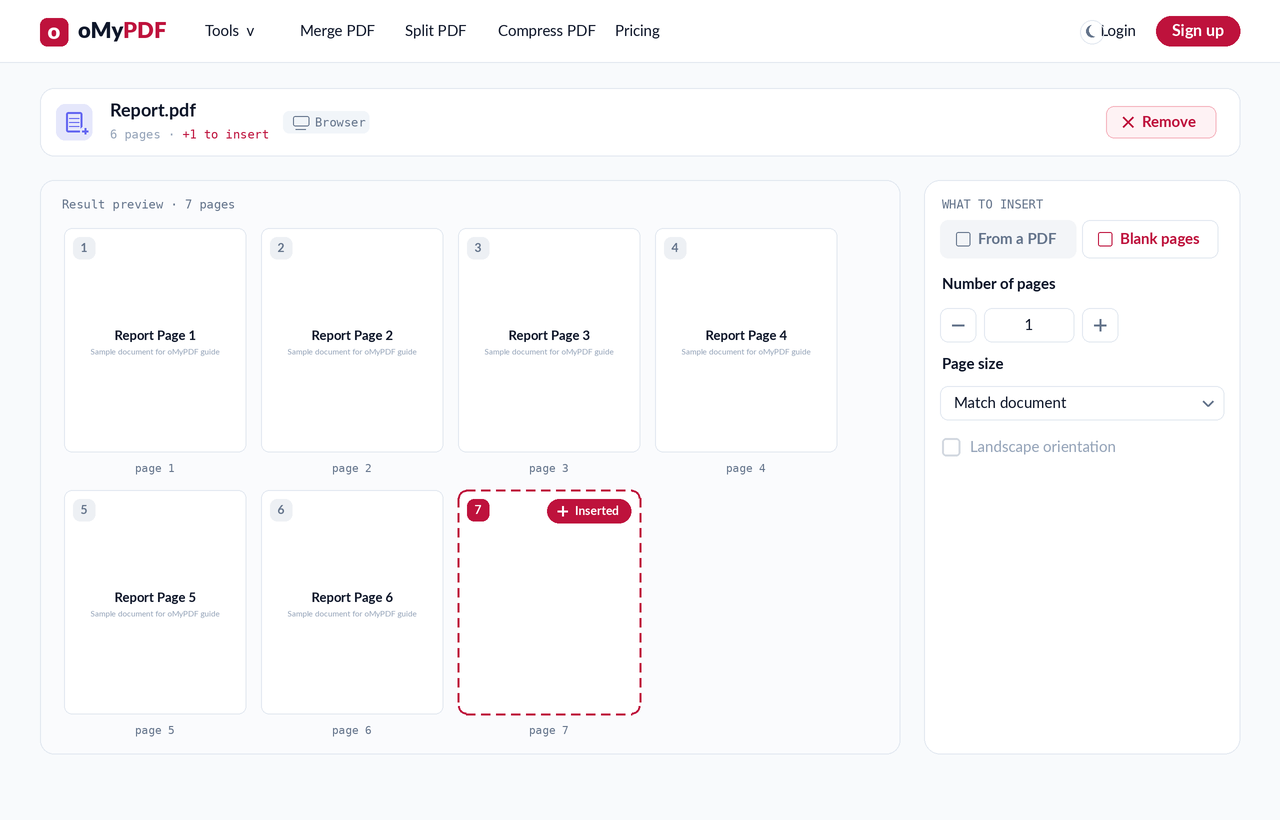
Or add blank pages
Switch to the “Blank pages” tab to insert one or more empty pages instead — set how many, and pick a size (match your document, or A4, Letter or Legal). Handy for adding notes pages or separators.
- 4
Pick where they go
Under “Where to insert”, choose Before or After a page and set the page number, or jump straight to the Beginning or End. The preview marks exactly where the new pages land.
- 5
Insert & download
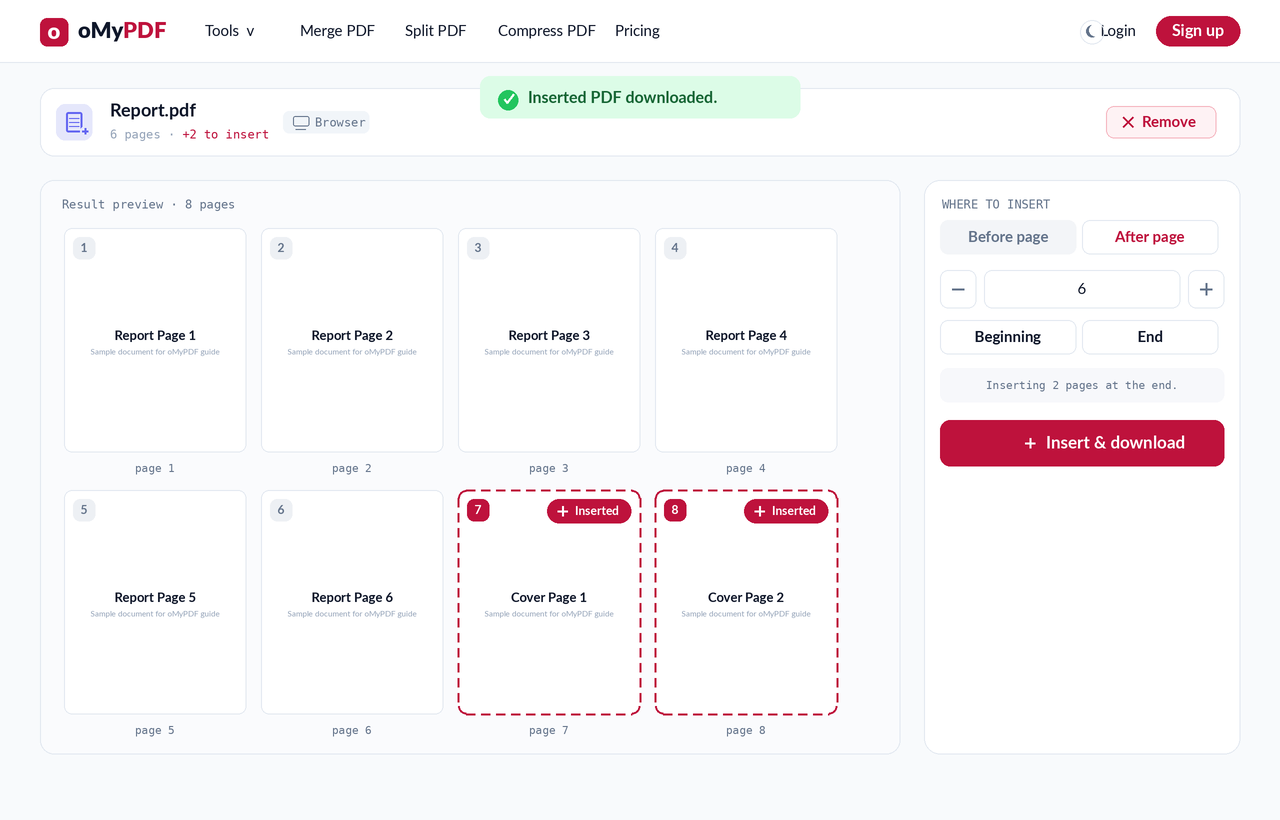
Click Insert & download to save a fresh PDF with the new pages in place — in the exact order you set. No watermark and no sign-up.
Tips
- Two ways to insert: add pages from another PDF (all of them, or a range like 1-3, 5), or drop in blank pages — both update the live preview instantly.
- Insert one PDF into another: switch to “From a PDF”, pick the second file, and choose the position — great for adding a cover or an appendix.
- Add a blank page anywhere: use the “Blank pages” tab to slot in note pages or separators sized to match your document.
- Private & free: files under 60 MB are processed entirely in your browser and never uploaded.
Ready to insert your pages?
Free, private, and no sign-up required.