Guide · 2 min read
How to Merge PDF Files
The oMyPDF Merge PDF tool combines PDF files into one document in the exact order you choose — and reorders pages before merging — without losing quality. Smaller combined files are merged right inside your browser, so nothing leaves your device.
Quick overview
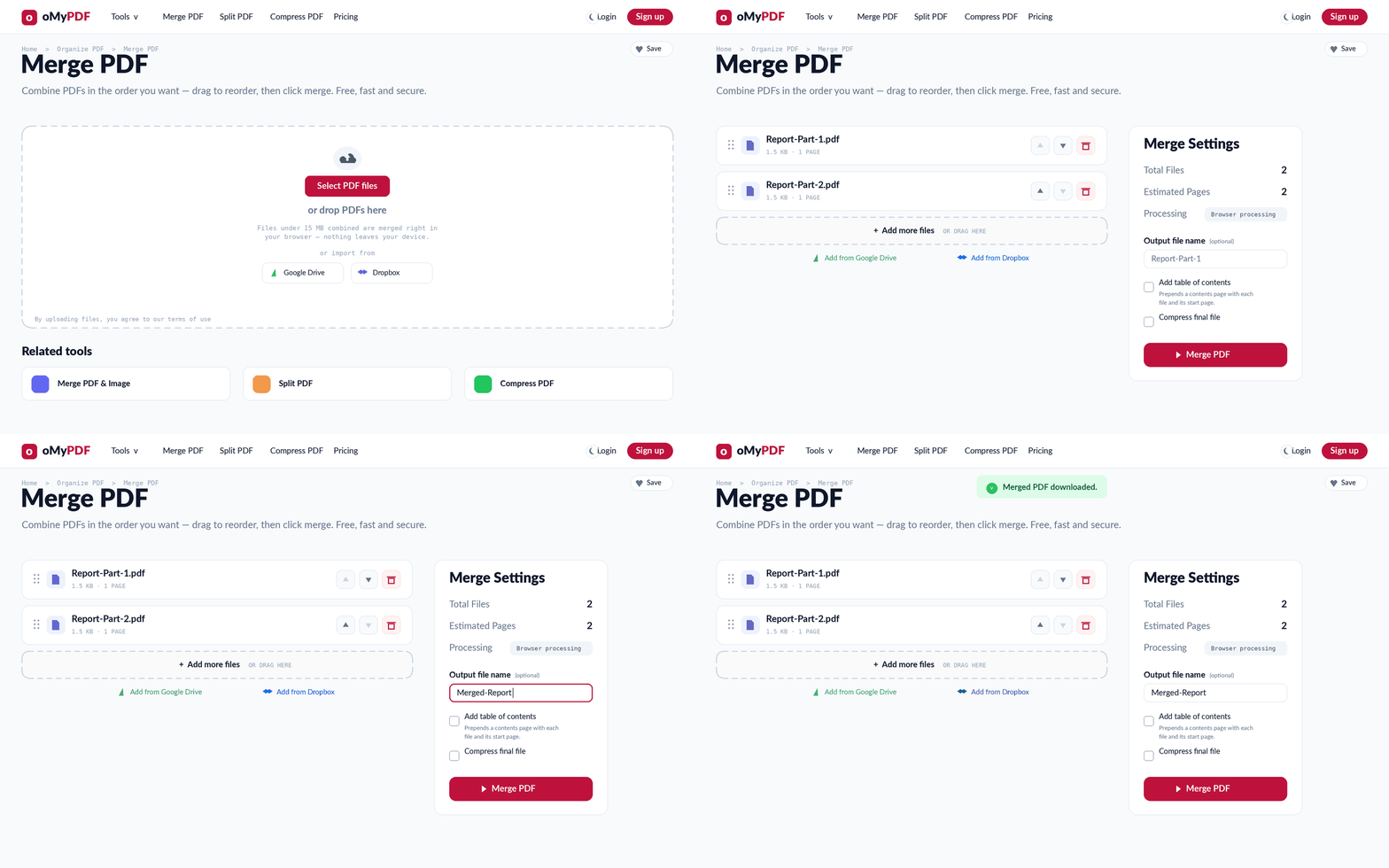
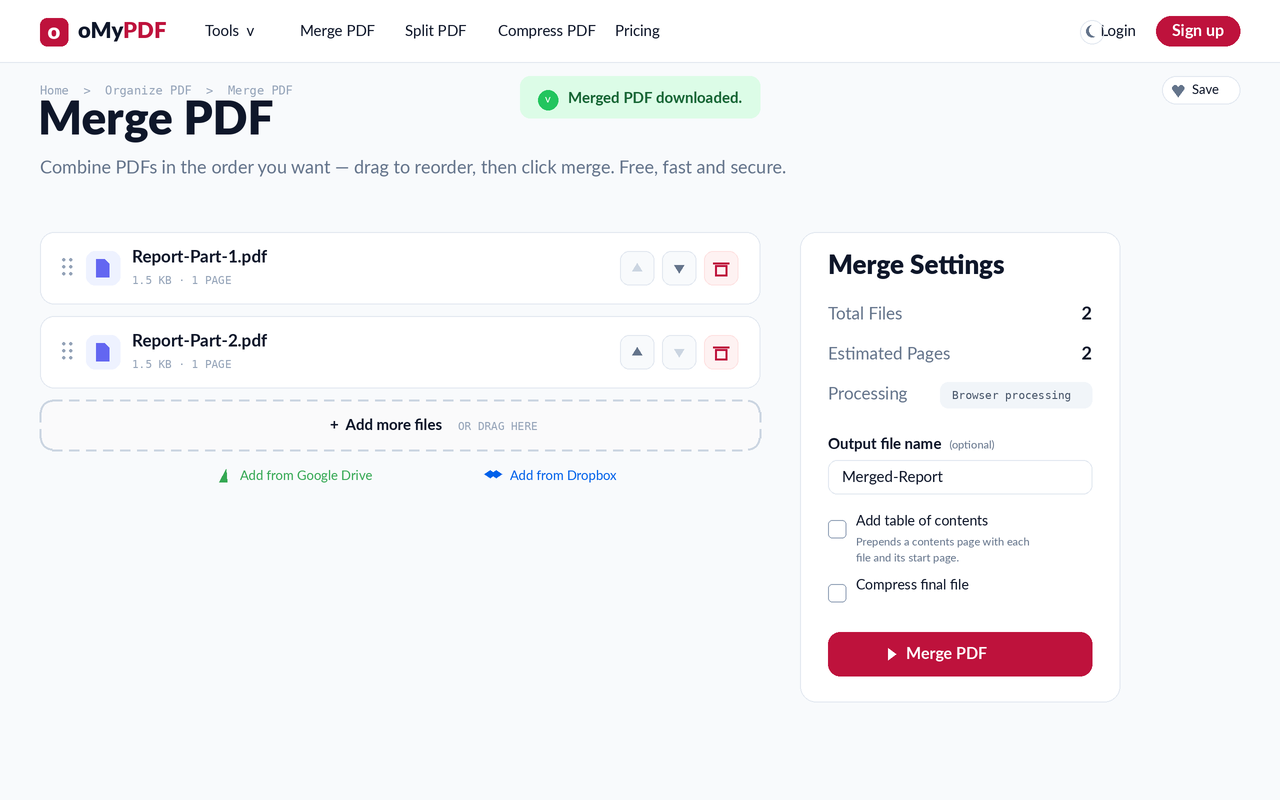
The full workflow: add files, set the order and output name, then merge.
Step-by-step
- 1
Open the tool
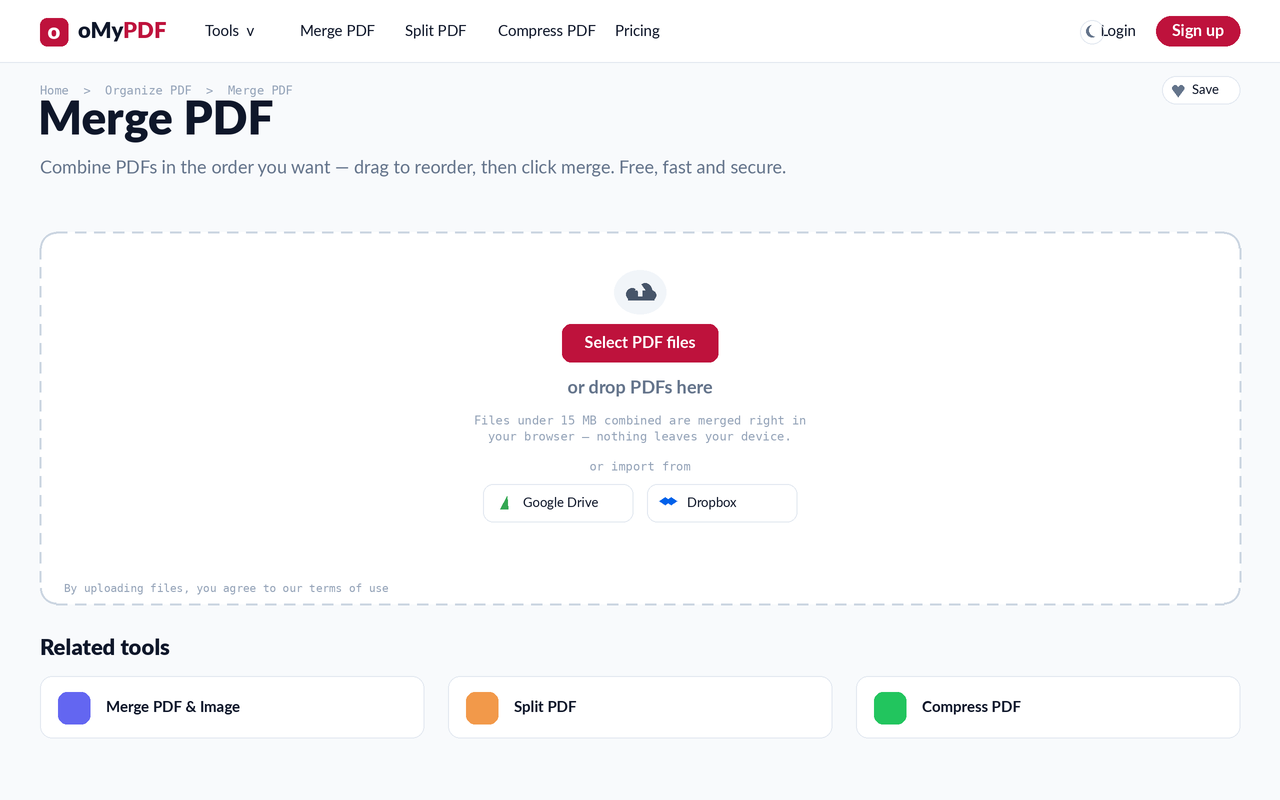
Go to the Merge PDF page. You'll see a large upload area with a Select PDF files button — or you can drag PDFs straight onto it.
- 2
Add your PDFs
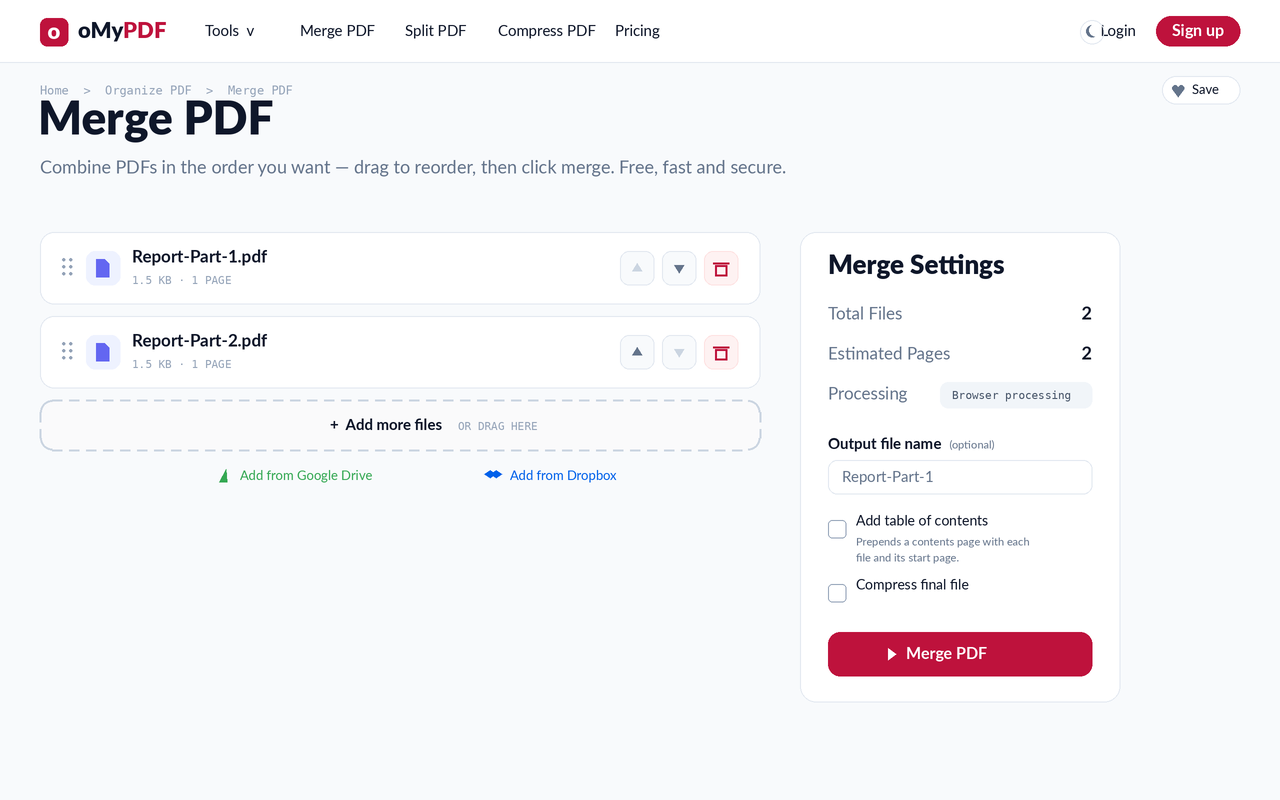
Click Select PDF files and pick two or more PDFs (or drop them onto the area). Each file appears as a row showing its name, size, and page count, and a Merge Settings panel opens on the right with your totals.
- 3
Order & configure
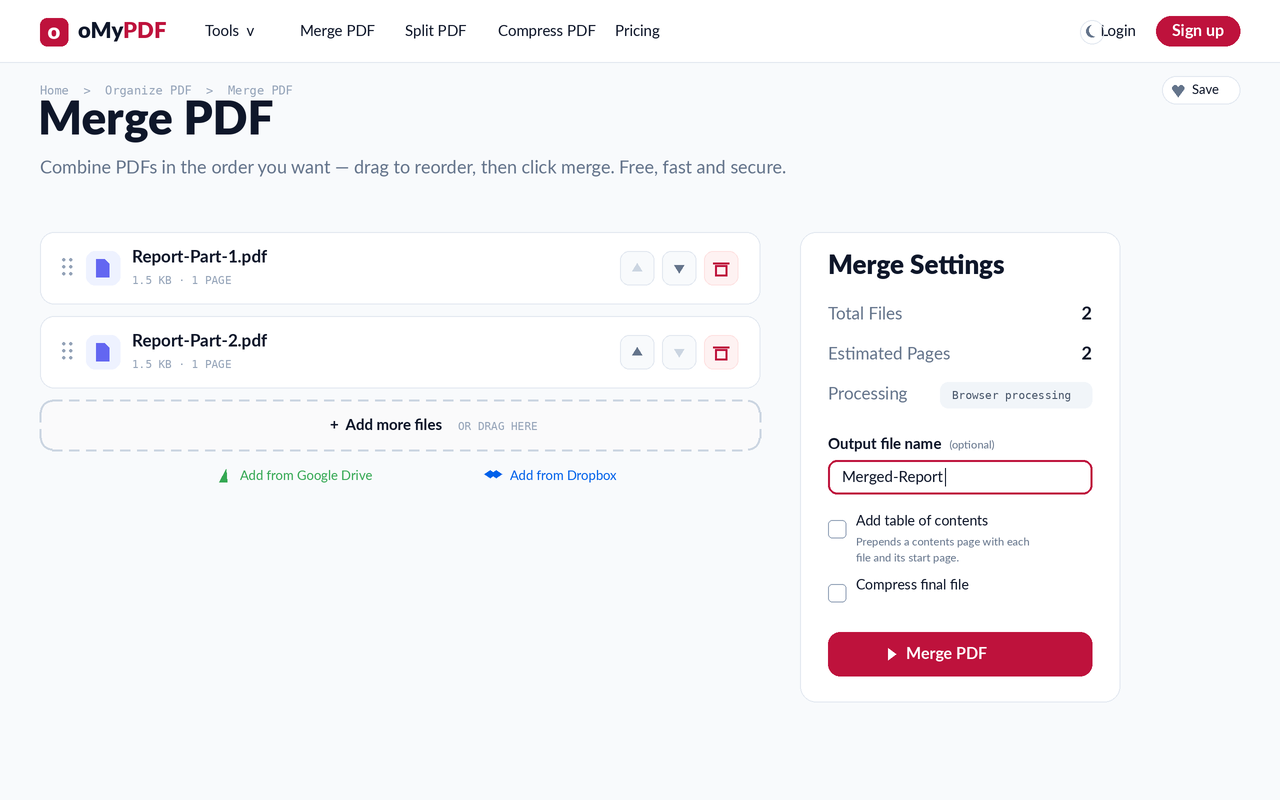
Use the up/down arrows on each row to set the order the files are combined in, and the trash icon to remove one. Optionally set an Output file name, or tick Add table of contents or Compress final file.
- 4
Merge & download
Click Merge PDF. The combined file is generated and downloads automatically — a “Merged PDF downloaded” confirmation appears when it's done.
Tips
- Order matters: the merged document follows the top-to-bottom order of the list, so arrange the rows before merging.
- Stays private: smaller combined inputs are processed entirely in your browser; larger files use encrypted server processing and are deleted right after.
- No limits: merge as many PDFs as you like — no watermark and no sign-up required.
- Add more anytime: use Add more files (or drag onto the list) to keep adding PDFs before you merge.
Ready to merge your PDFs?
Free, private, and no sign-up required.