Guide · 2 min read
How to Remove Metadata from a PDF
The oMyPDF Remove PDF Metadata tool shows the hidden metadata in your PDF — author, title, keywords, software and dates — and lets you clear or edit it before you share or publish. Smaller files are cleaned entirely in your browser, so your document never leaves your device.
Quick overview
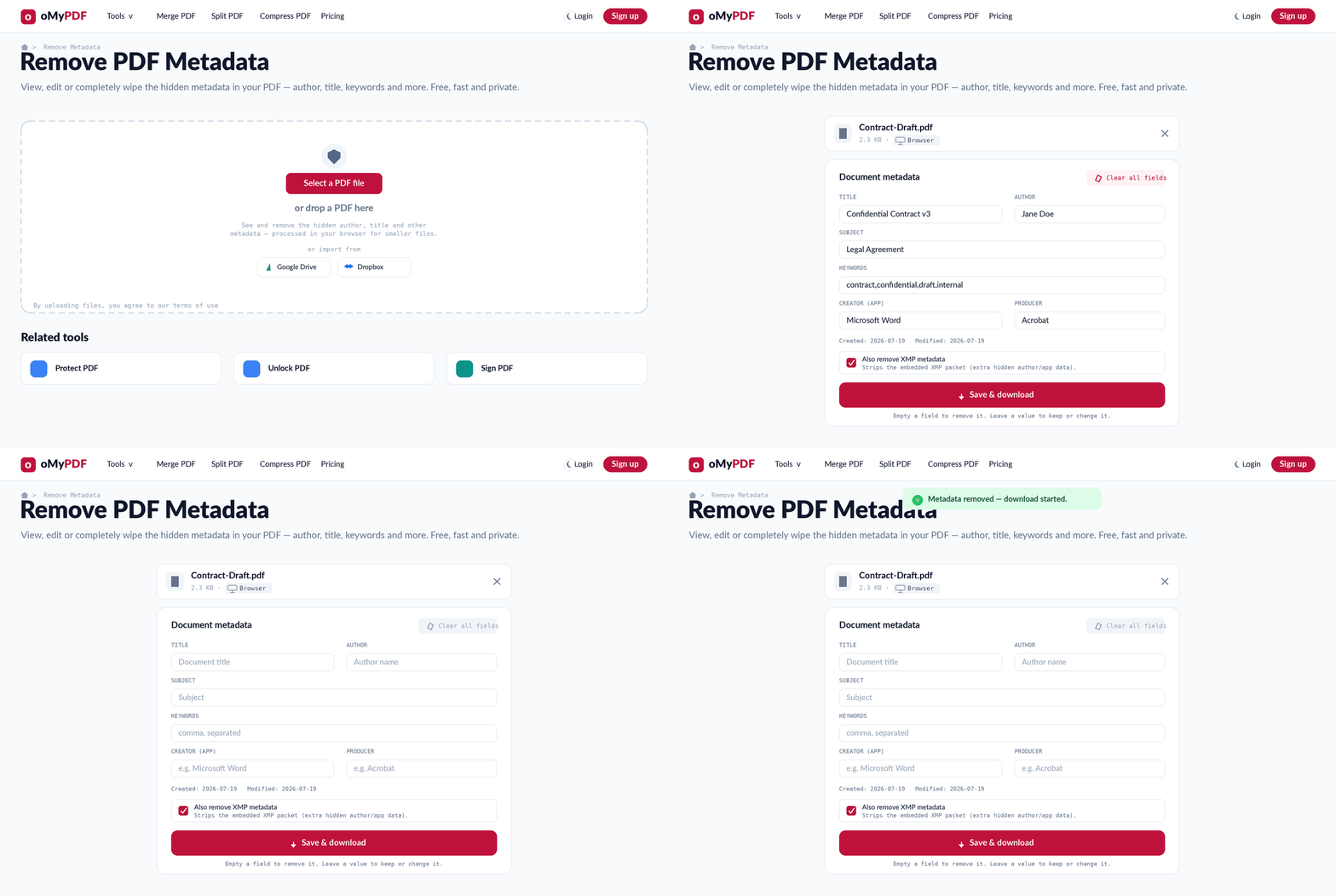
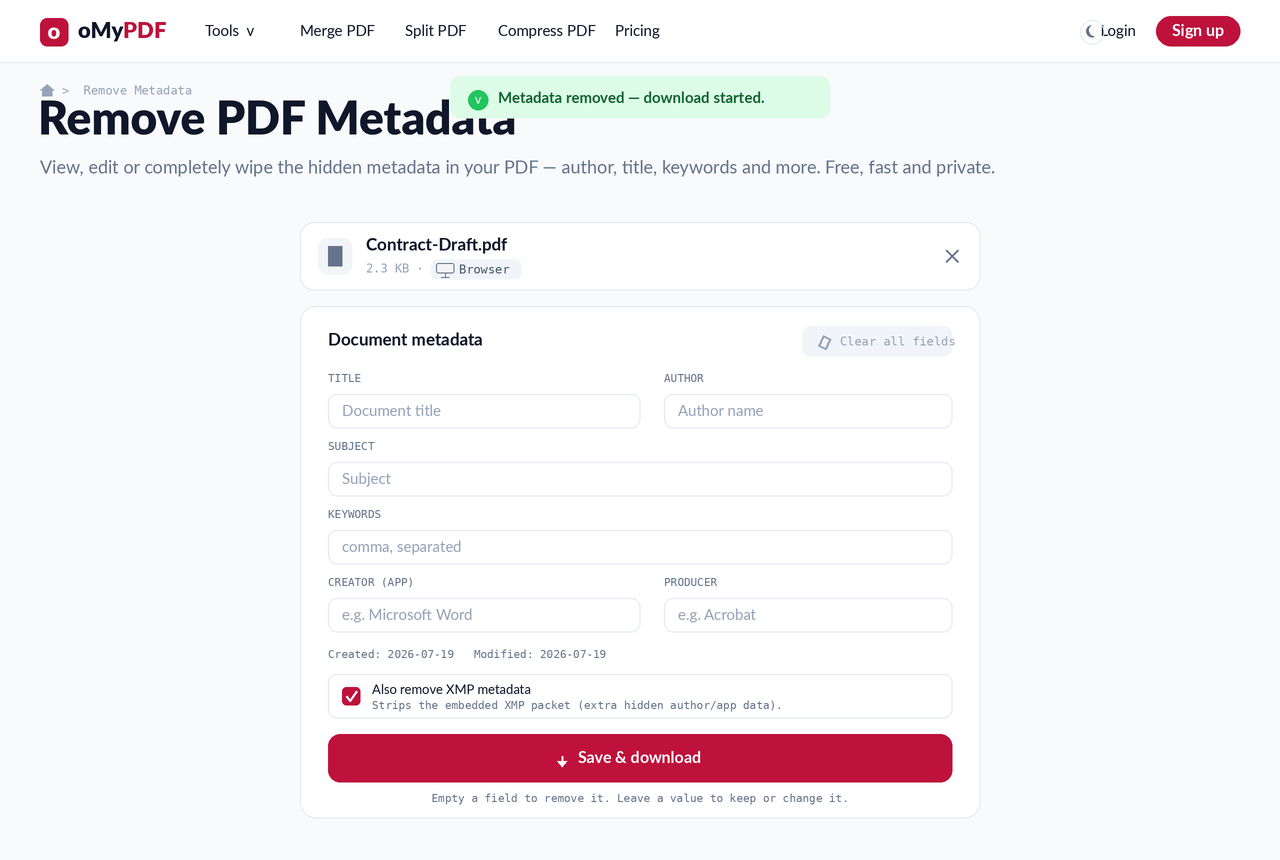
The full workflow: add a PDF, review the hidden metadata, clear or edit it, then save a clean copy.
Step-by-step
- 1
Open the tool
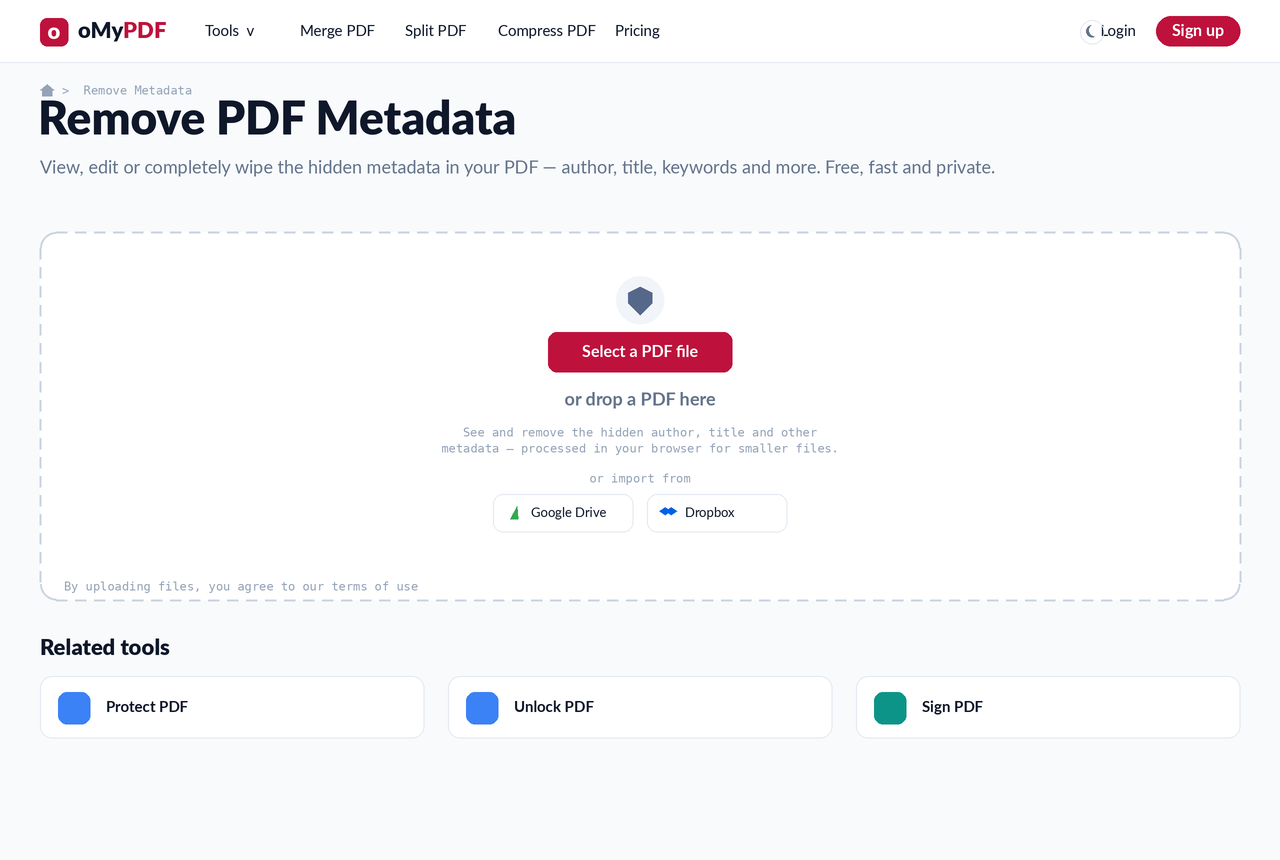
Go to the Remove PDF Metadata page. Click Select a PDF file, or drag the document onto the upload area.
- 2
See what's hidden
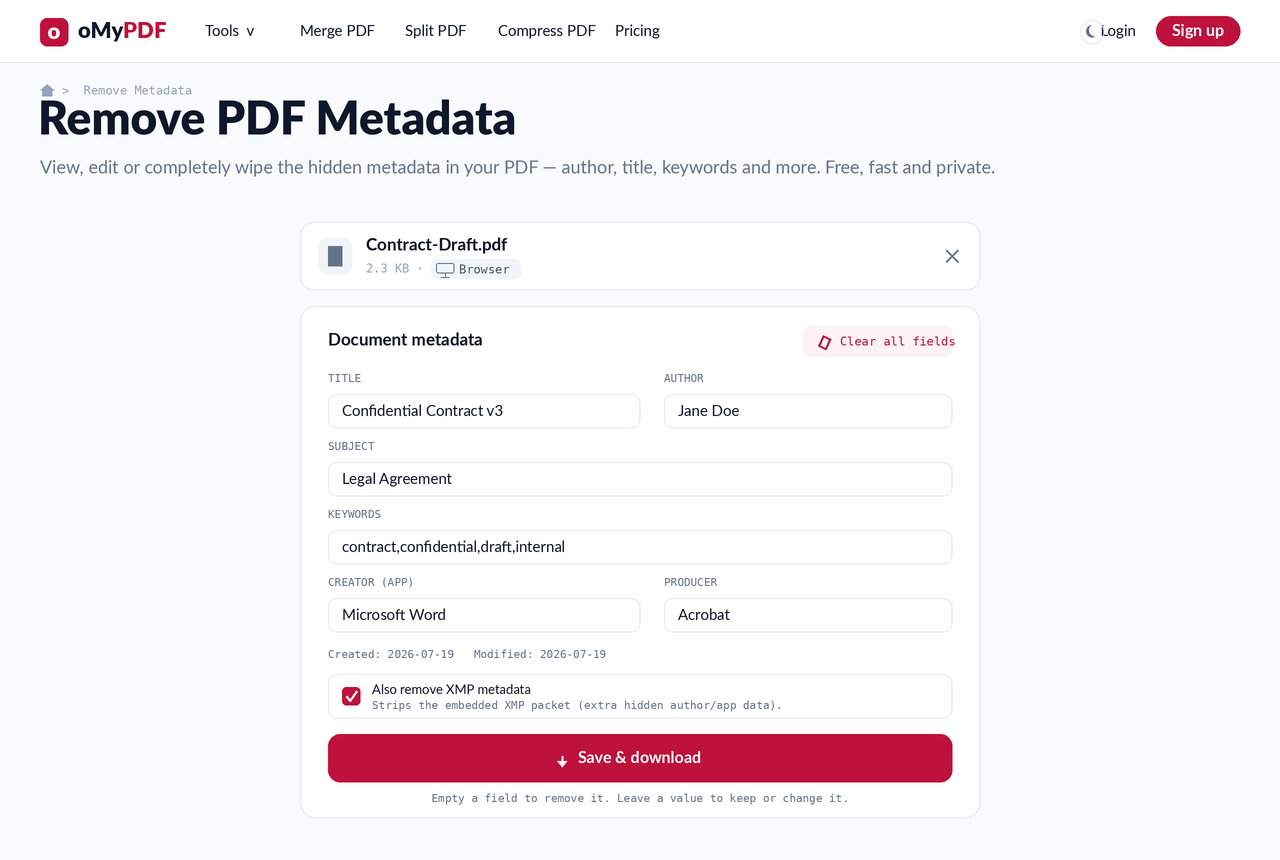
Your PDF's metadata is read instantly and shown in editable fields — Title, Author, Subject, Keywords, Creator, Producer, plus the created and modified dates.
- 3
Clear or edit the fields
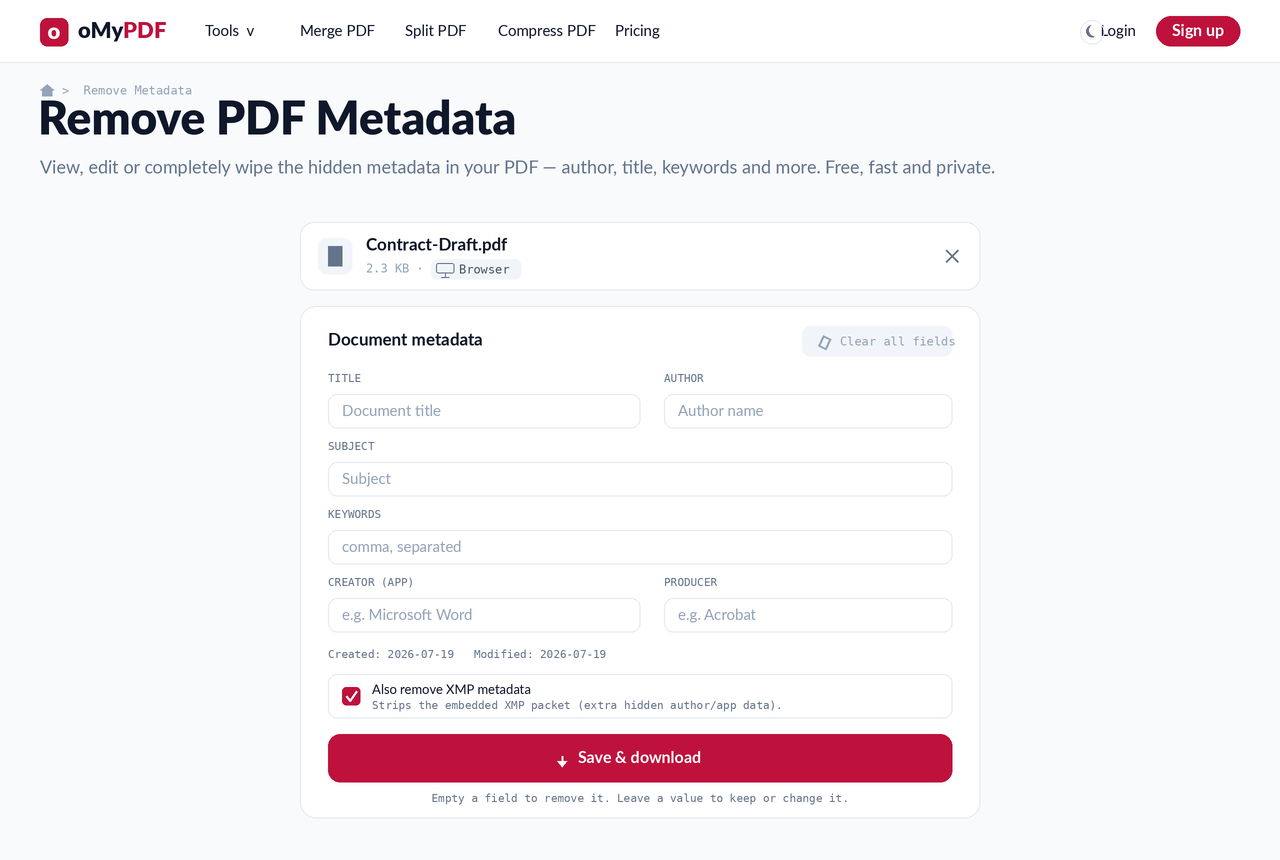
Click Clear all fields to wipe everything, or empty individual fields you want gone (leave a value to keep or change it). Keep “Also remove XMP metadata” ticked to strip the embedded XMP packet too.
- 4
Save & download
Click Save & download to get a clean copy with the metadata removed — processed in your browser, so your document never leaves your device.
Tips
- See what's hidden: PDFs quietly store the author, software used, creation date, edit history and sometimes GPS coordinates — this tool shows all of it.
- One-click wipe: use Clear all fields to strip everything, or empty just the fields you care about and leave the rest.
- Strip the XMP packet too: keep “Also remove XMP metadata” checked to remove the extra hidden author/app data many editors embed.
- Private by default: smaller files are cleaned entirely in your browser, so your document is never uploaded.
Ready to clean your PDF's metadata?
Free, private, and no sign-up required.