Guide · 2 min read
How to Sign a PDF
The oMyPDF Sign PDF tool lets you add your signature to a PDF — draw, type or upload it, then place, resize and add a date. You can sign a PDF without printing or scanning, and smaller files are processed right inside your browser.
Quick overview
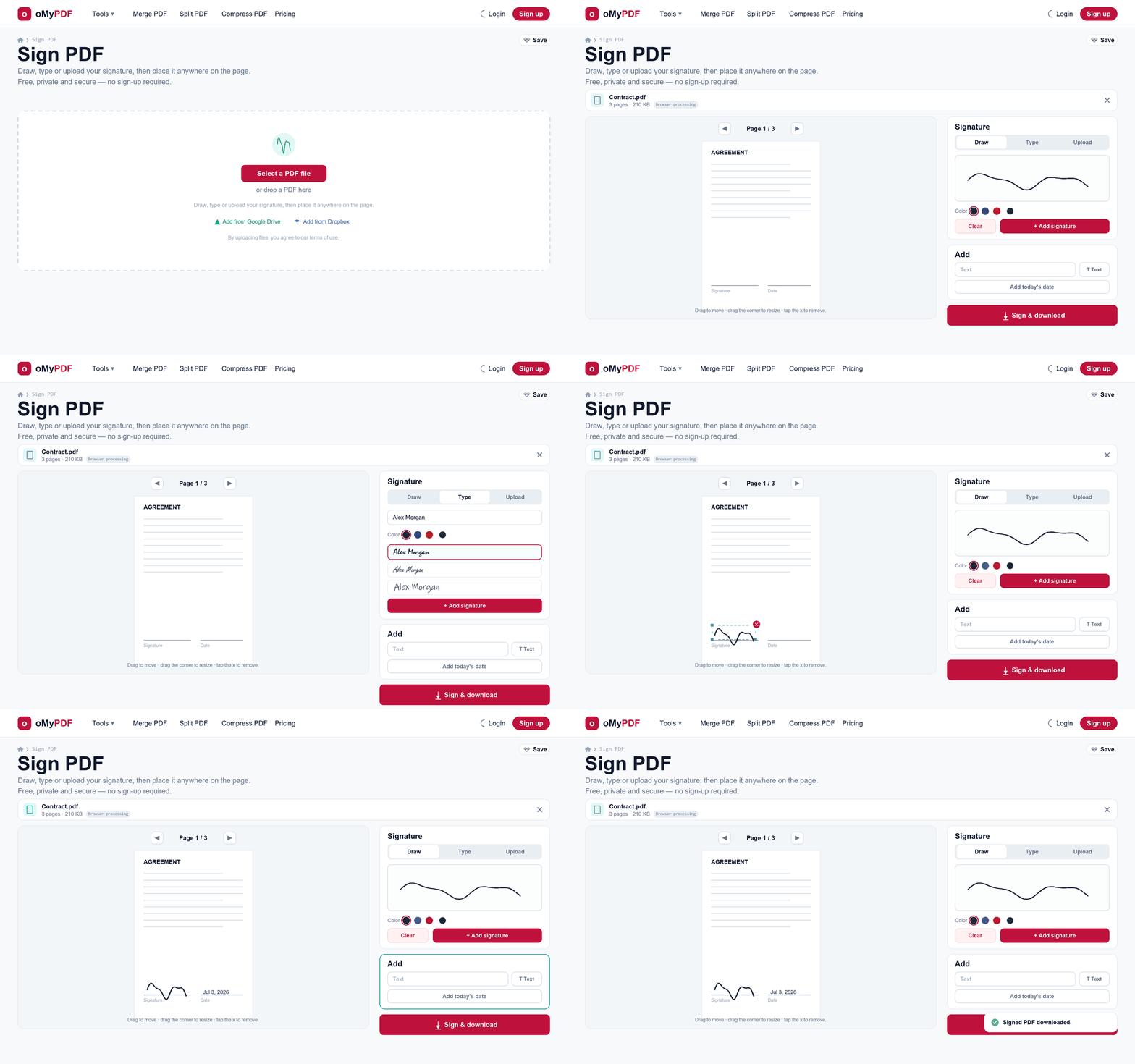
The full workflow: add a PDF, create your signature, place it on the page, then sign and download.
Step-by-step
- 1
Open the tool
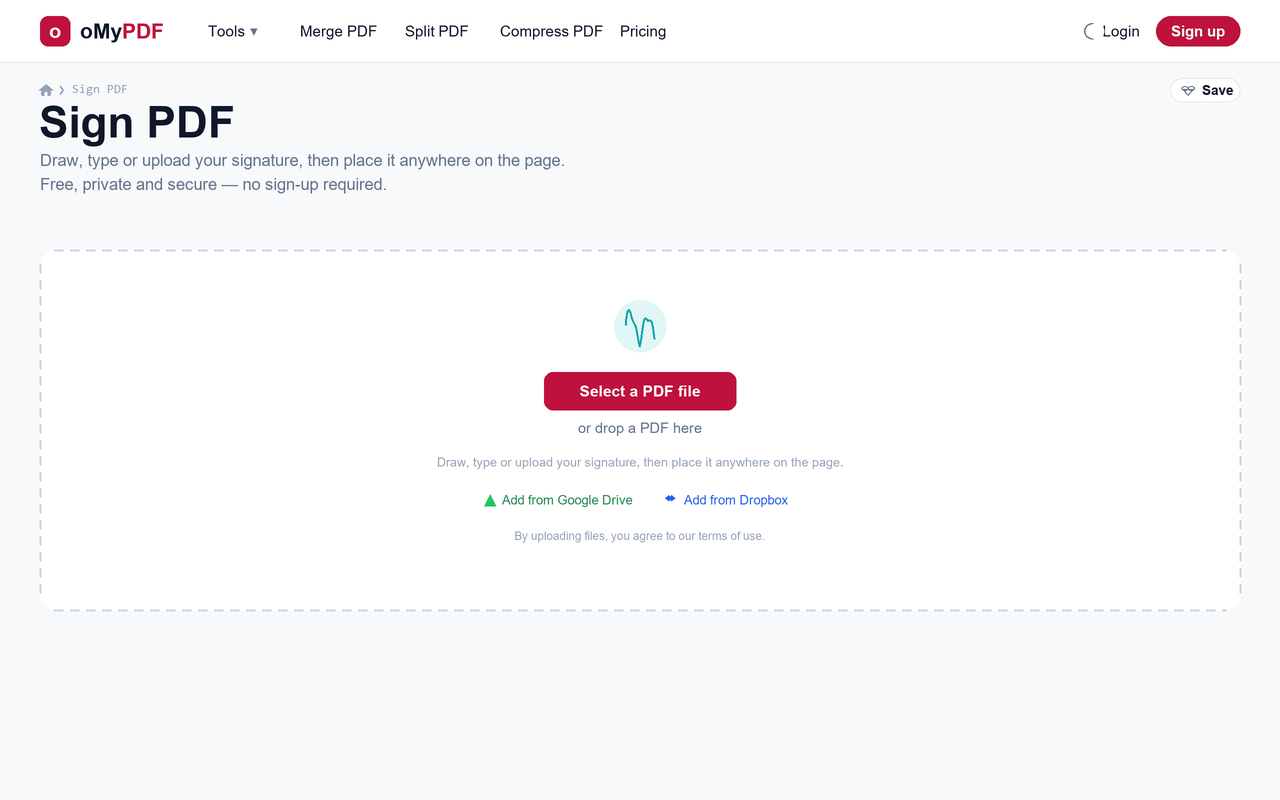
Go to the Sign PDF page. Click Select a PDF file, or drag a PDF straight onto the upload area.
- 2
Draw your signature
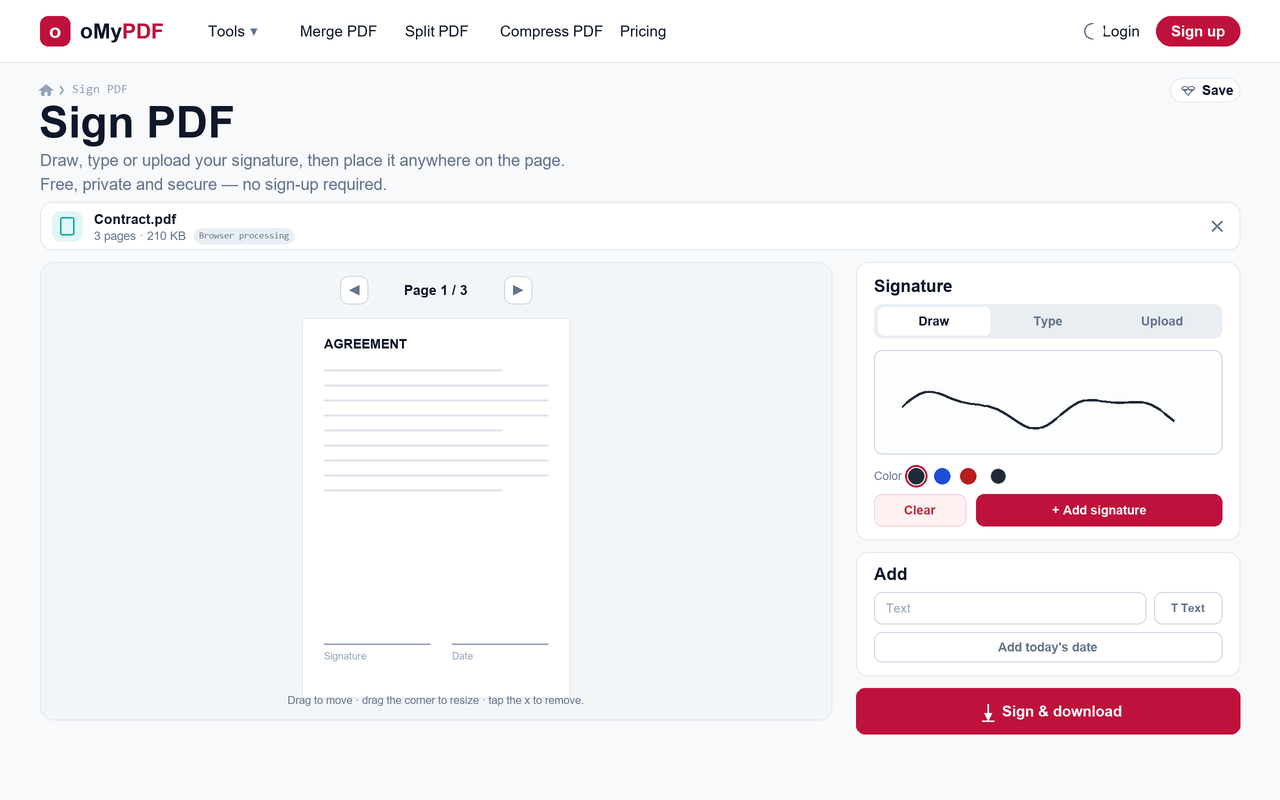
On the Draw tab, sign with your mouse, trackpad or finger, pick a colour, then click Add signature. Use Clear to start over if you need to.
- 3
Or type or upload it
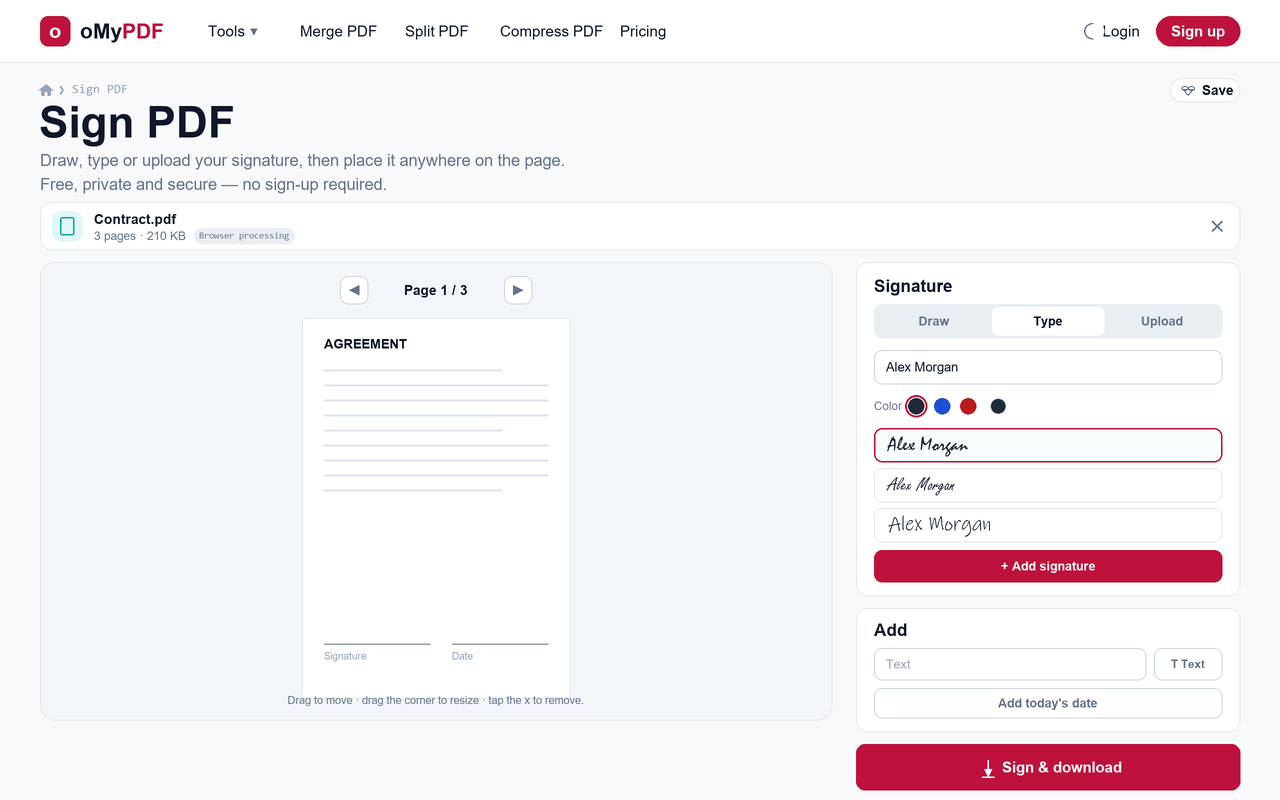
Prefer not to draw? Switch to Type to write your name in a handwriting font, or Upload to add a signature image (a transparent PNG works best).
- 4
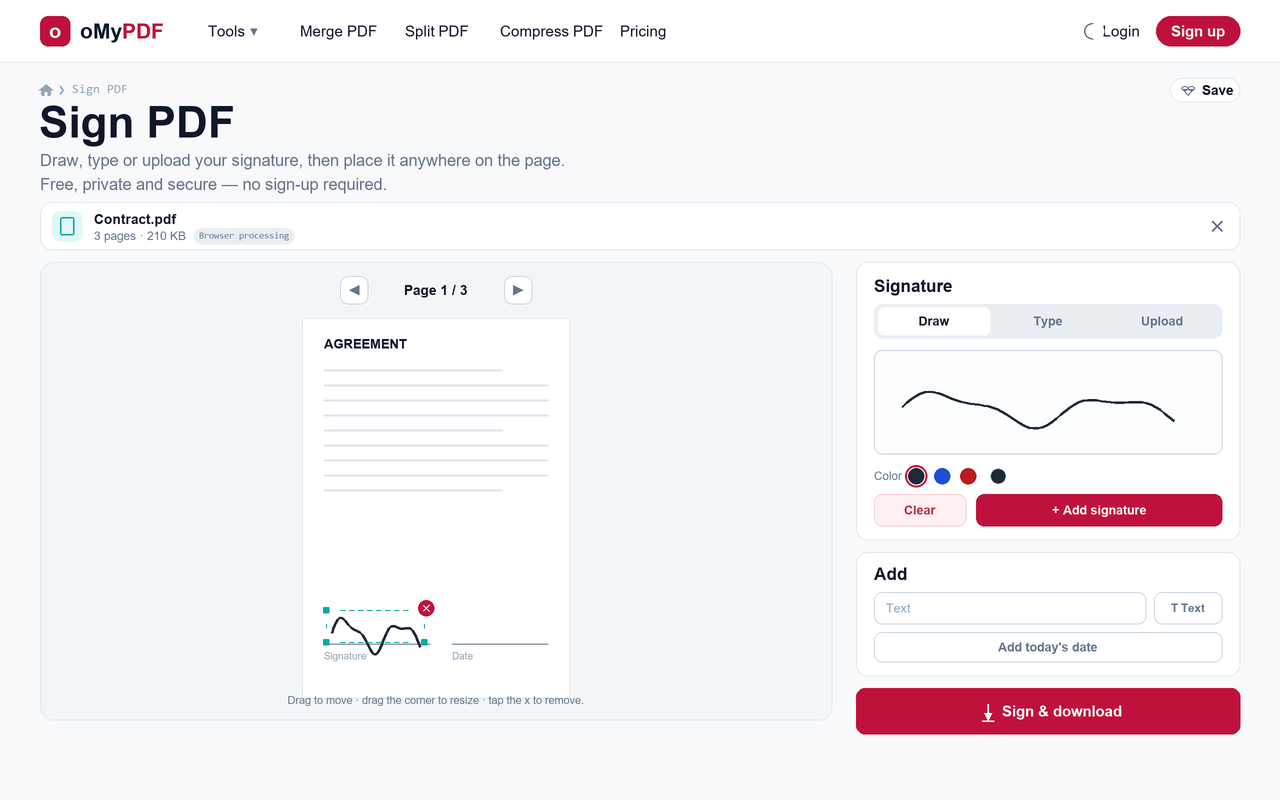
Place & resize it
Your signature drops onto the page — drag it exactly where it belongs, drag a corner to resize, and use the page arrows to sign other pages. Tap the ✕ to remove it.
- 5
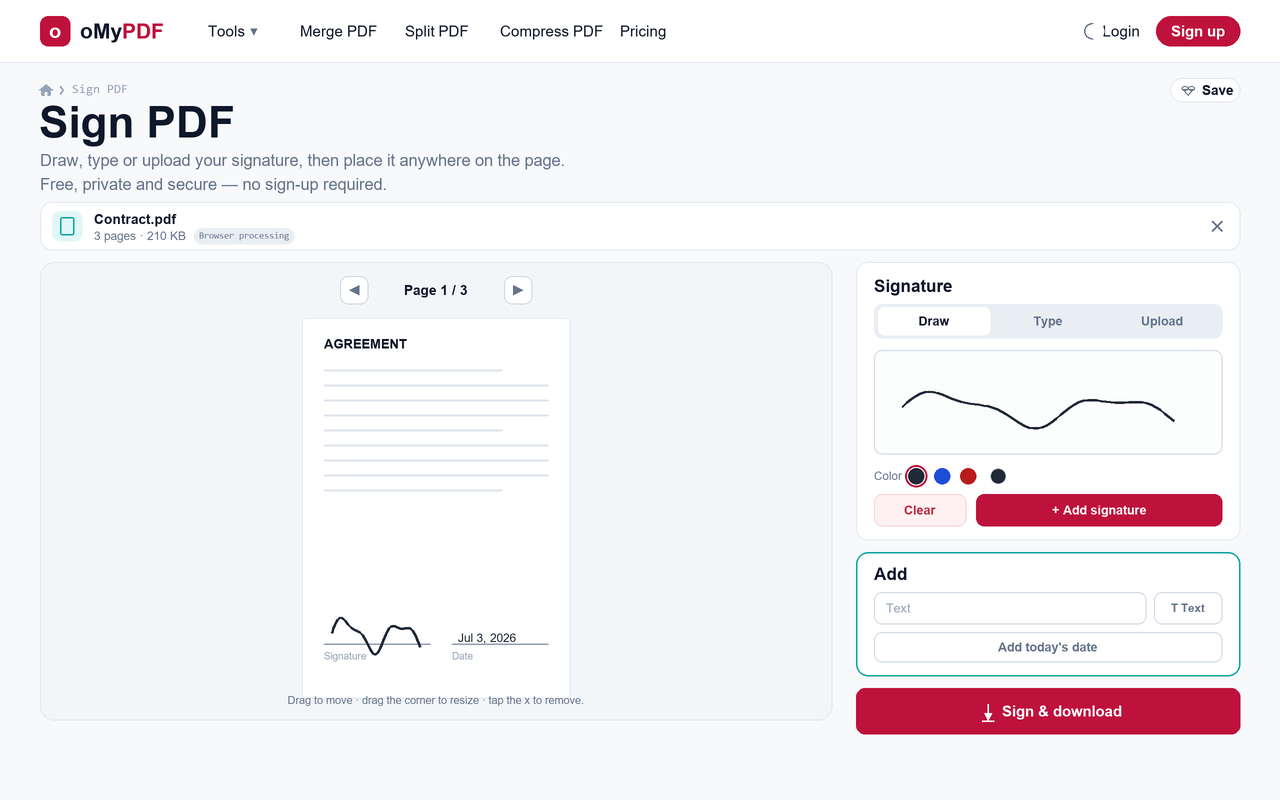
Add a date or text
Need more than a signature? In the Add panel, insert any text, or click Add today's date to stamp the date next to your signature.
- 6
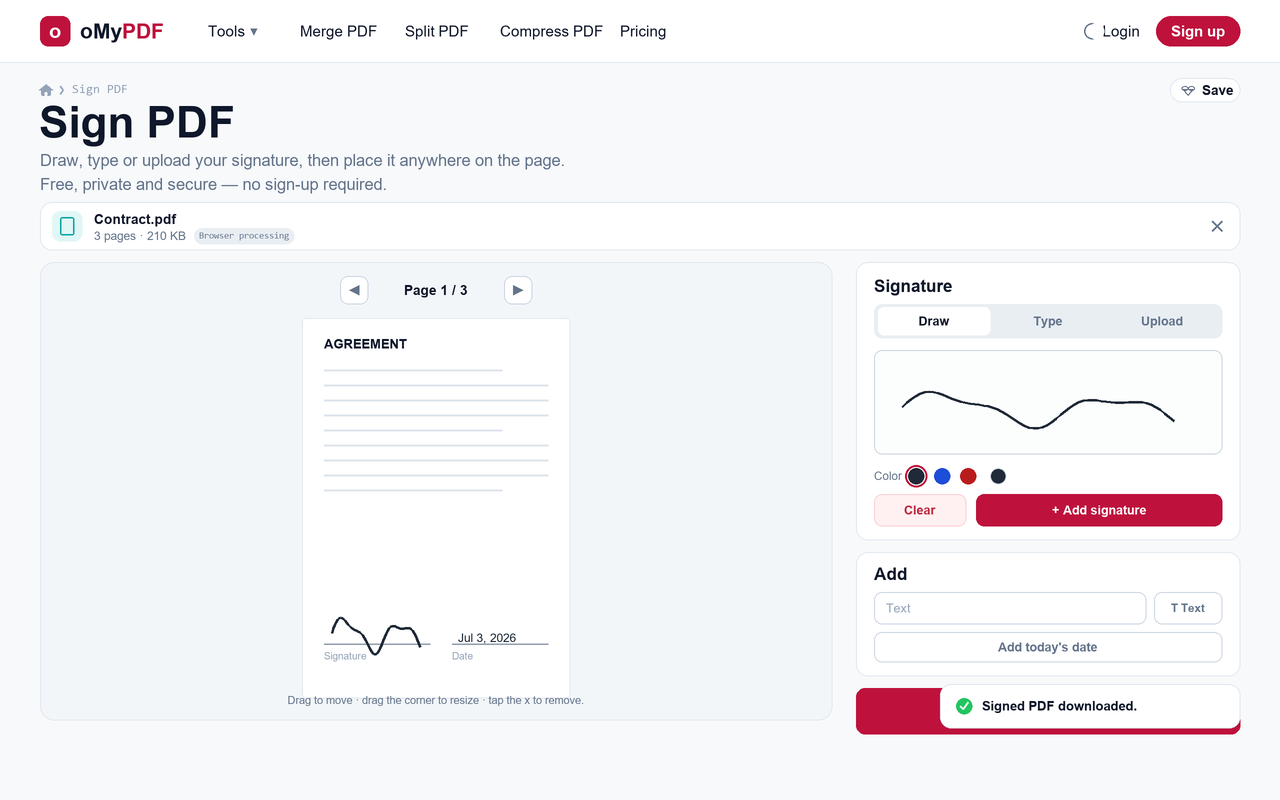
Sign & download
Click Sign & download. Your signed PDF is generated and downloads automatically — with no watermark on the output.
Tips
- Three ways to sign: draw with your mouse or finger, type your name in a handwriting font, or upload a signature image — whatever's easiest.
- Reuse it: your signature is saved for the session, so you can place it again on other pages with one click.
- More than a signature: add the date, initials or any text, and position each element precisely by dragging.
- Stays private: you can sign a PDF without printing or scanning — smaller files are processed right in your browser and never uploaded.
Ready to sign your PDF?
Free, private, and no sign-up required.