Guide · 2 min read
How to Split a PDF
The oMyPDF Split PDF tool lets you extract pages from a PDF or split a PDF into separate files — by page range, every N pages, or hand-picked pages. Smaller files are split right inside your browser, so nothing leaves your device.
Quick overview
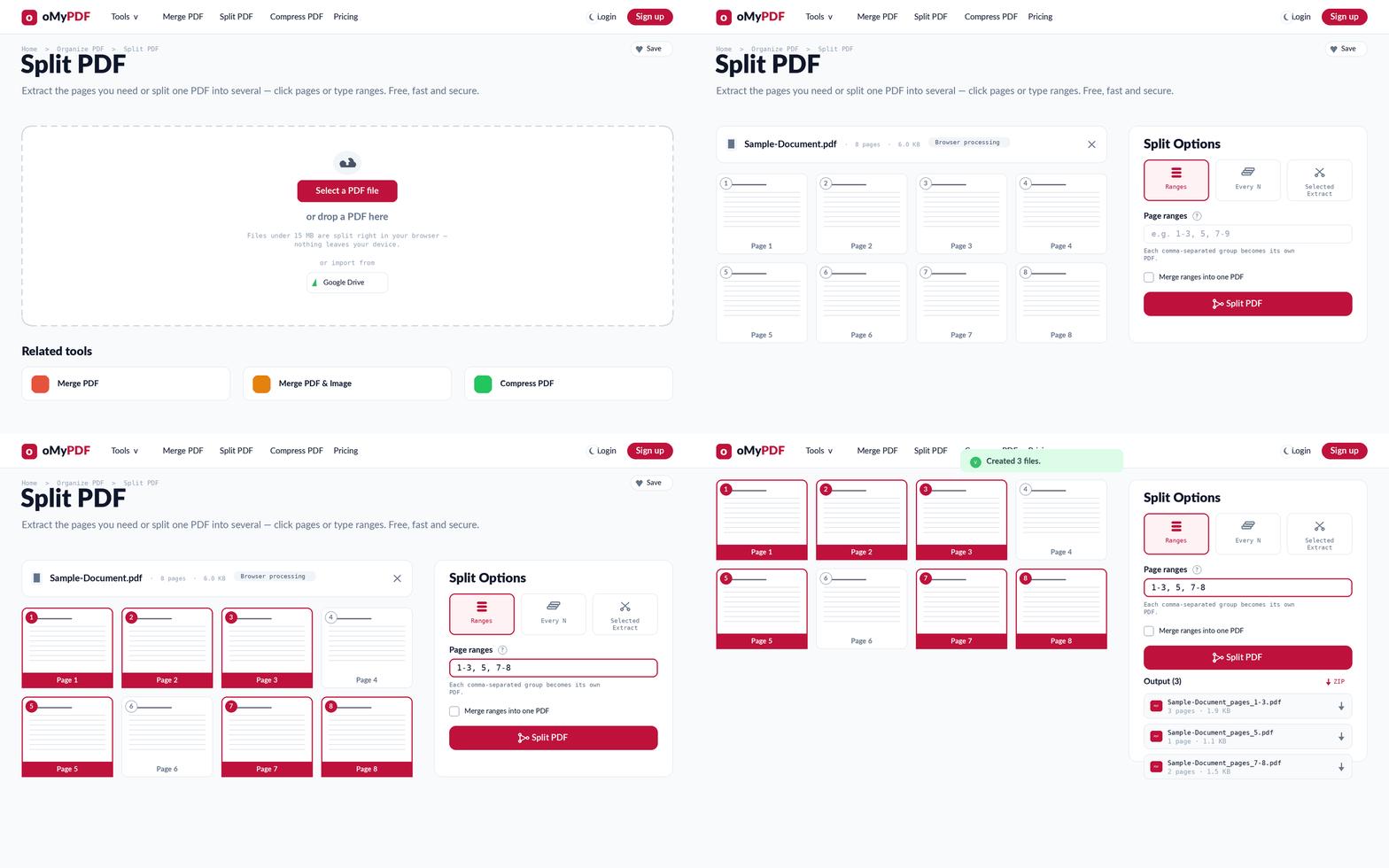
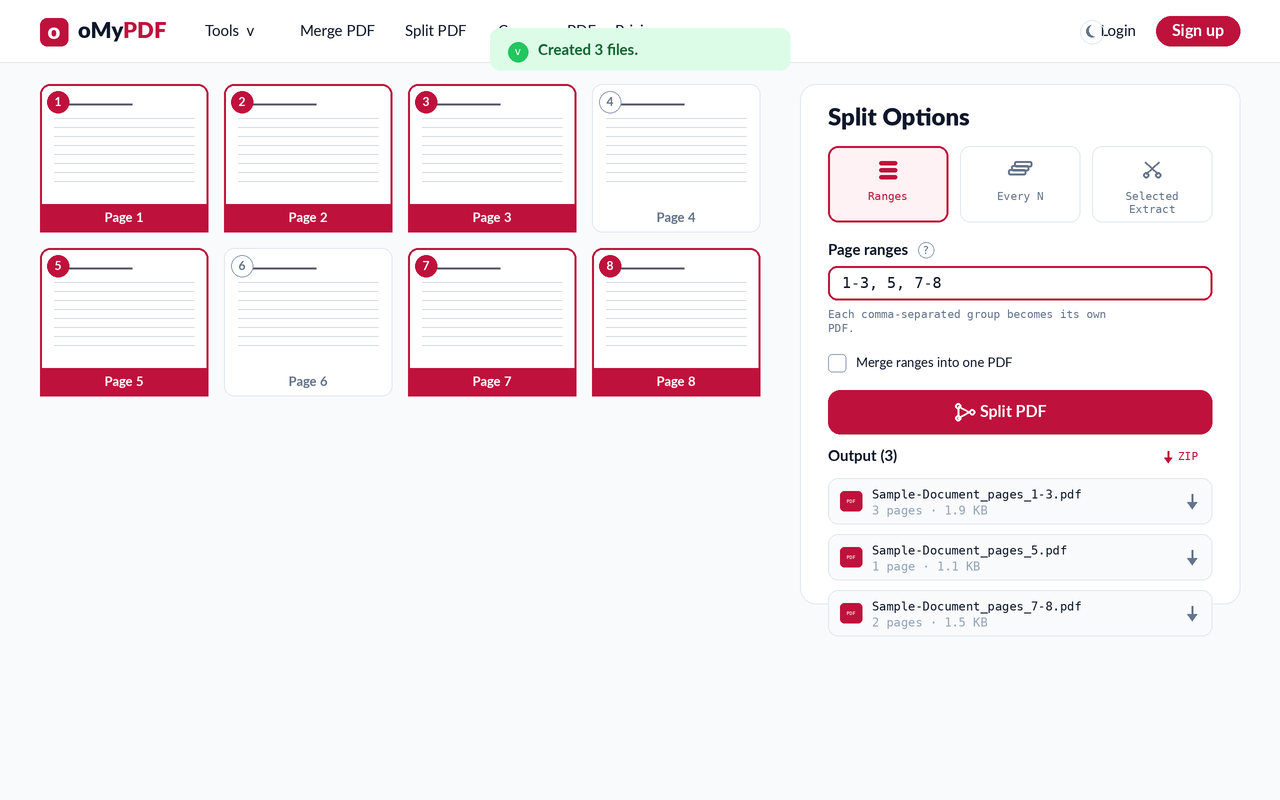
The full workflow: add a PDF, pick pages or ranges, then split and download.
Step-by-step
- 1
Open the tool
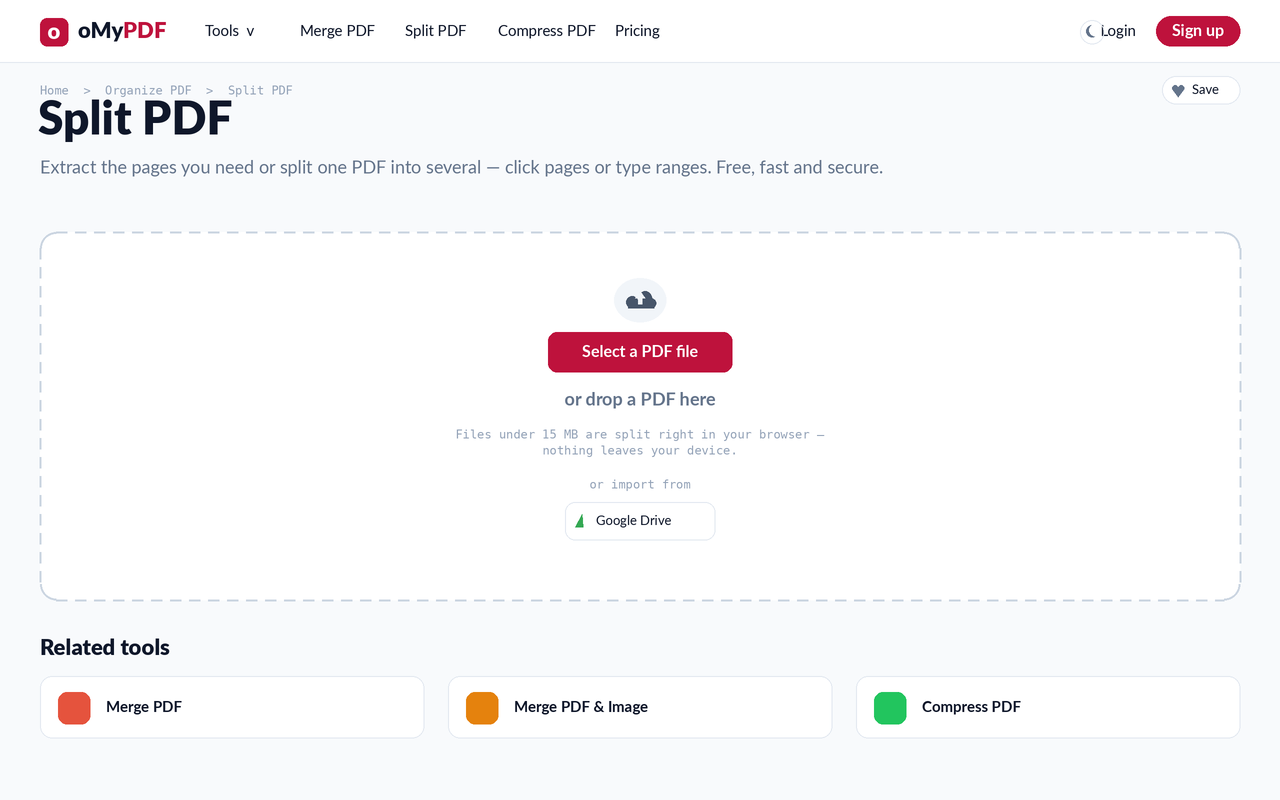
Go to the Split PDF page. Click Select a PDF file, or drag a PDF straight onto the upload area.
- 2
Add your PDF
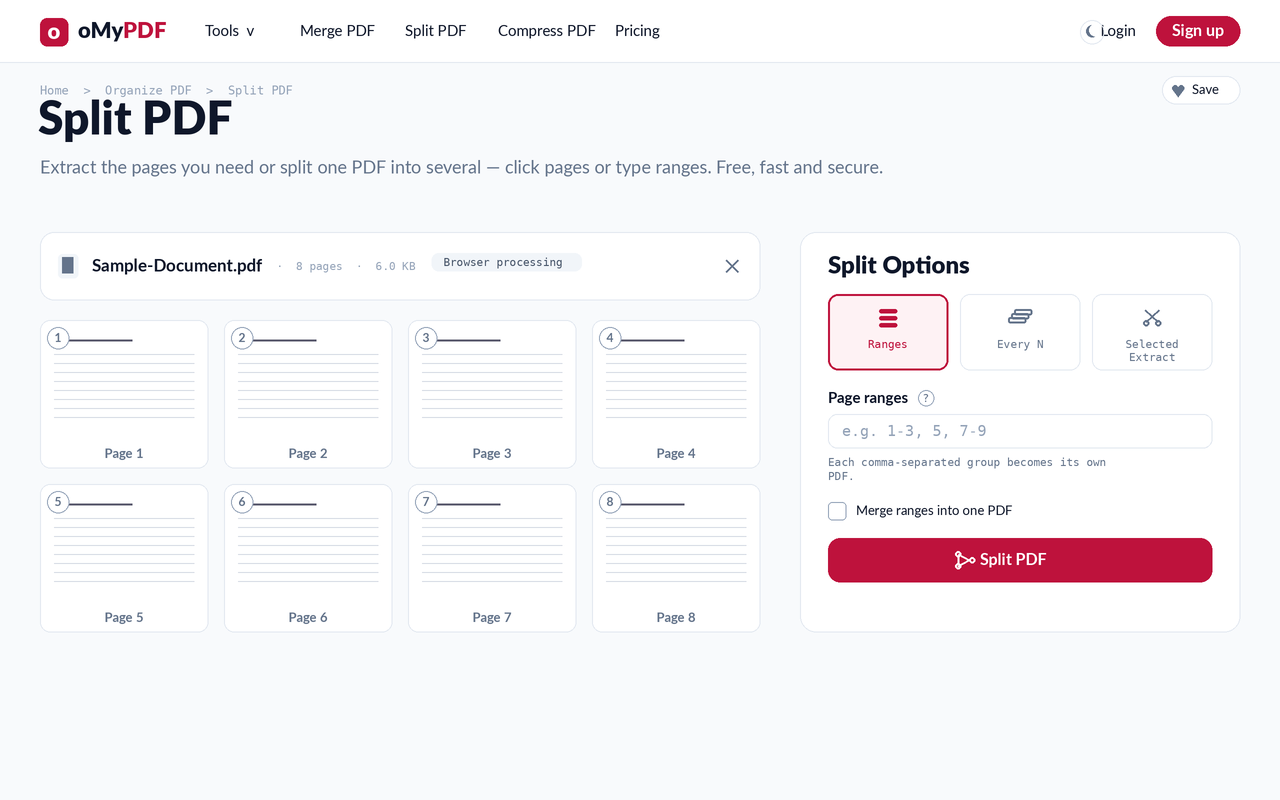
Once your file is added, every page appears as a thumbnail in a visual picker, with a Split Options panel on the right. Choose a mode: Ranges, Fixed Size, or Selected Extract.
- 3
Choose pages or ranges
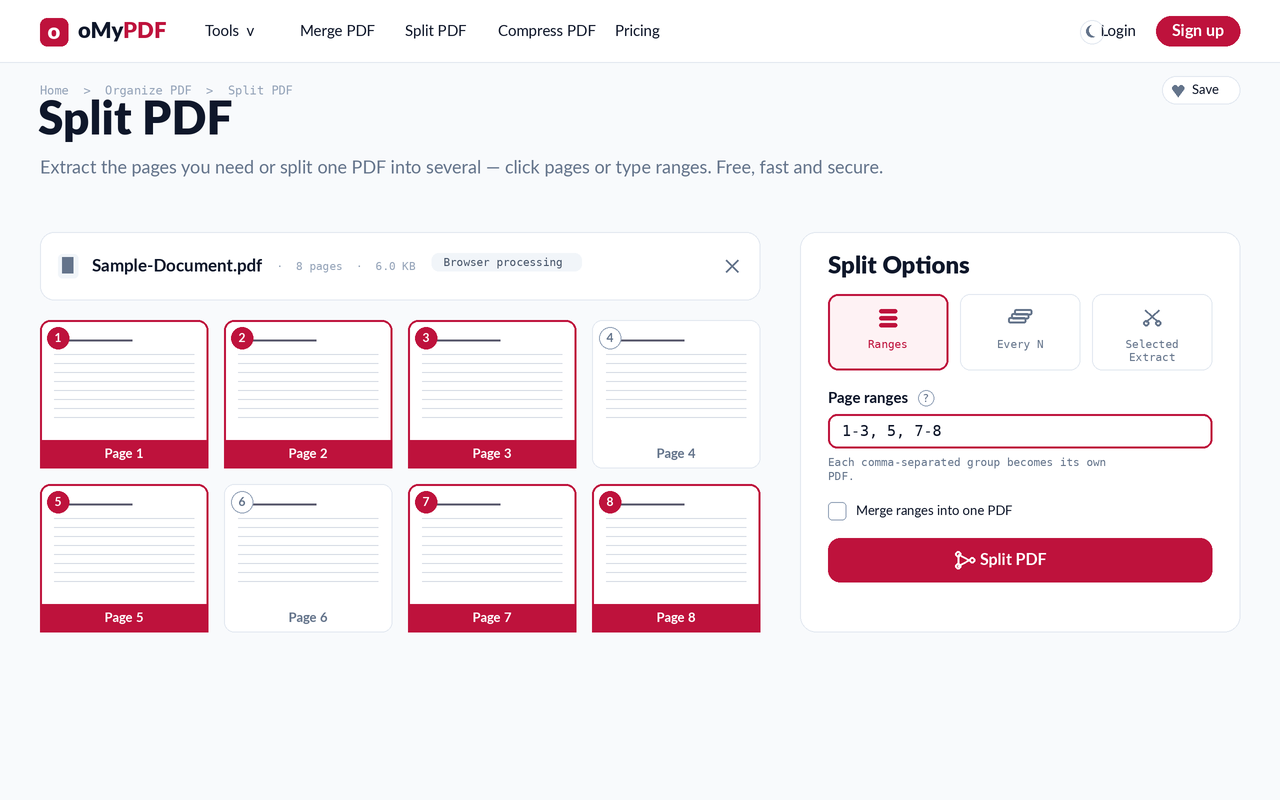
In Ranges mode, type comma-separated groups like 1-3, 5, 7-8 — each group becomes its own PDF, and the matching pages highlight in the grid. Tick “Merge ranges into one PDF” if you'd rather get a single file.
- 4
Split & download
Click Split PDF. The output files appear in the panel — download them individually, or grab them all at once as a ZIP.
Tips
- Three ways to split: type page Ranges, use Fixed Size to cut every N pages, or use Selected Extract to click the exact pages you want.
- One file or many: keep “Merge ranges into one PDF” unchecked to get separate PDFs (delivered as a ZIP), or check it to combine your selection into a single document.
- Visual picker: the page thumbnails highlight as you type ranges, so you can confirm you're grabbing the right pages.
- Stays private: smaller files are split entirely in your browser; larger files use encrypted server processing and are deleted right after.
Ready to split your PDF?
Free, private, and no sign-up required.