Guide · 3 min read
How to Convert a Bank Statement PDF to Excel
The oMyPDF Bank Statement to Excel tool extracts every transaction from a PDF bank statement into an editable spreadsheet — date, description, money out, money in and balance. It reads scanned and password-protected statements, validates each row against the running balance, and runs right in your browser so your data stays private.
Quick overview
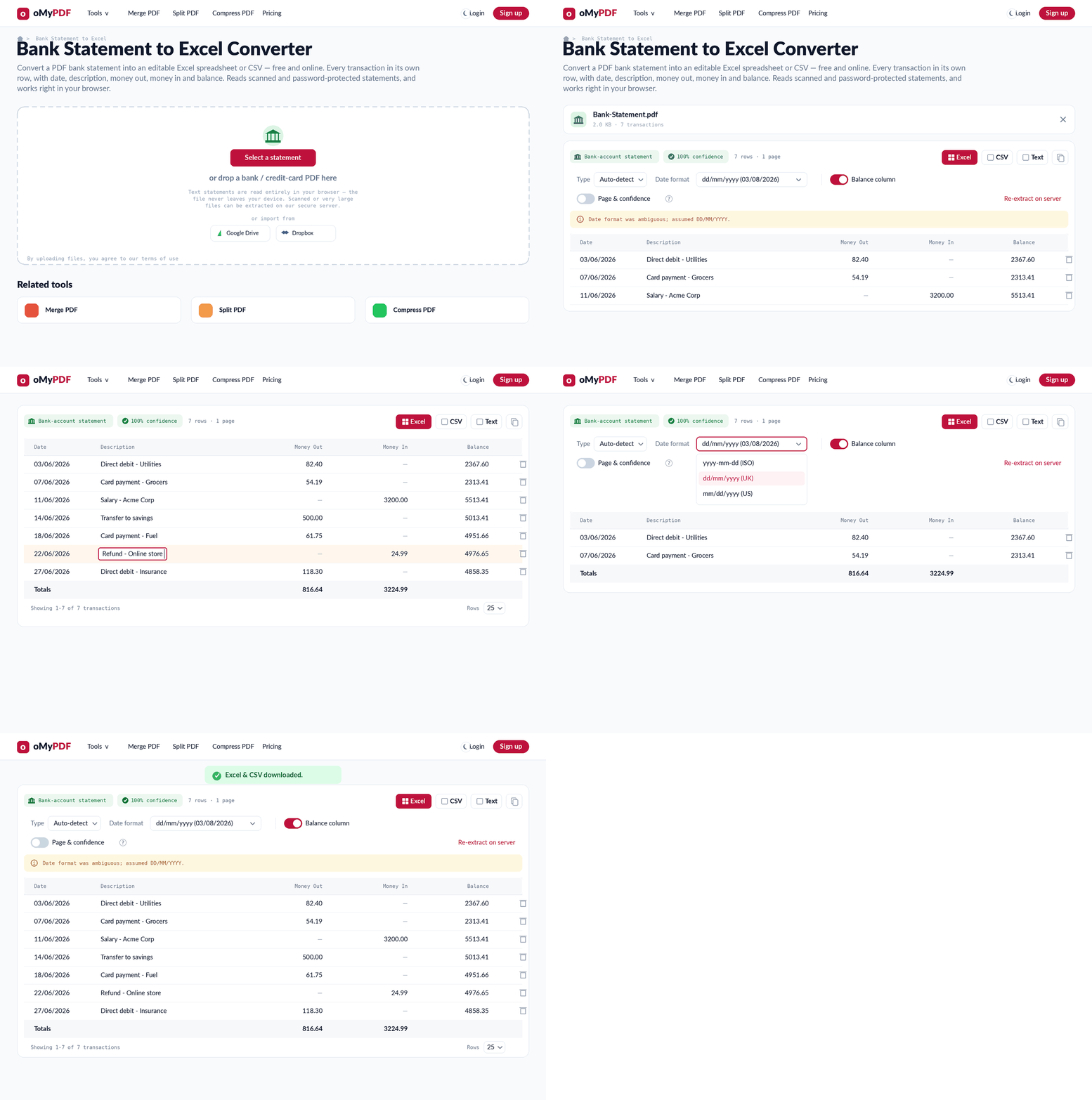
The full workflow: add a bank statement PDF, let it extract the transactions, review and edit the rows, then download Excel and CSV.
Step-by-step
- 1
Open the tool
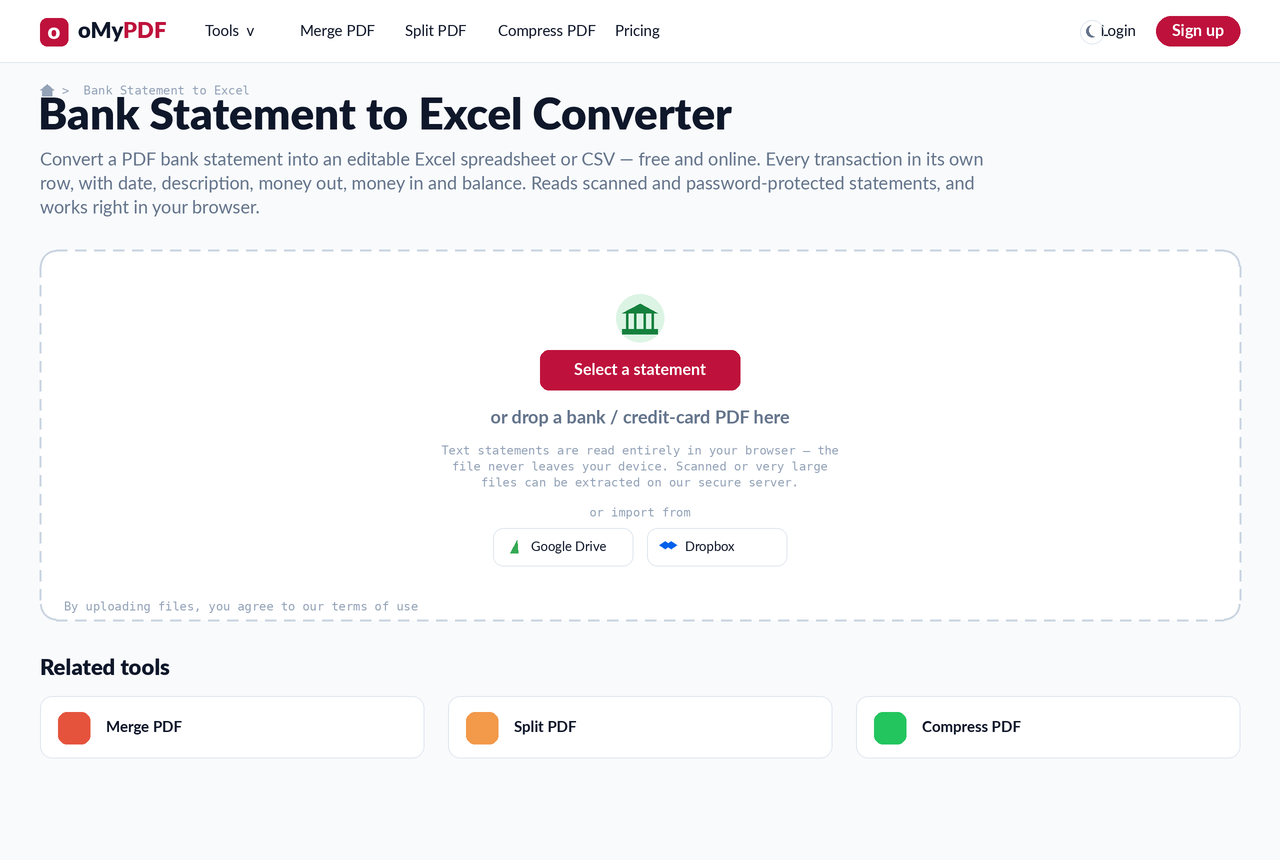
Go to the Bank Statement to Excel page. Click Select a bank statement, or drag a PDF straight onto the upload area. If the statement is password-protected, enter the password when prompted — it's used to unlock the file in your browser and is never sent anywhere.
- 2
Let it extract the transactions
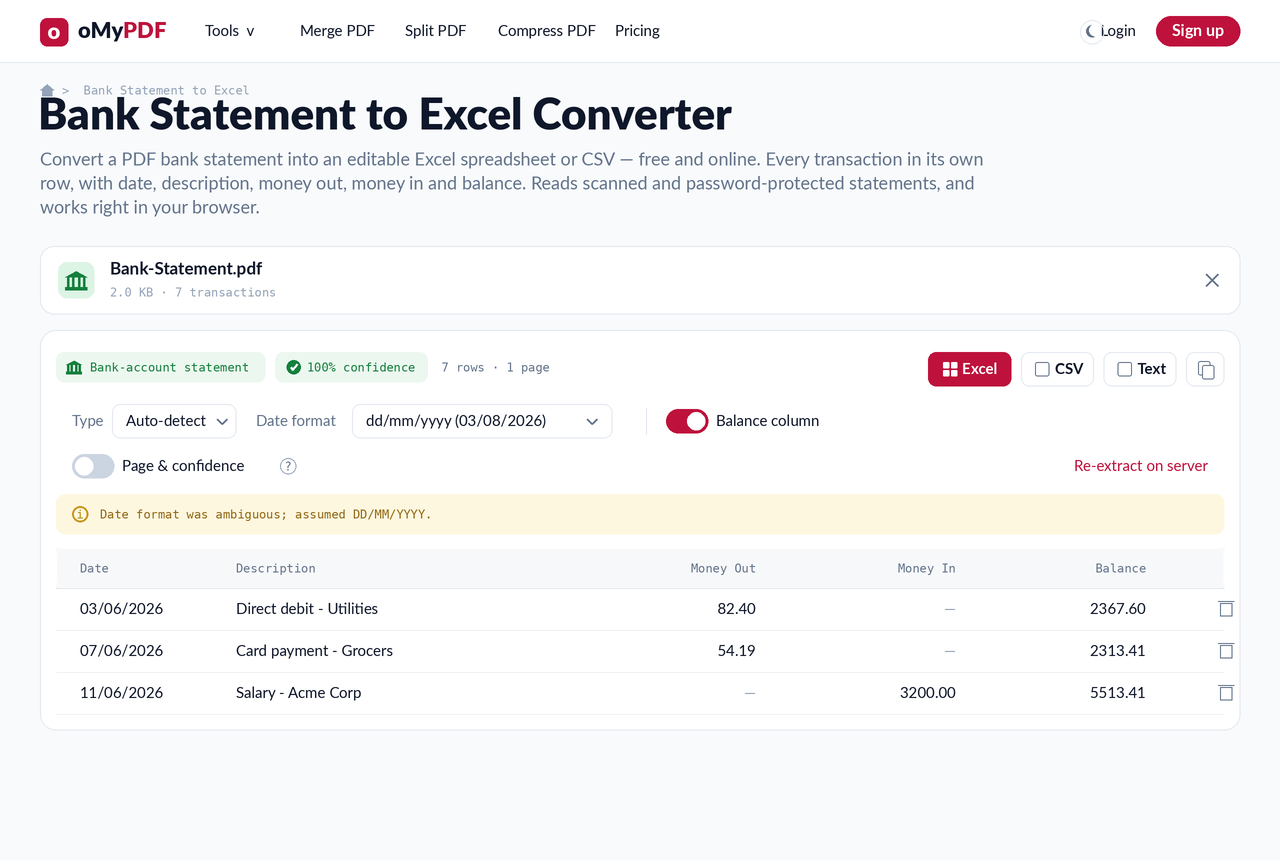
oMyPDF reads the statement automatically. Text-based statements are parsed instantly in your browser. If the file is a scan or photo with no selectable text, on-device OCR reads it (up to 20 pages; longer scans are handled on the secure server).
- 3
Review and edit the preview
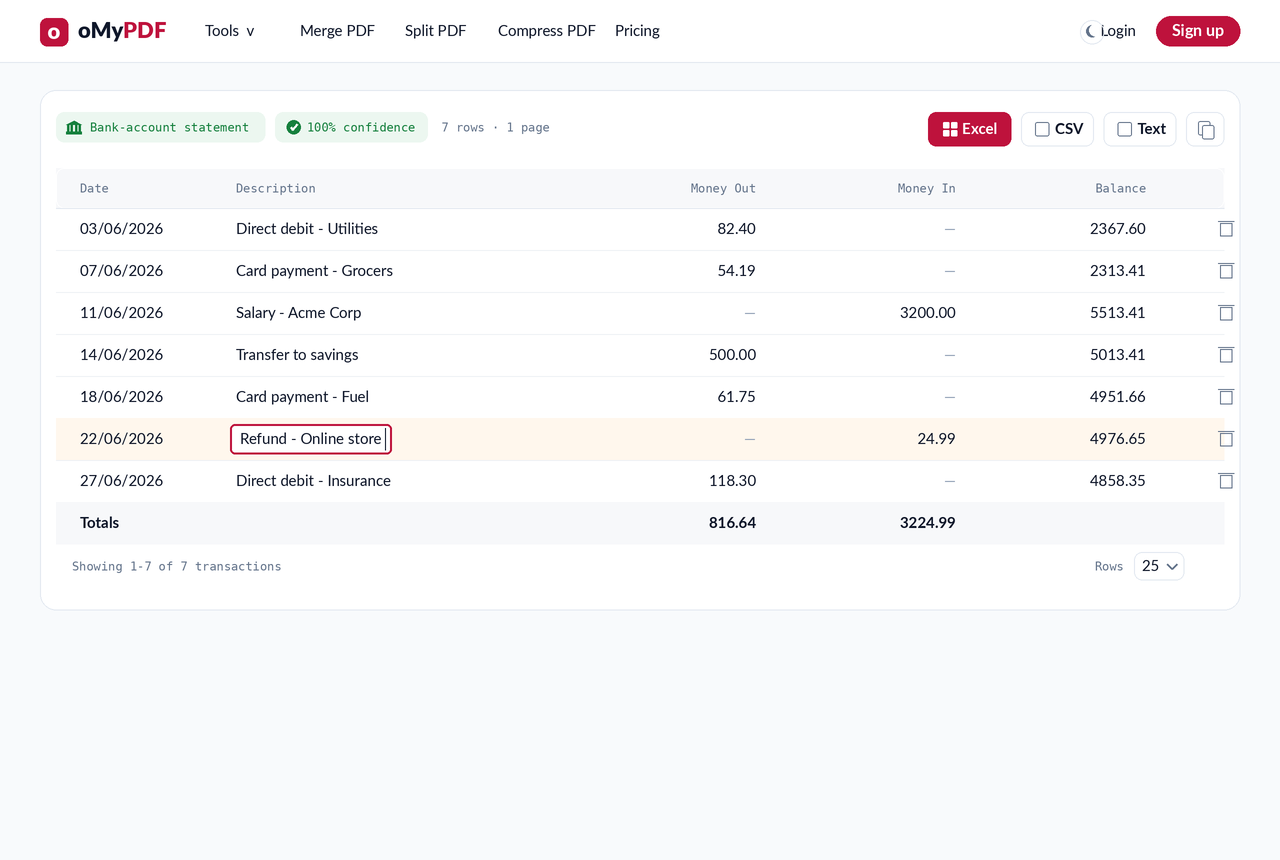
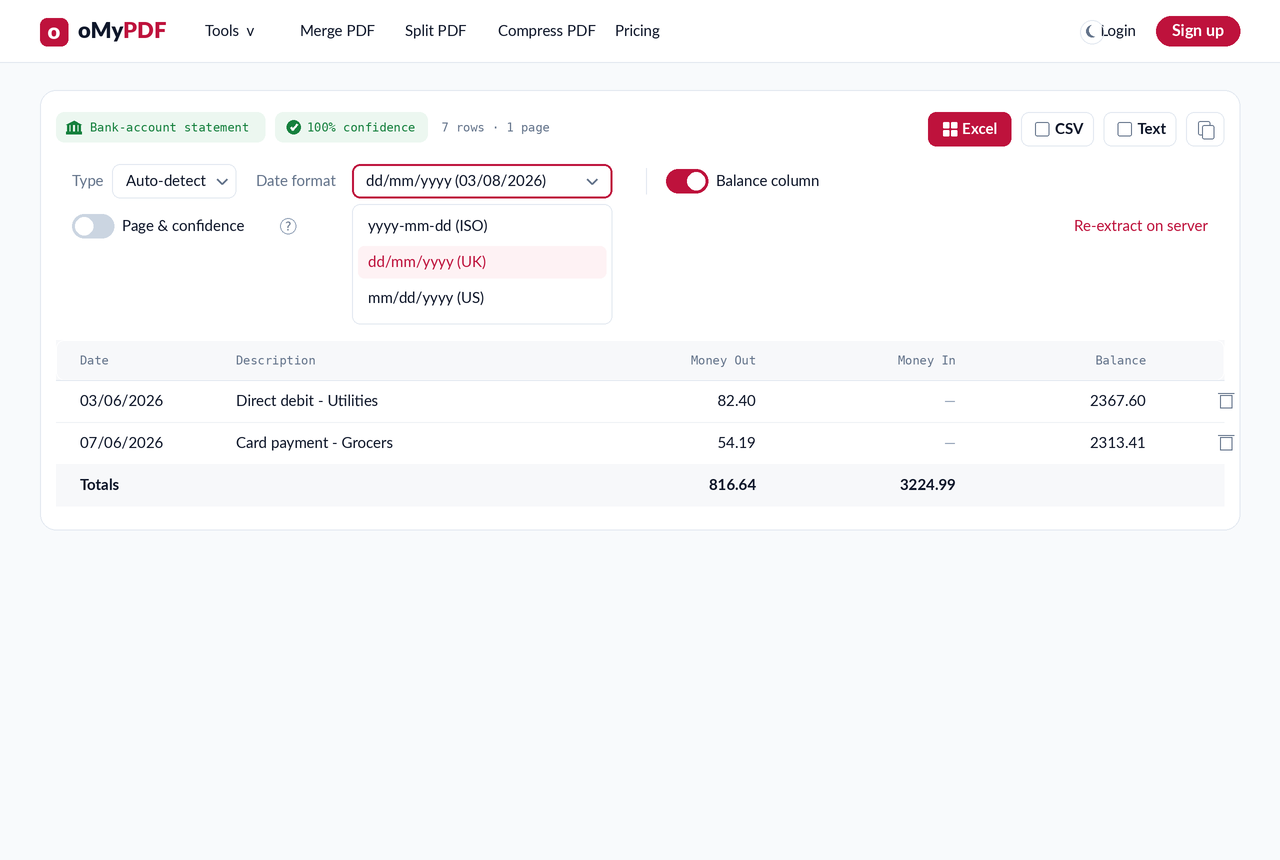
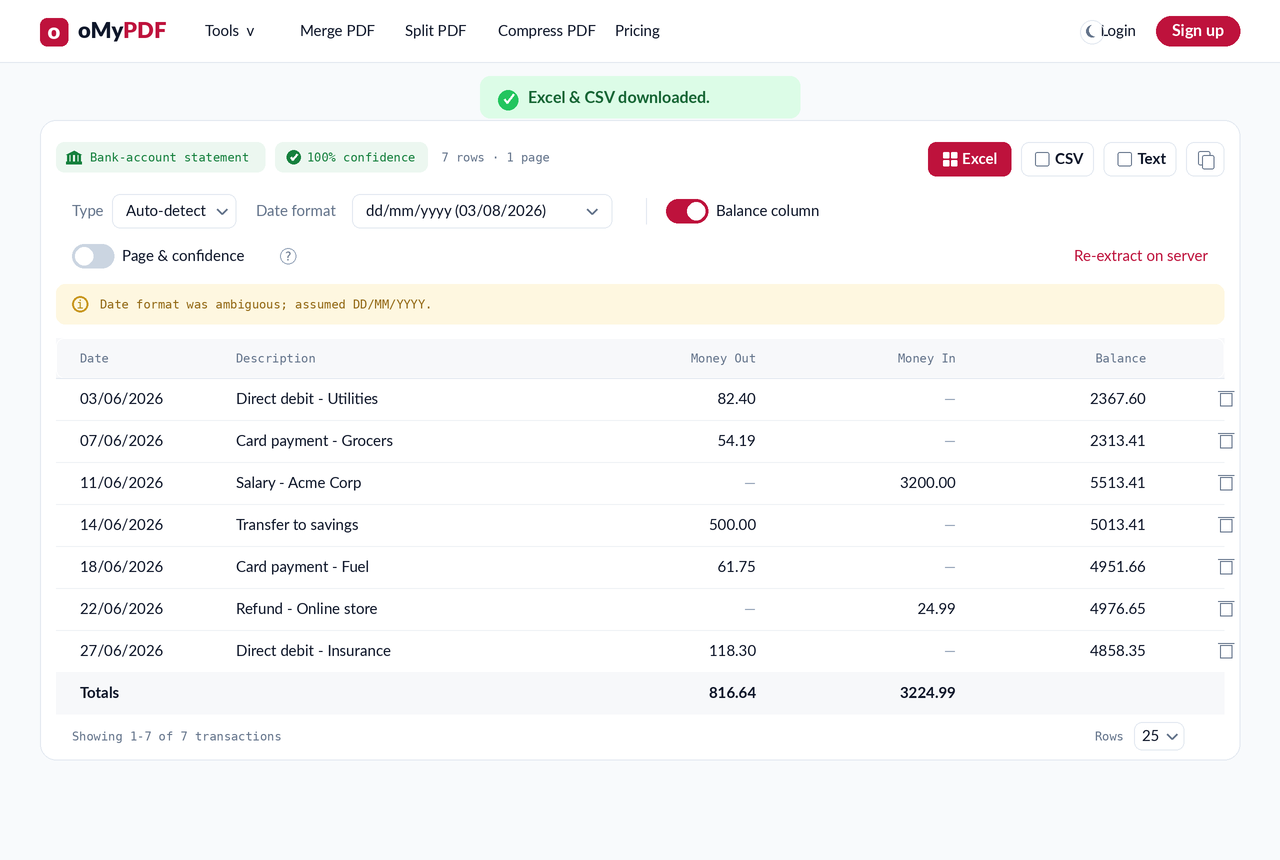
Every transaction appears in an editable table with Date, Description, Money Out, Money In and Balance. Each row is checked against the running balance, and anything that couldn't be verified is highlighted. Click any cell to fix it, or delete rows you don't want.
- 4
Choose your options
Pick a date format (ISO, UK or US), and toggle whether to include the Balance column and the Page/Confidence columns. The totals row updates live so you can sanity-check money in and money out.
- 5
Download Excel & CSV
Click Download Excel & CSV. You get a clean .xlsx workbook (dates and amounts as real, sortable cells) plus a .csv you can import into QuickBooks, Xero or Google Sheets.
Tips
- Private by default: text statements are parsed entirely in your browser and never uploaded — ideal for sensitive financial data.
- Scanned statement? The tool automatically switches to OCR, so photographed or image-only statements still convert into structured rows.
- Password-protected statements work too: enter the password once and oMyPDF unlocks the file locally before extracting.
- Any bank, any format: the parser detects debit/credit columns, single signed amounts, and US, UK or Indian date and number formats — no template needed.
- Always eyeball the highlighted rows: a low-confidence row means the running balance didn't add up, so it's worth a quick check before you export.
Ready to convert your statement?
Free, private, and no sign-up required.