Guide · 2 min read
How to Redact a PDF
The oMyPDF Redact PDF tool permanently blacks out sensitive text in a PDF — draw over it or find every match, then flatten the pages so the hidden content can't be recovered. It runs entirely in your browser, so nothing is uploaded.
Quick overview
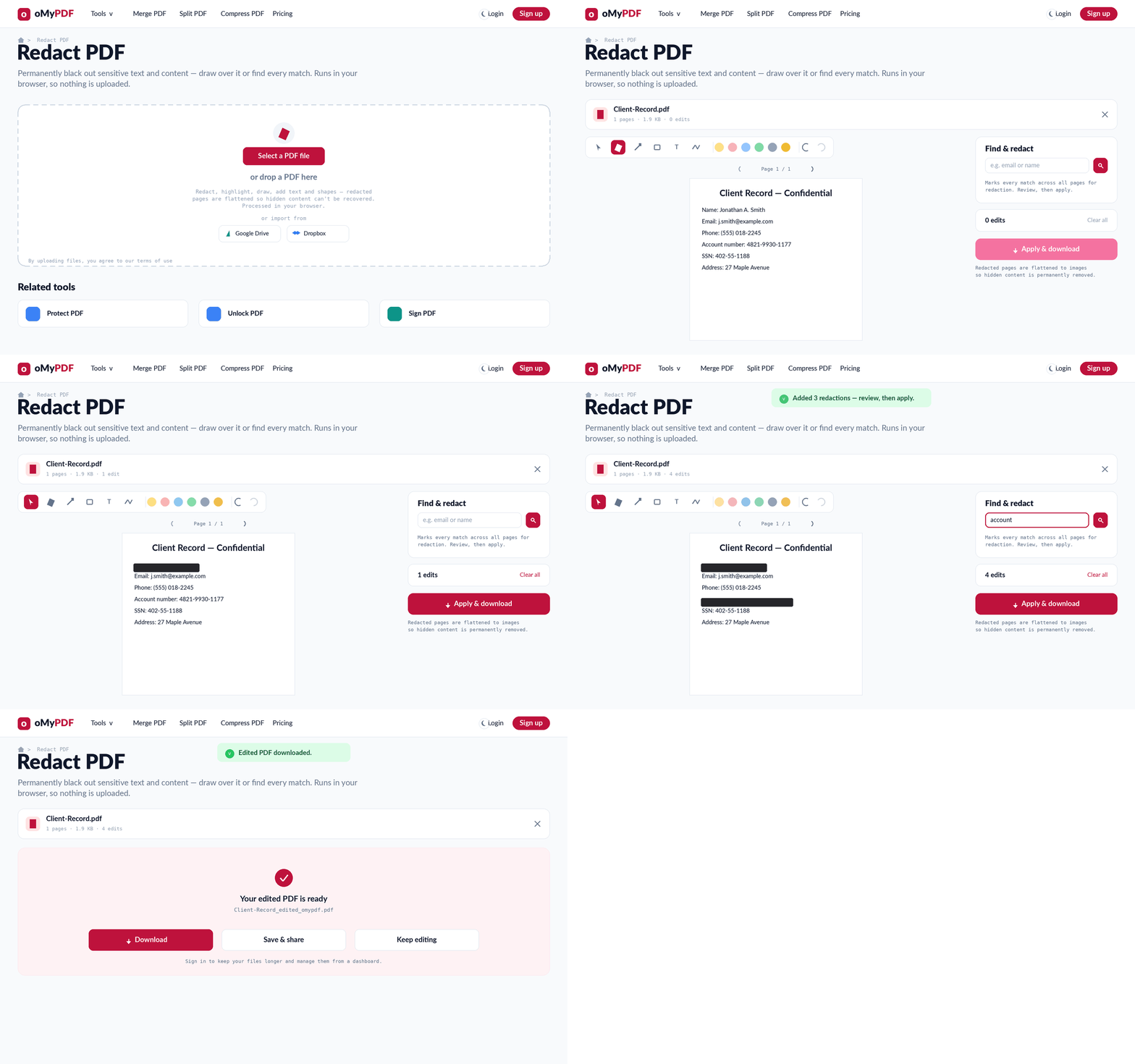
The full workflow: open your PDF, black out sensitive text by hand or with Find & redact, then apply and download.
Step-by-step
- 1
Open the tool
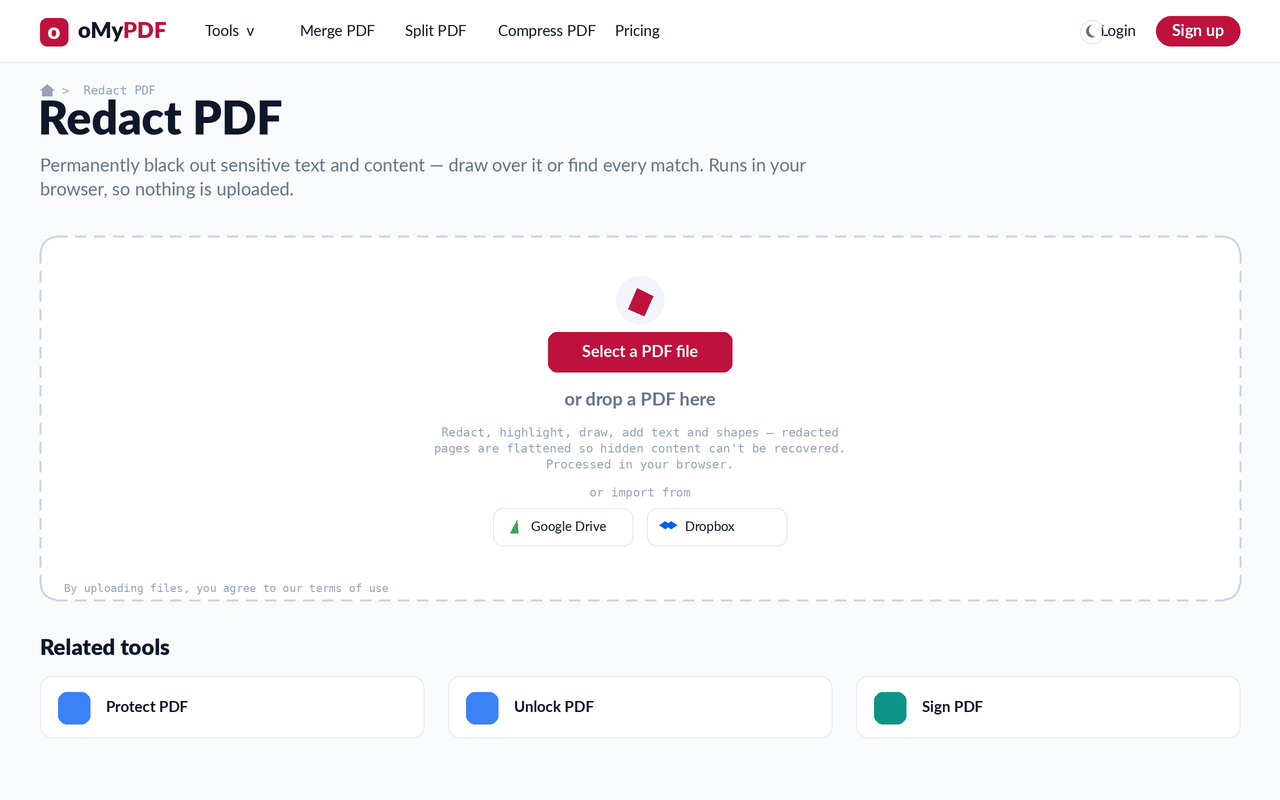
Go to the Redact PDF page. Click Select a PDF file, or drag the document with sensitive content onto the upload area.
- 2
Open the editor
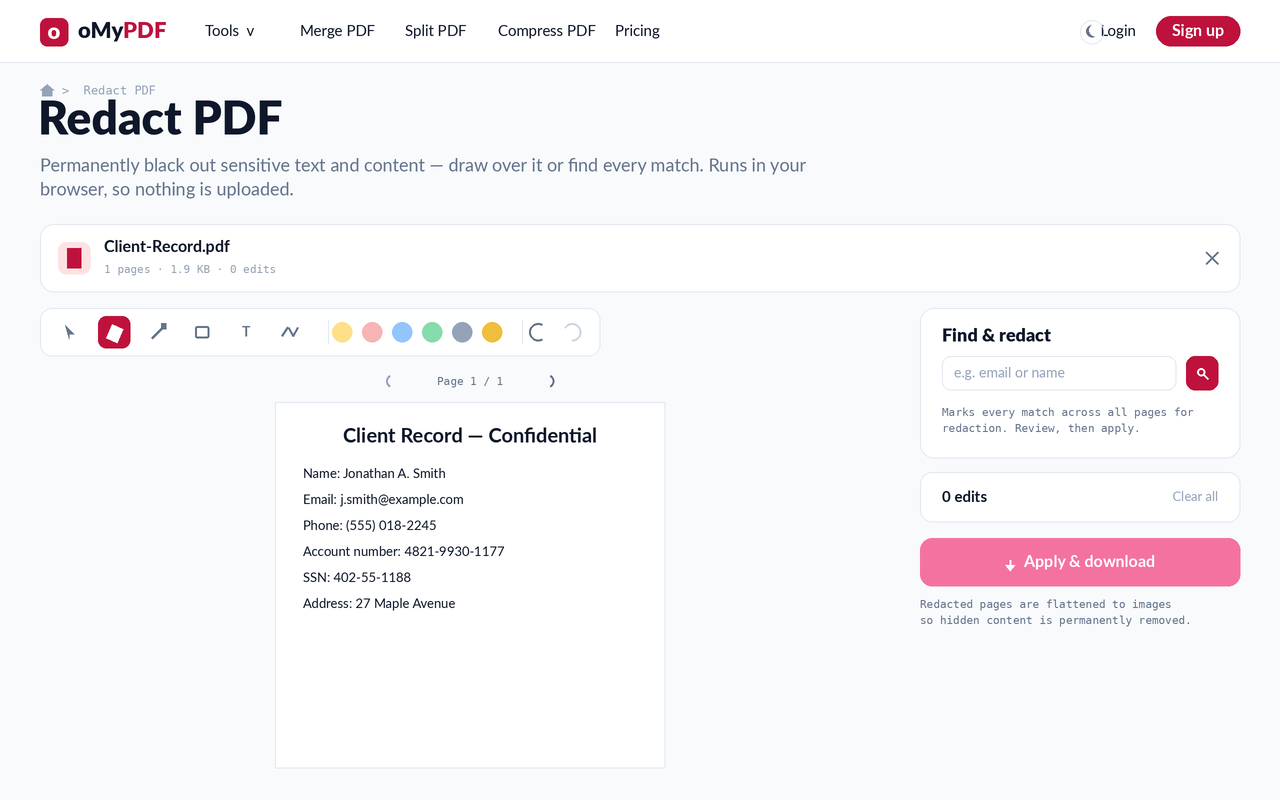
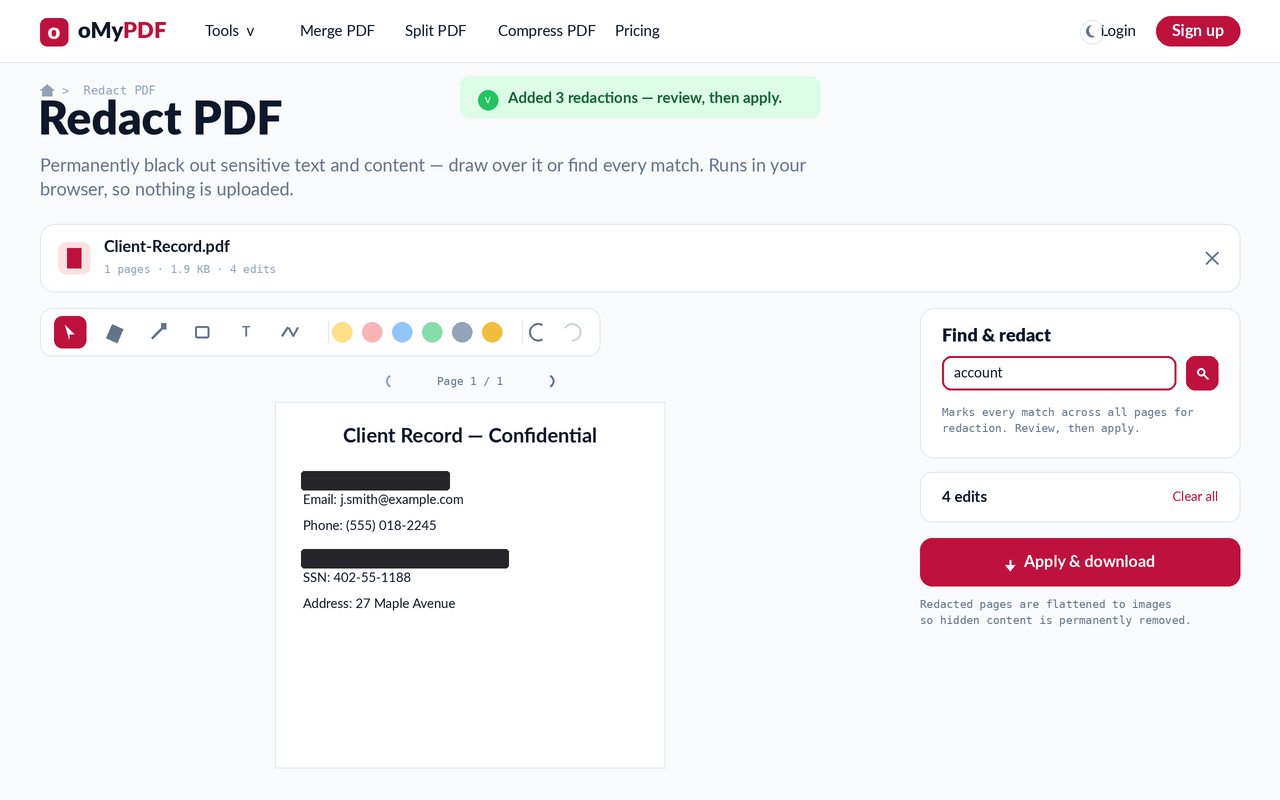
Your PDF opens in the editor with a toolbar (redact, highlight, rectangle, text and draw tools) and a Find & redact panel on the right. Everything runs in your browser — nothing is uploaded.
- 3
Draw over sensitive text
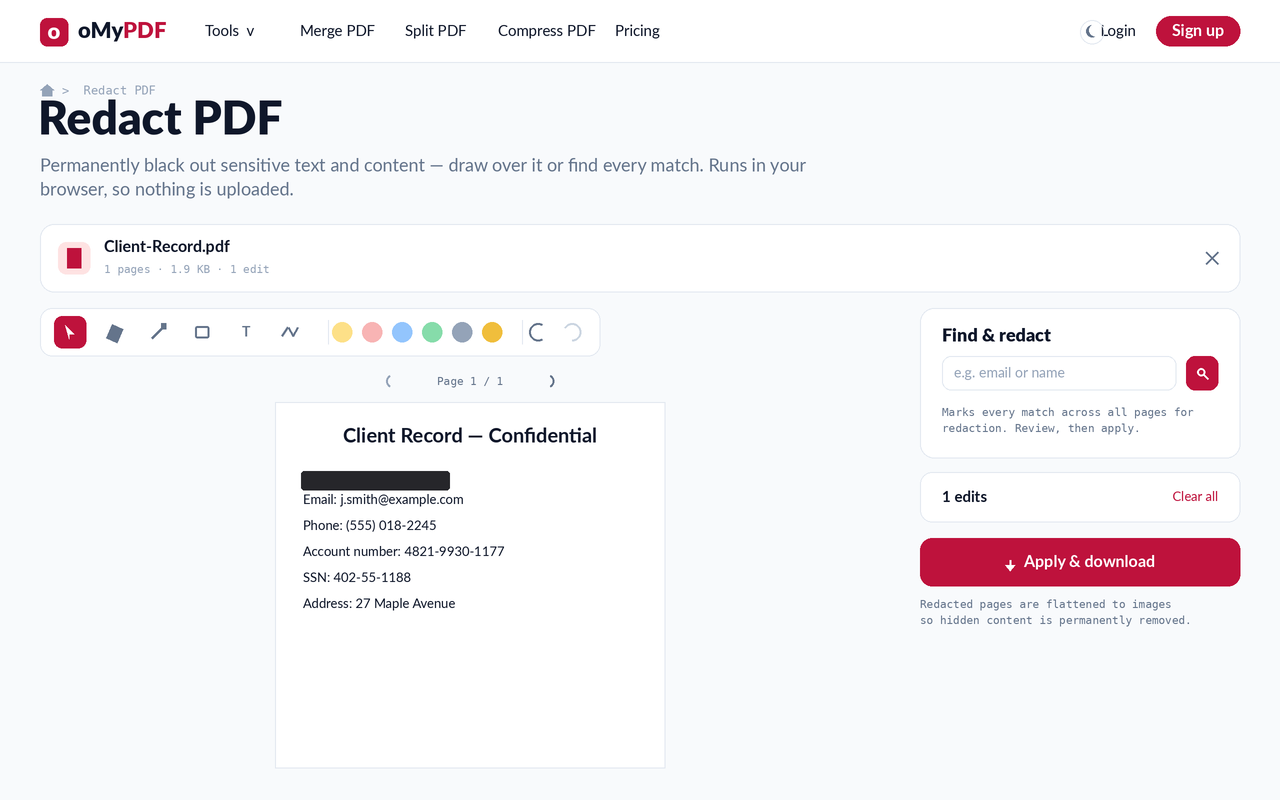
With the redact tool, drag a black box over anything sensitive — a name, an account number, an address. Each box is added as an edit you can undo or clear.
- 4
Find & redact every match
To black out text everywhere it appears, type a word or phrase in Find & redact and search — it marks every match across all pages so you can review before applying.
- 5
Apply & download
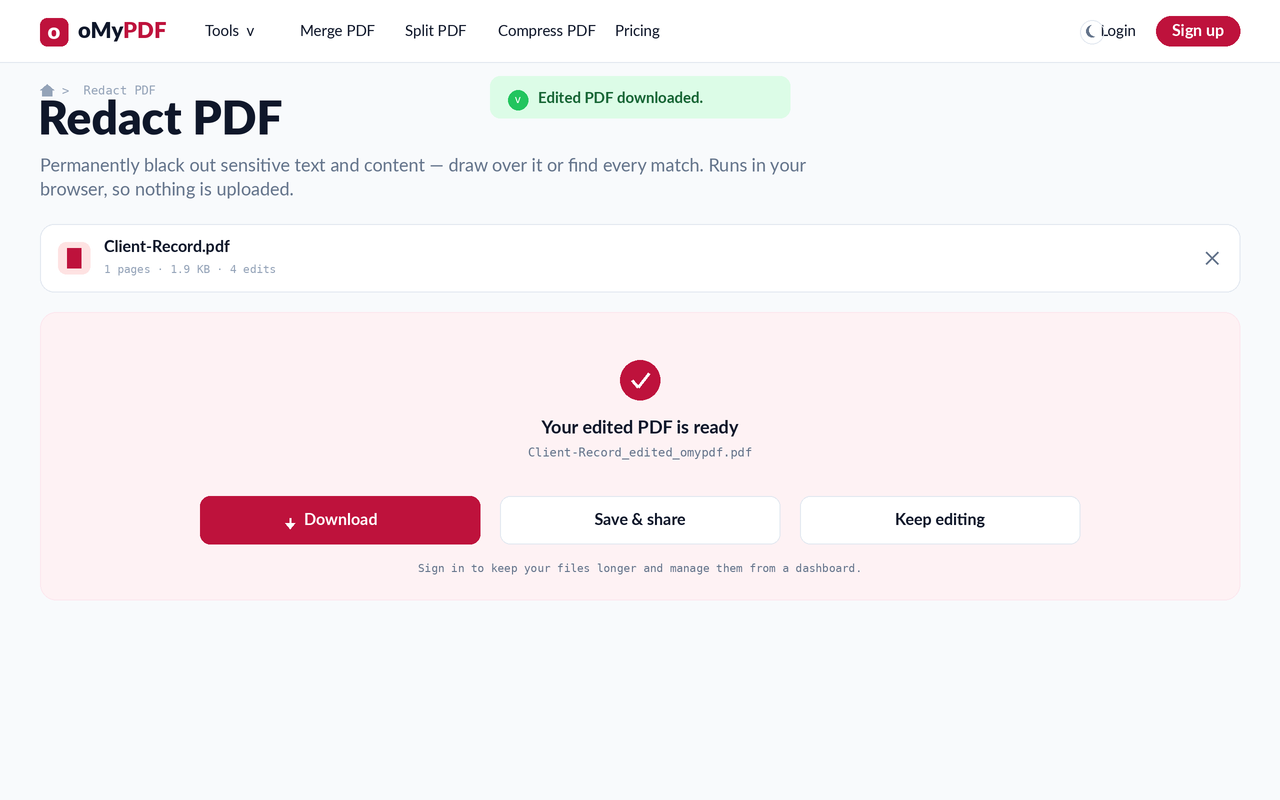
Click Apply & download. Redacted pages are flattened to images so the hidden content is permanently removed — then download your redacted PDF.
Tips
- Two ways to redact: drag black boxes by hand, or use Find & redact to catch every instance of a name, number or phrase across all pages.
- Truly permanent: redacted pages are flattened to an image, so the hidden text can't be selected, copied, or recovered — unlike just drawing a black box on top.
- Review before applying: each redaction is an edit; use undo or Clear all to adjust before you flatten and download.
- 100% private: redaction runs entirely in your browser, so your sensitive document is never uploaded to a server.
Ready to redact your PDF?
Free, private, and no sign-up required.