Guide · 2 min read
How to Put Multiple PDF Pages on One Sheet
The oMyPDF N-up PDF tool places multiple PDF pages on a single sheet — 2, 4, 6, 8, 9 or 16 per sheet — in a neat grid. Control the sheet size, order, margins, spacing and borders with a live preview. Files under 60 MB are processed right in your browser.
Quick overview
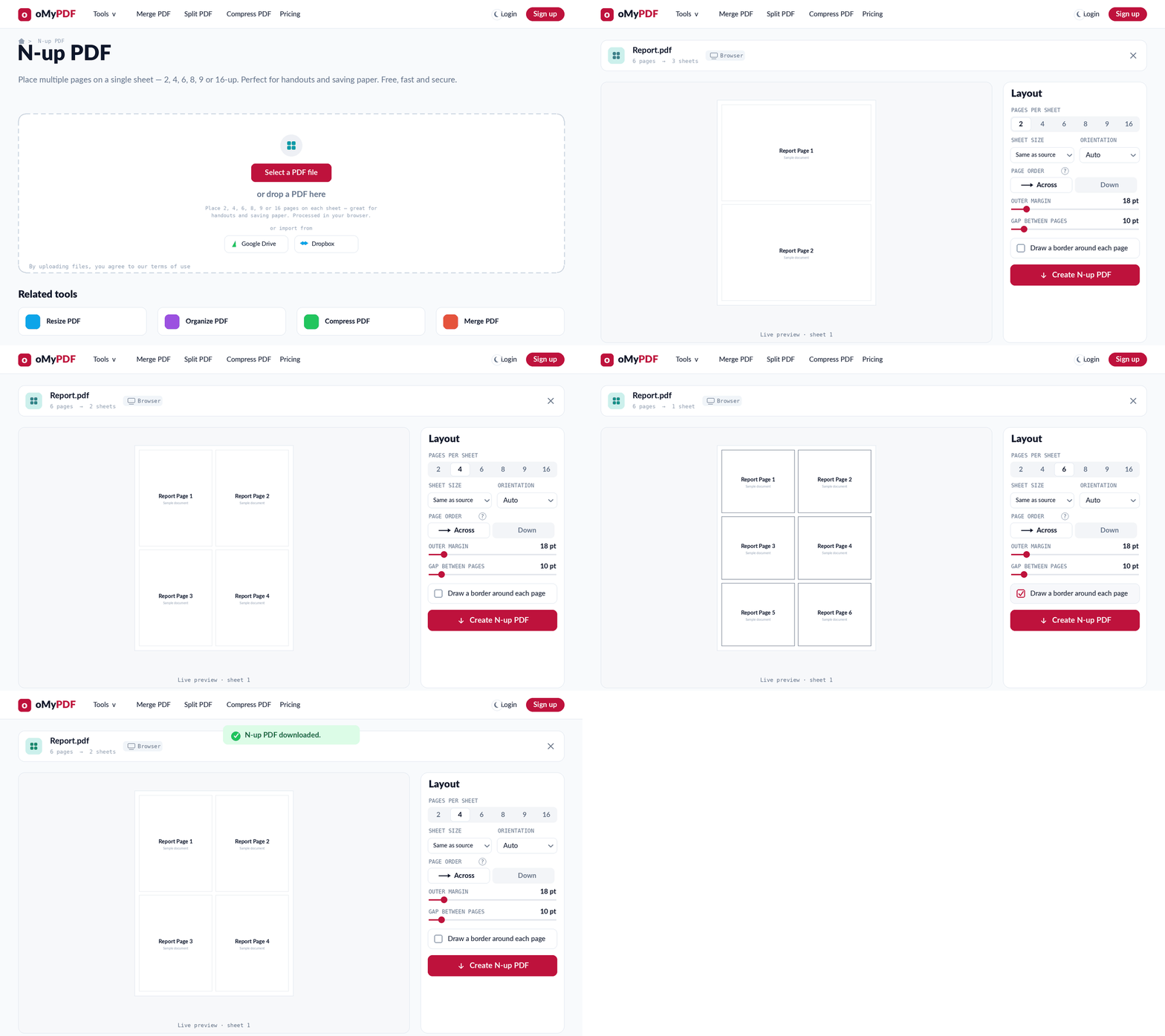
The full workflow: add your PDF, choose how many pages per sheet, fine-tune the layout, then create and download the N-up PDF.
Step-by-step
- 1
Open the tool
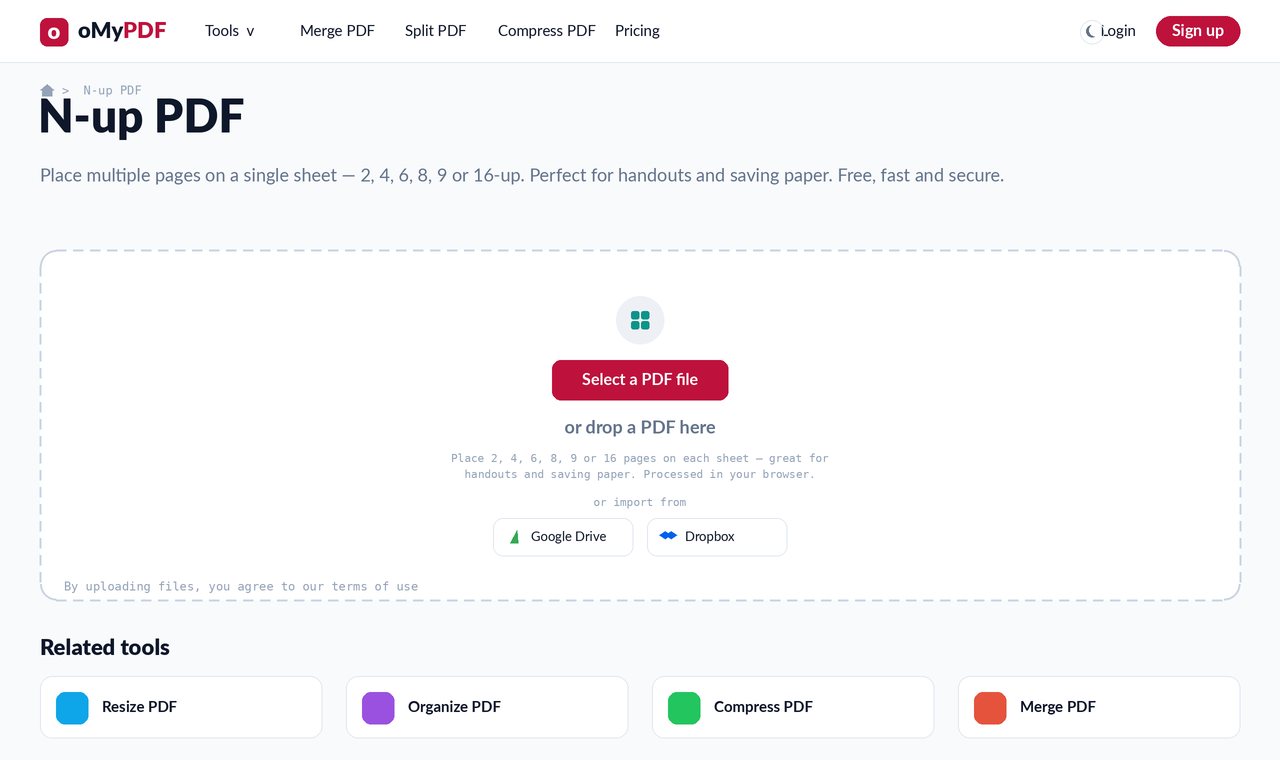
Go to the N-up PDF page. Click Select a PDF file, or drag your PDF onto the upload area. Smaller files are processed entirely in your browser.
- 2
Choose 2 pages per sheet
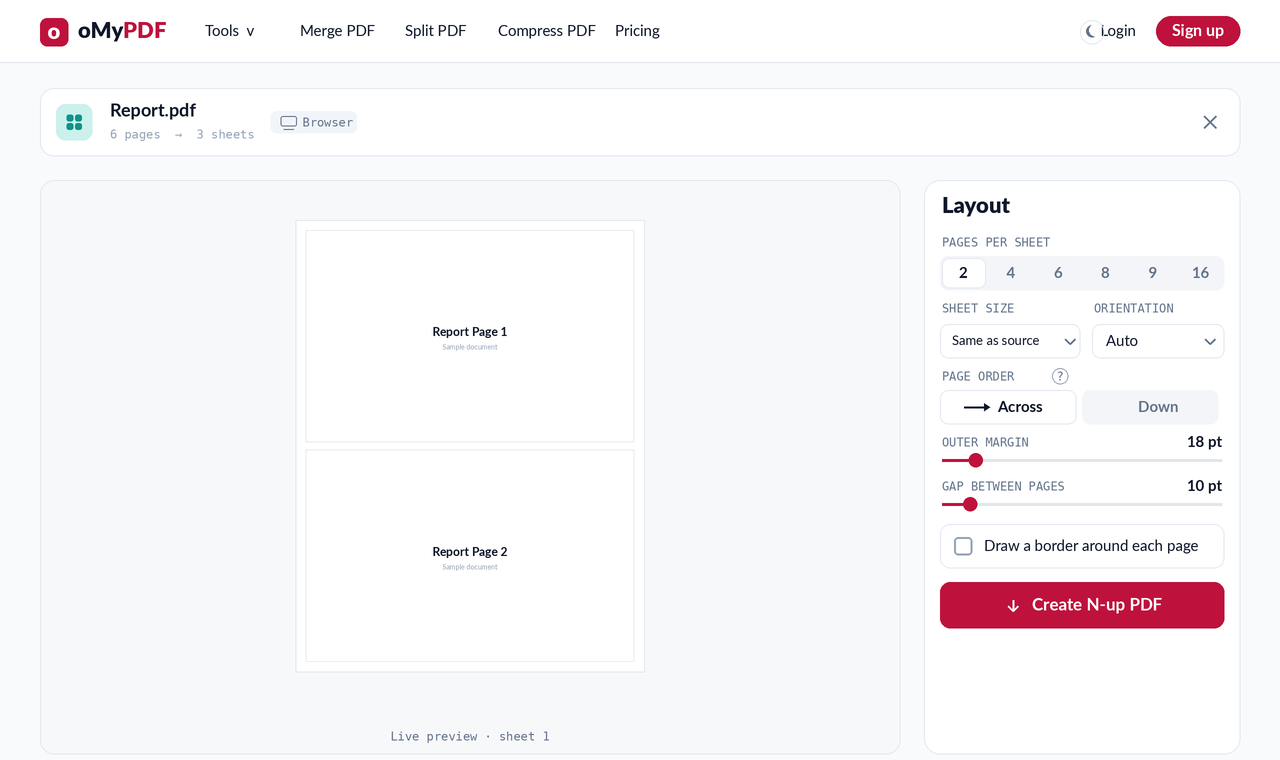
Pick 2-up to place two pages on each sheet. The live preview shows the composed sheet, and the file card tells you how many sheets you'll get — great for booklets and cutting your printing roughly in half.
- 3
Or pack 4, 6, 9 or 16 up
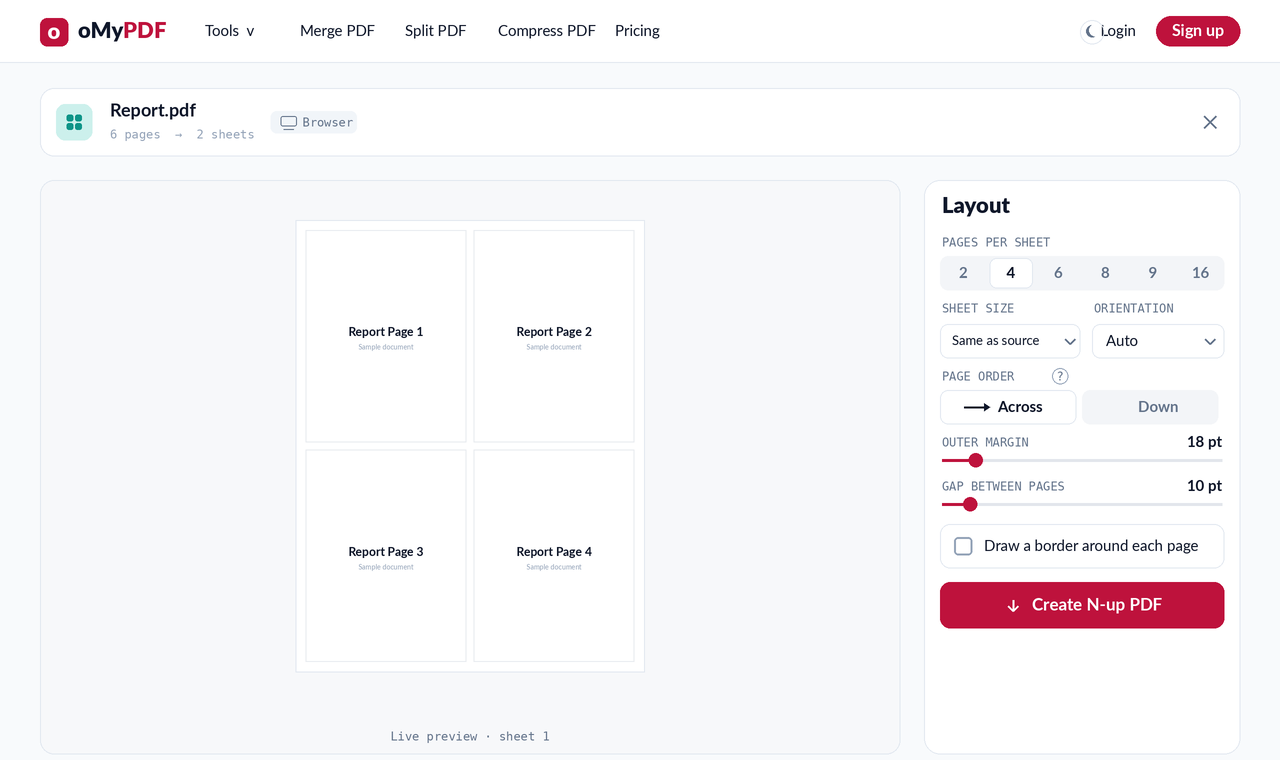
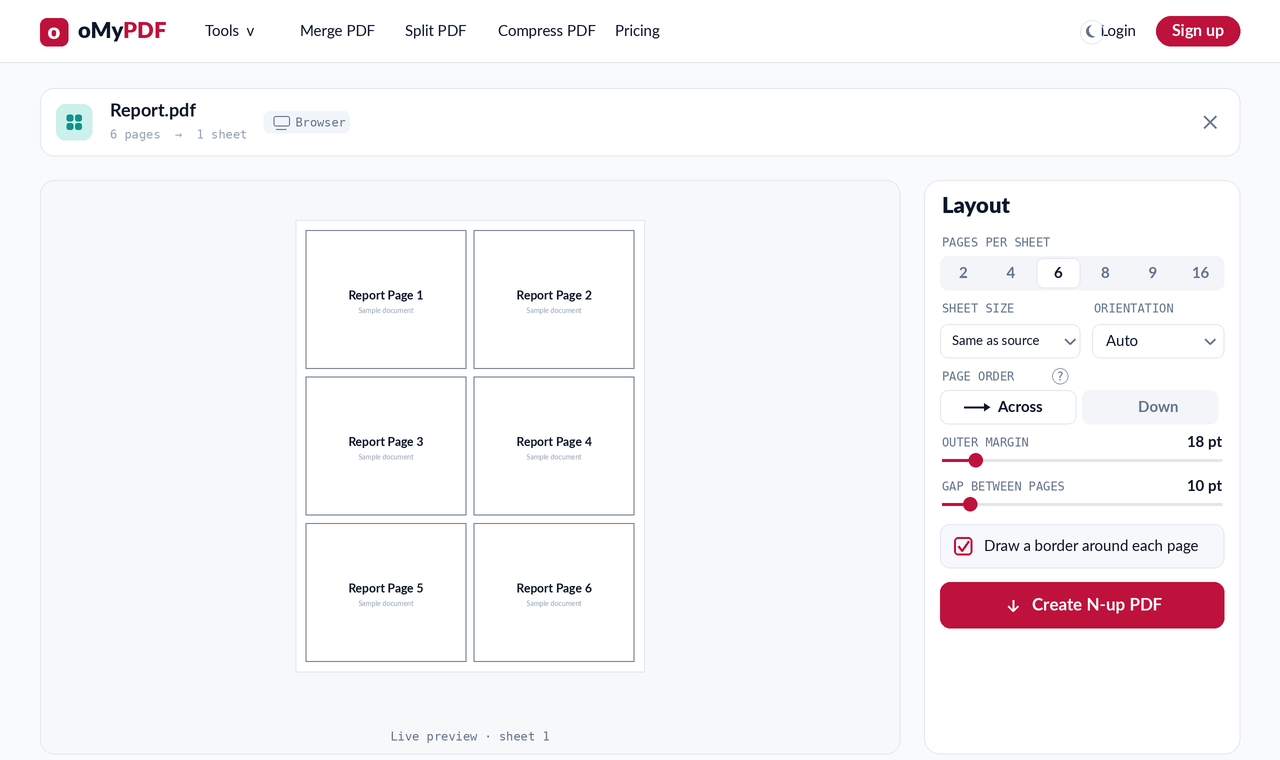
Bump Pages per sheet to 4, 6, 8, 9 or 16 to fit more pages onto each sheet in a neat grid — ideal for lecture handouts, proof sheets and contact sheets.
- 4
Fine-tune the layout
Set the sheet size and orientation, fill order (Across or Down), outer margin and the gap between pages, and toggle a border around each page. Every change updates the preview live.
- 5
Create the N-up PDF
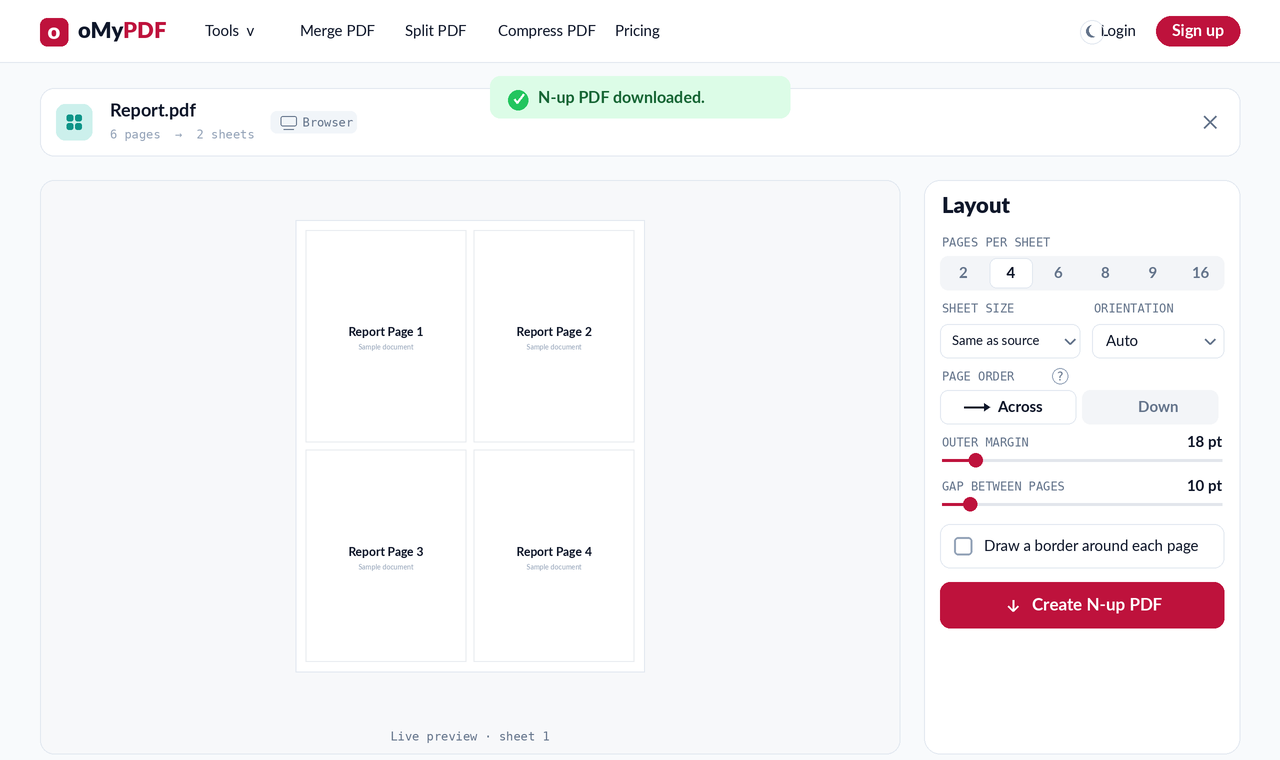
Click Create N-up PDF to download the finished document with your pages arranged per sheet — no watermark and no sign-up.
Tips
- Save paper and ink: 2-up roughly halves your page count, and 4-, 9- or 16-up packs even more onto each sheet — perfect for handouts.
- Fill order matters: choose Across to number left-to-right across each row, or Down to number top-to-bottom within each column.
- Add cut lines: turn on “Draw a border around each page” for proof sheets and contact sheets you plan to cut apart.
- Private & free: files under 60 MB are processed entirely in your browser and never uploaded.
Ready to fit more pages per sheet?
Free, private, and no sign-up required.