Guide · 2 min read
How to Organize PDF Pages
The oMyPDF Organize PDF tool lets you rearrange PDF pages on a visual grid — drag to reorder, rotate, add or delete pages — then save a fresh PDF. Smaller files are organized right inside your browser, so nothing leaves your device.
Quick overview
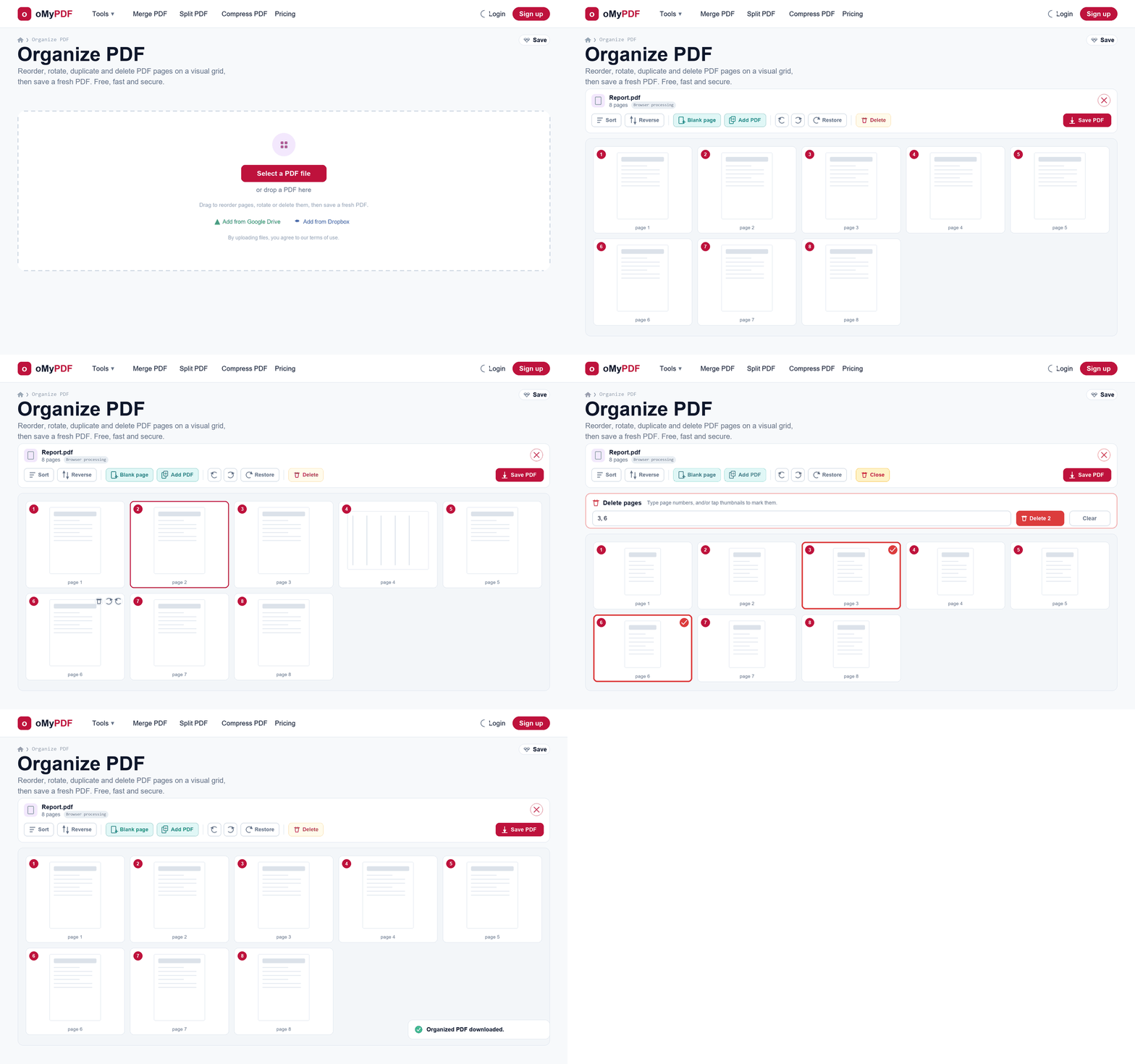
The full workflow: add a PDF, reorder and rotate pages, delete the ones you don't need, then save.
Step-by-step
- 1
Open the tool
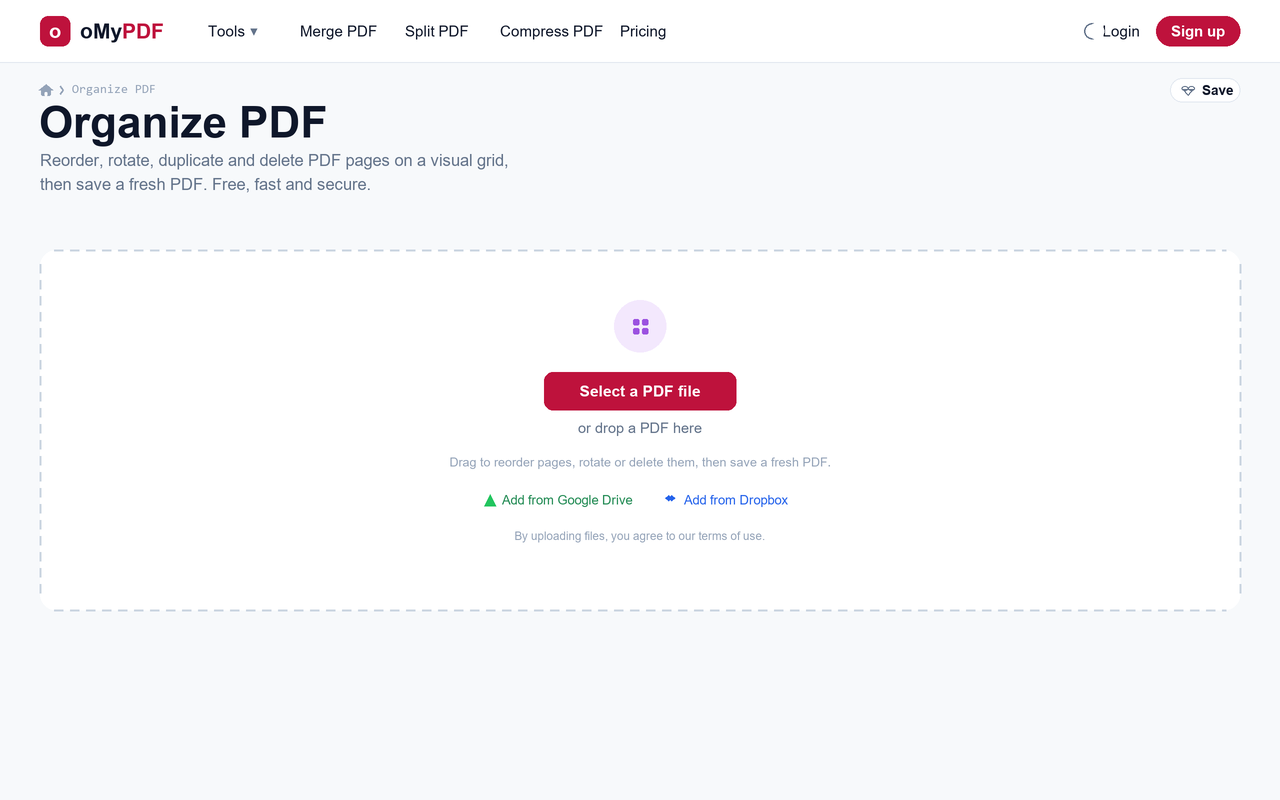
Go to the Organize PDF page. Click Select a PDF file, or drag a PDF straight onto the upload area.
- 2
See all your pages
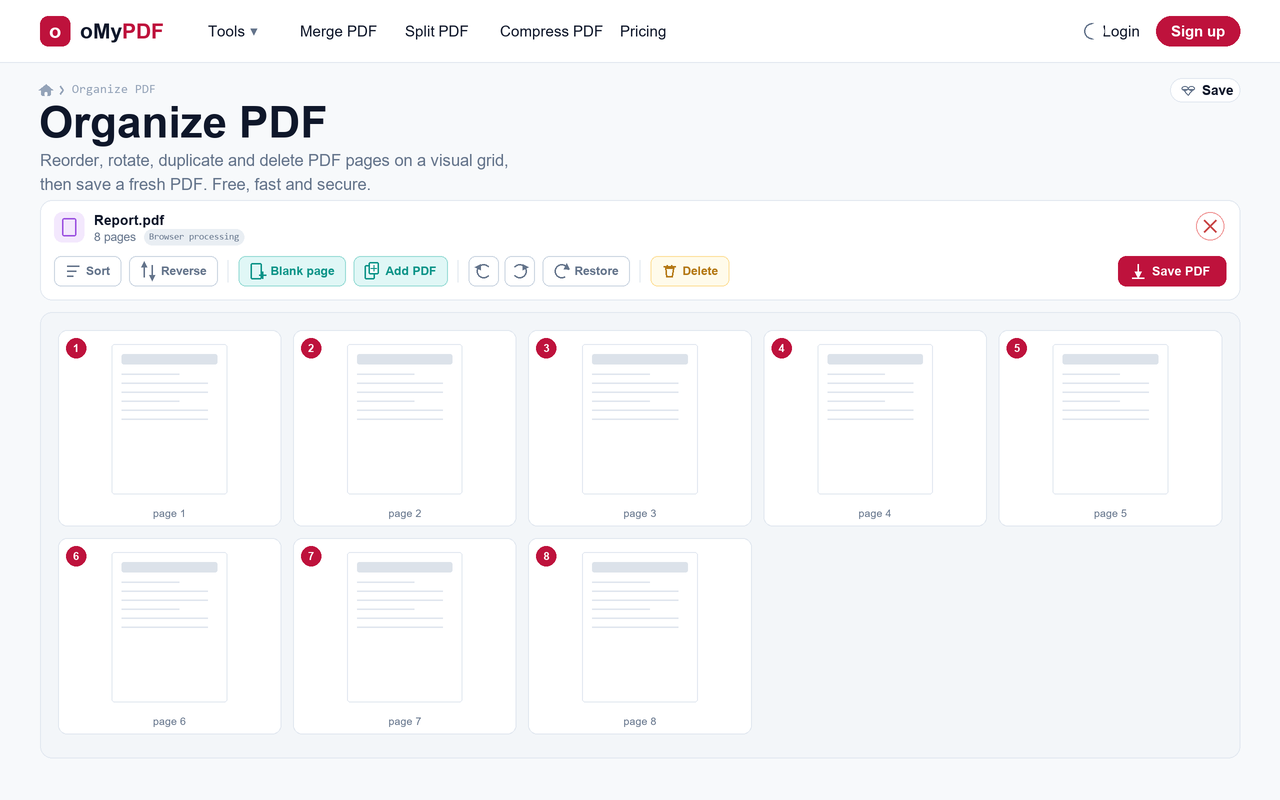
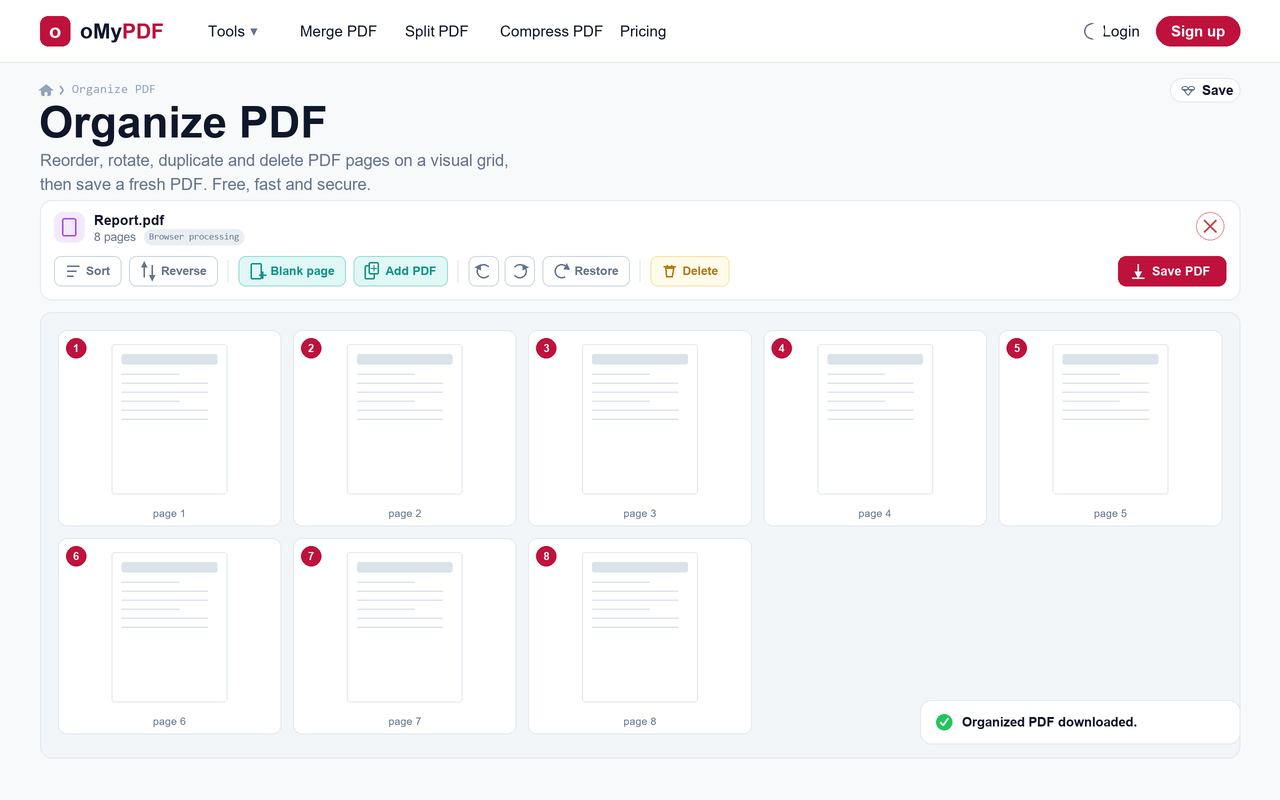
Every page opens as a thumbnail on a visual grid, numbered in order, with a toolbar of actions above it. You can also add a blank page or insert pages from another PDF.
- 3
Reorder & rotate
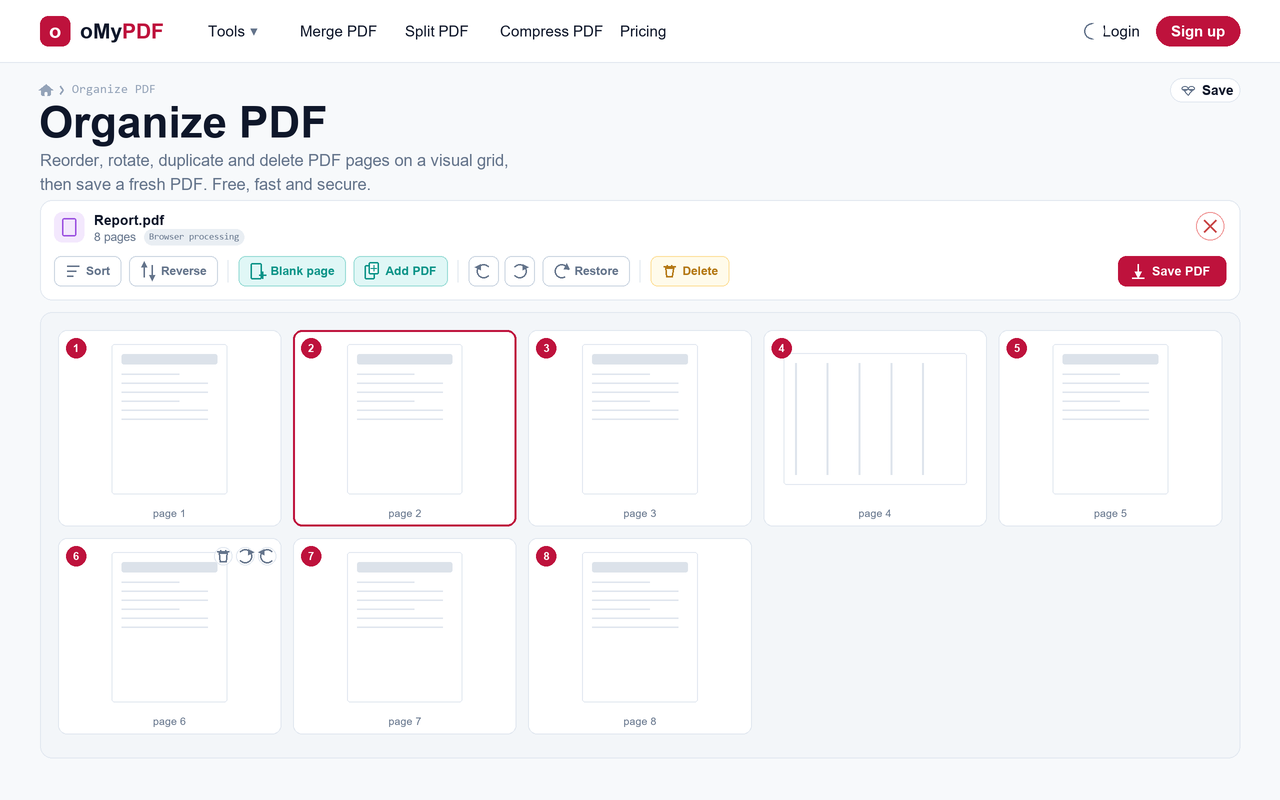
Drag any page to a new position to rearrange your PDF, or hover a page to rotate it left/right or remove it. Use Sort, Reverse or Rotate all in the toolbar to act on every page at once.
- 4
Delete pages
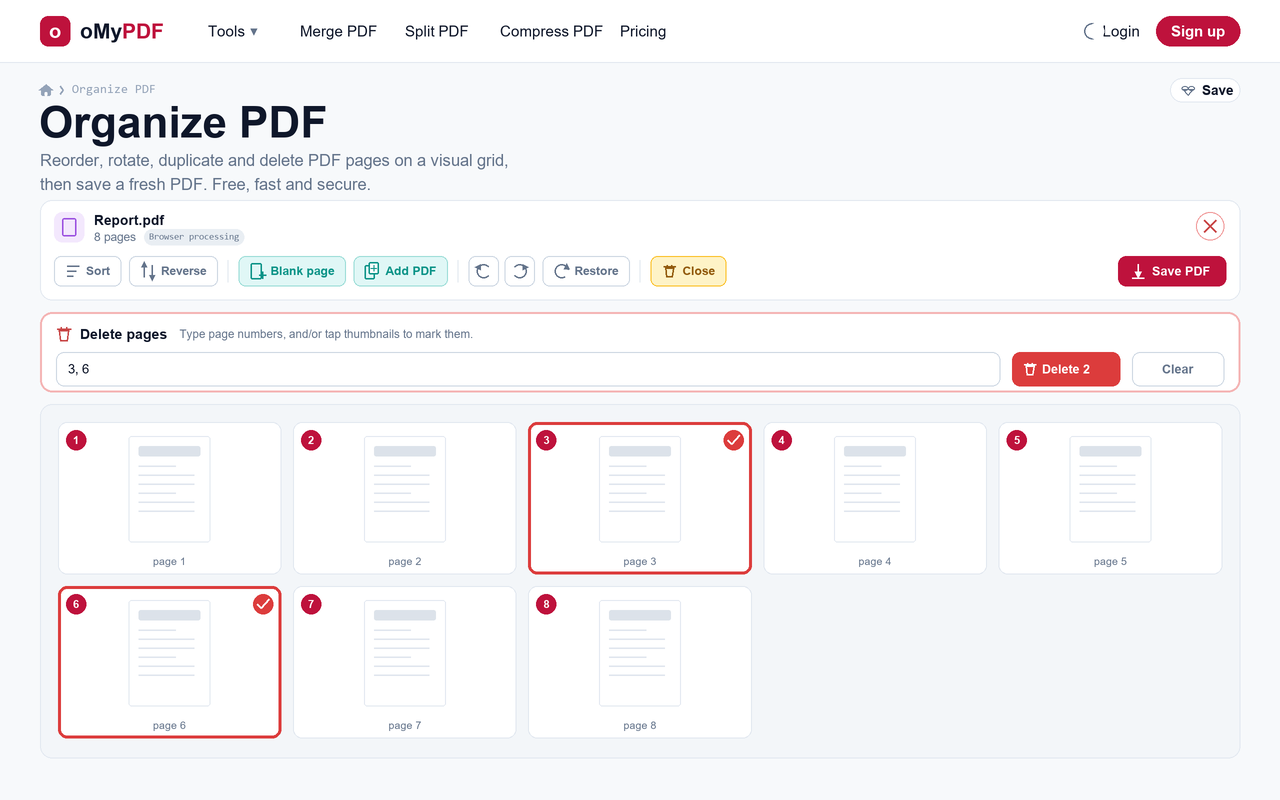
Click Delete to open the delete panel — type page numbers like 3, 6, and/or tap thumbnails to mark them. The count updates, then click Delete to remove them.
- 5
Save your PDF
Happy with the new order? Click Save PDF. A fresh, rearranged PDF is generated and downloads automatically — with no watermark on the output.
Tips
- Rearrange fast: drag pages to reorder, or use Sort (1 → N) and Reverse to reshuffle the whole document in one click.
- Rotate any page: fix sideways scans with the per-page rotate buttons, or Rotate all to turn every page at once.
- Build a new document: add a blank page or insert pages from another PDF, then drag them into place before saving.
- Stays private: smaller files are organized right in your browser and never uploaded; larger files use encrypted server processing and are deleted right after.
Ready to organize your PDF?
Free, private, and no sign-up required.