Guide · 2 min read
How to Password Protect a PDF
The oMyPDF Protect PDF tool lets you password protect a PDF and encrypt it with 256-bit AES — and control whether readers can print, copy, or edit it. It runs right in your browser with no signup and no Acrobat, so your file stays private.
Quick overview
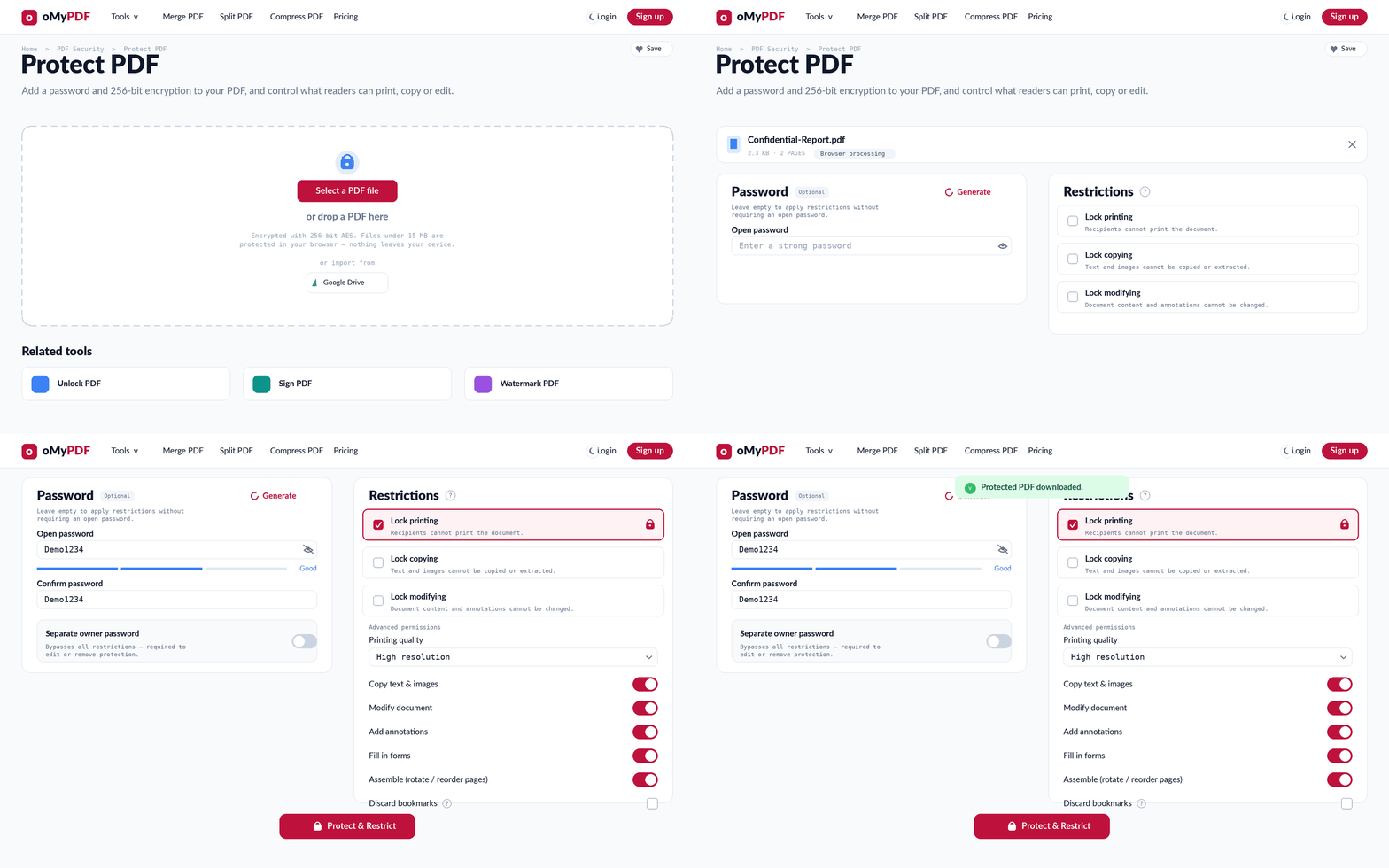
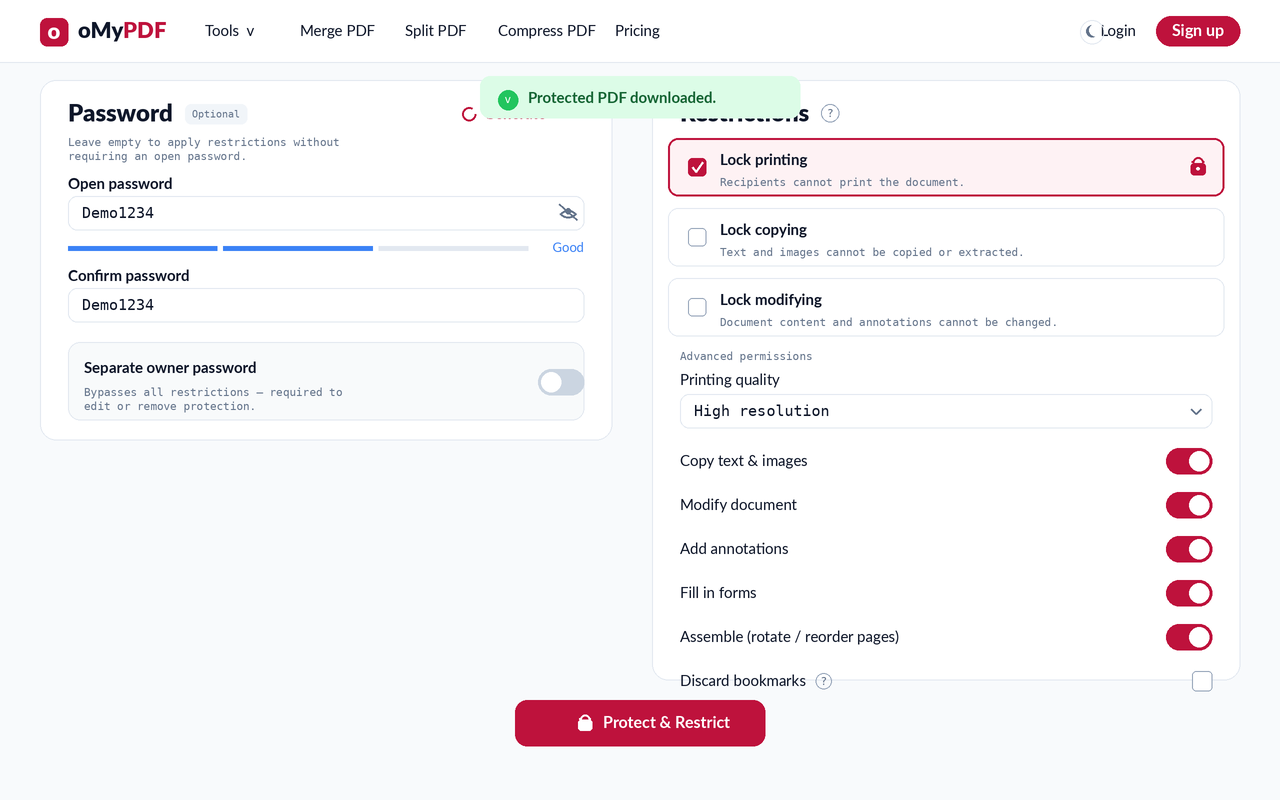
The full workflow: add a PDF, set a password, choose permissions, then protect and download.
Step-by-step
- 1
Open the tool
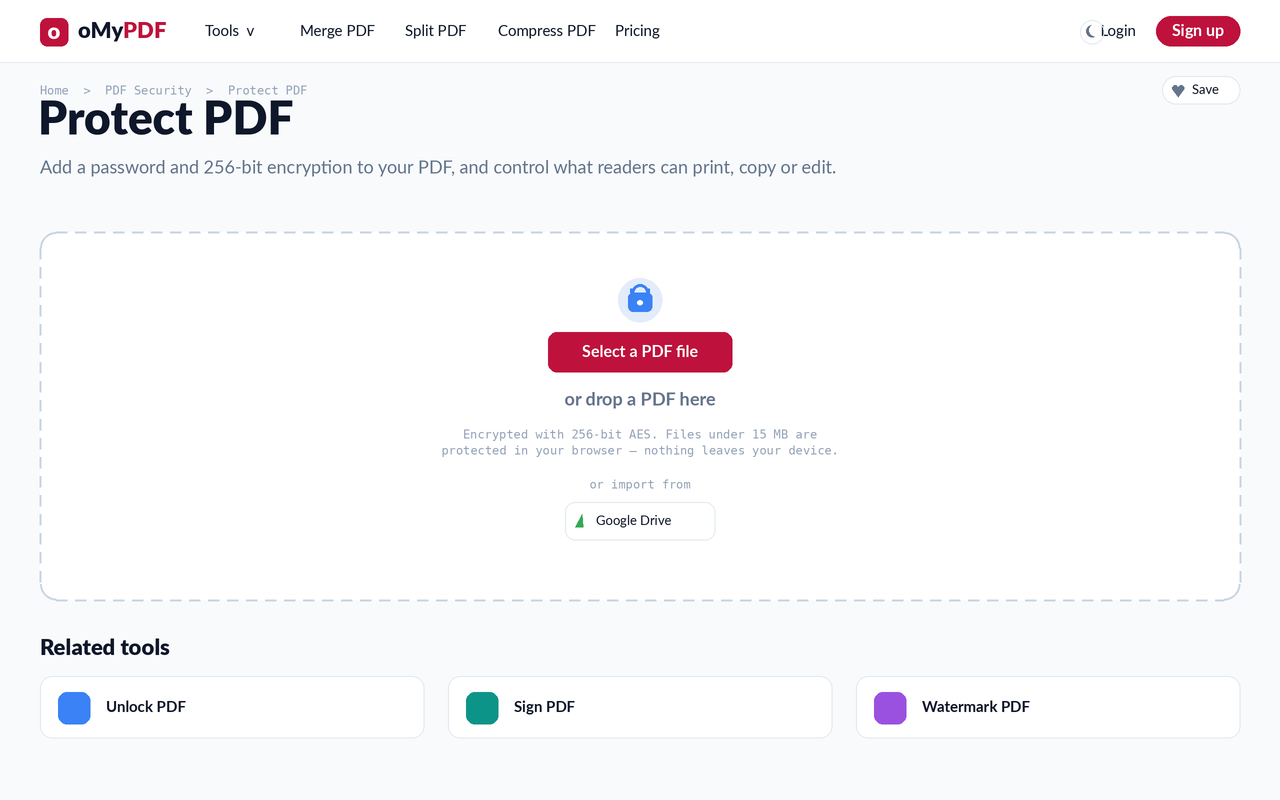
Go to the Protect PDF page. Click Select a PDF file, or drag a PDF straight onto the upload area.
- 2
Set a password
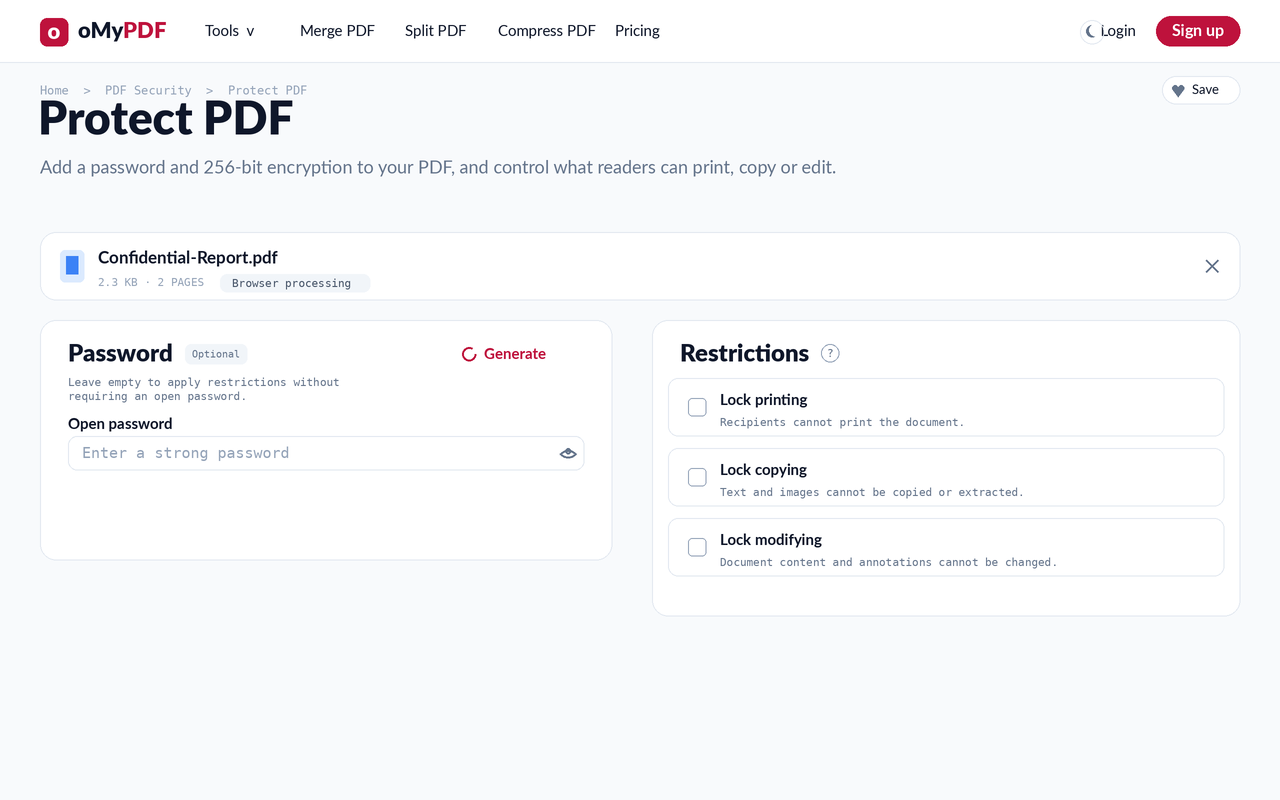
In the Password panel, type an open password (or click Generate for a strong one) and confirm it. Leave it empty if you only want to apply permission restrictions without an open password.
- 3
Choose what readers can do
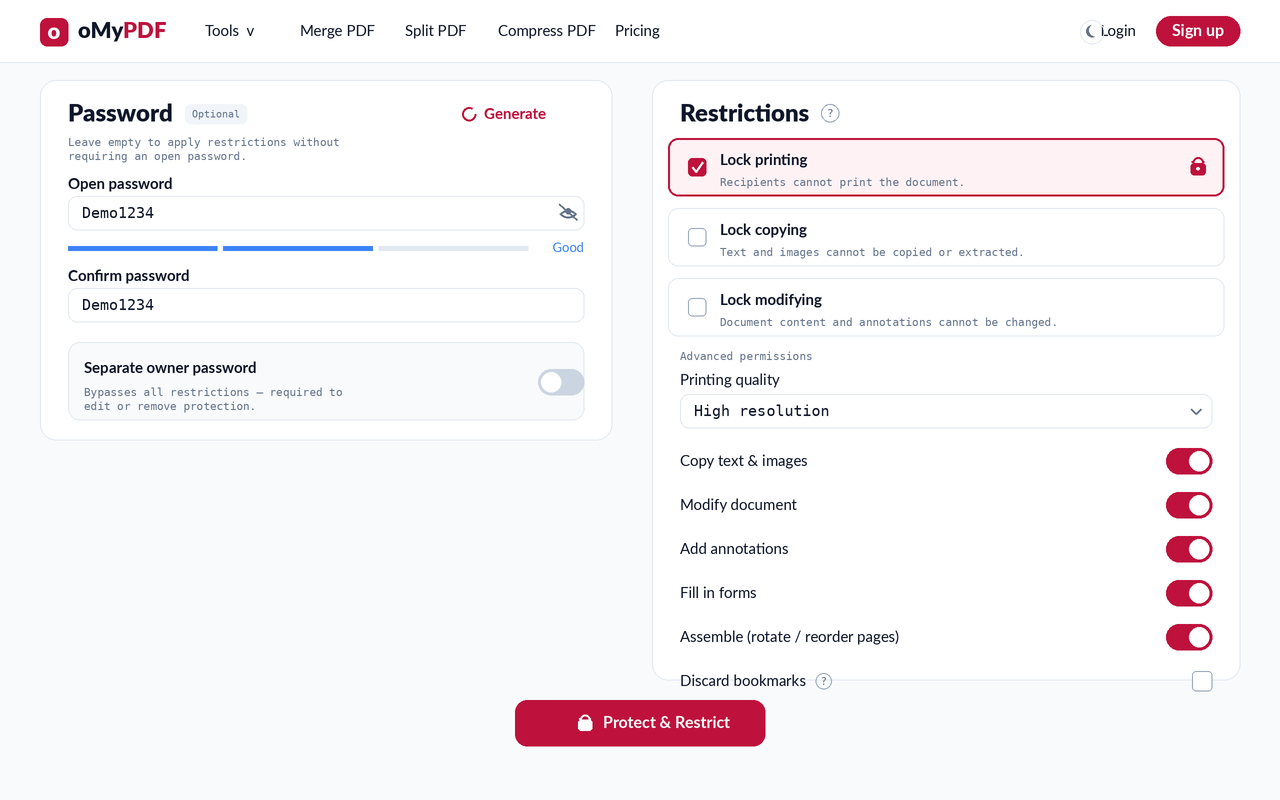
In Restrictions, lock printing, copying, or modifying. Open Advanced permissions to fine-tune printing quality and toggle copying, editing, annotations, form-filling, and page assembly. Use a separate owner password if you want to keep edit rights for yourself.
- 4
Protect & download
Click Protect & Restrict. Your PDF is encrypted with 256-bit AES and downloads instantly — only people with the password can open it.
Tips
- Open vs. owner password: the open (user) password is needed to view the file; a separate owner password lets you keep full edit rights while restricting everyone else.
- Block copying and printing: turn off “Copy text & images” and set printing restrictions to stop readers extracting or printing your content.
- 256-bit AES: files are encrypted with bank-grade encryption, the same standard used for sensitive business documents.
- Private & free: add a password to a PDF without Acrobat — smaller files are encrypted right in your browser and never uploaded.
Ready to protect your PDF?
Free, private, and no sign-up required.