Guide · 2 min read
How to Add Page Numbers to a PDF
The oMyPDF Add Page Numbers tool lets you insert page numbers into a PDF — pick the position, format, and style with a live preview. It runs right in your browser with no signup and no Acrobat, so your file stays private.
Quick overview
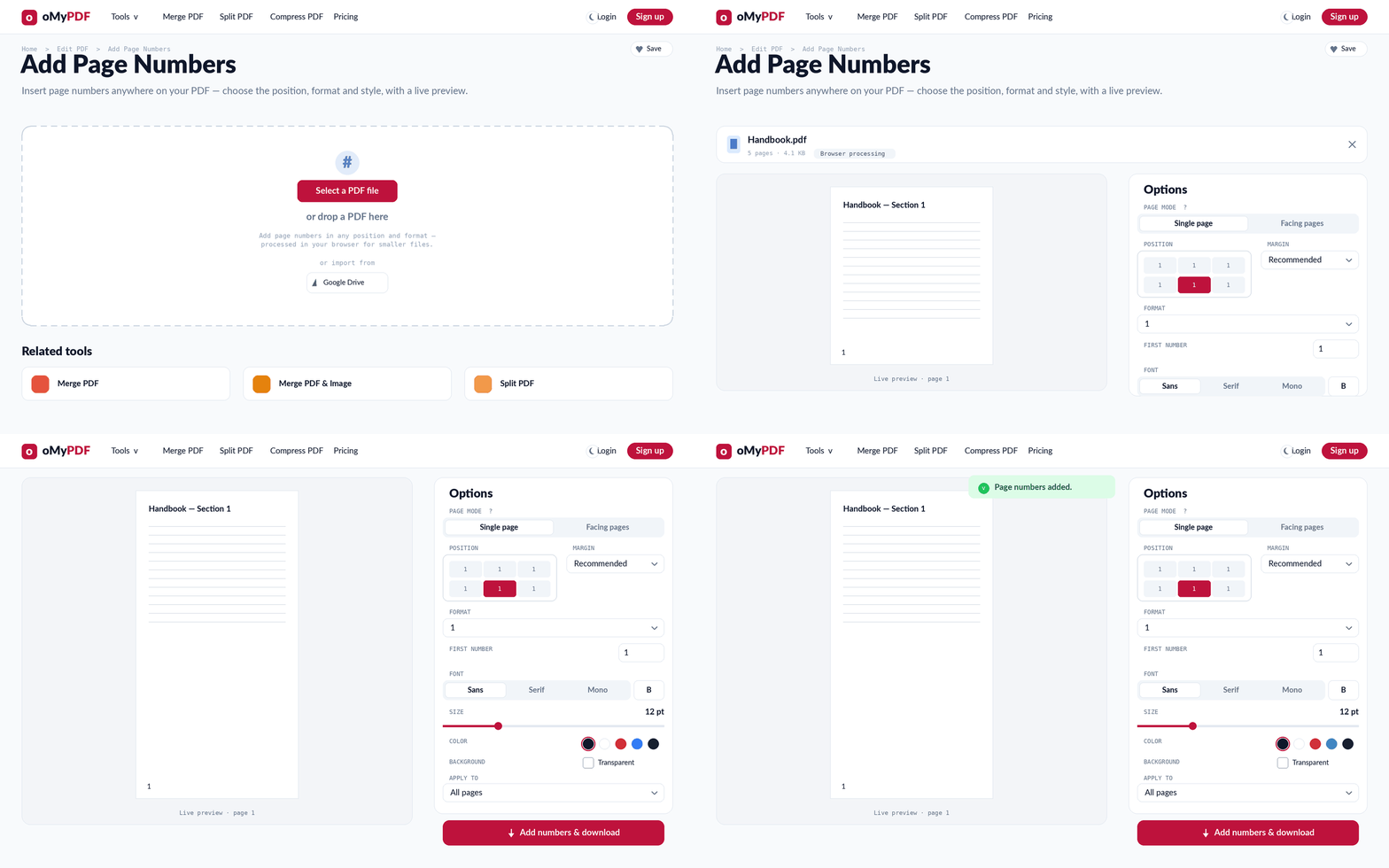
The full workflow: add a PDF, choose position and format, style the numbers, then add and download.
Step-by-step
- 1
Open the tool
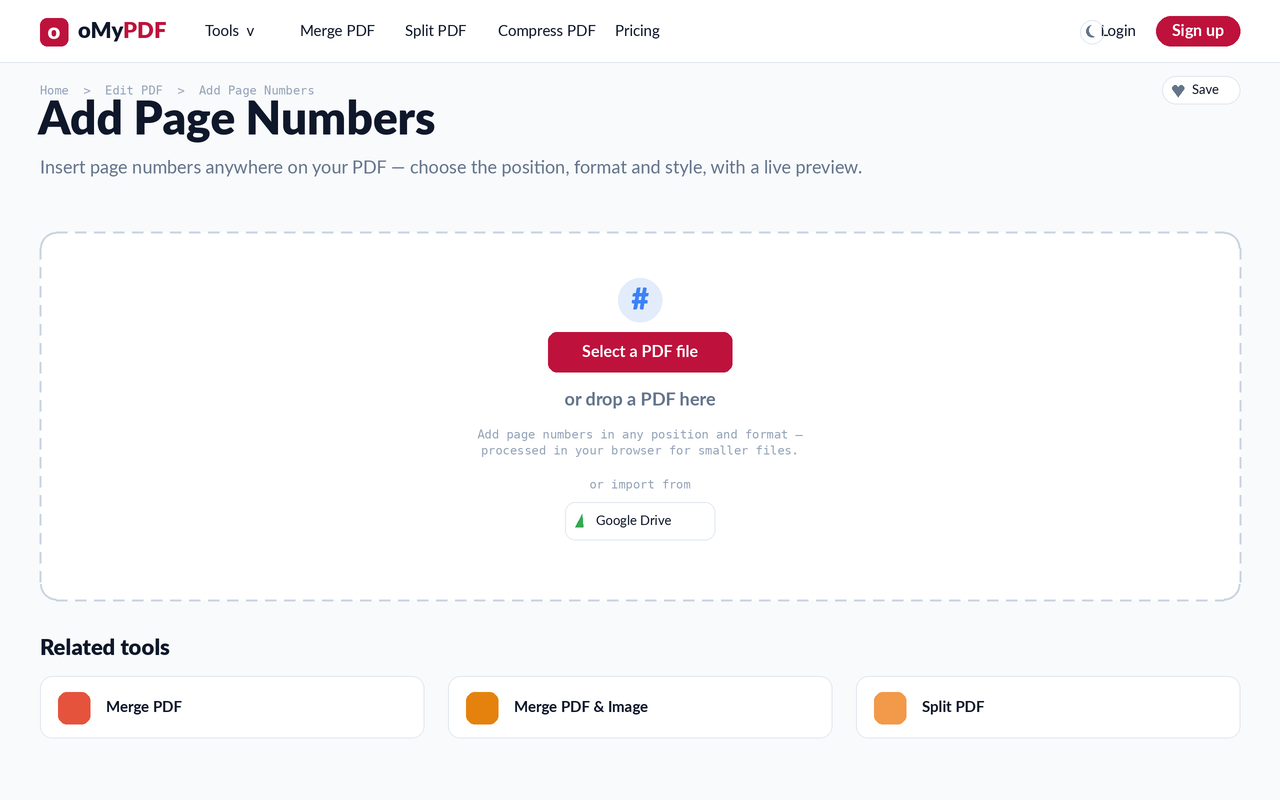
Go to the Add Page Numbers page. Click Select a PDF file, or drag a PDF straight onto the upload area.
- 2
Choose position & format
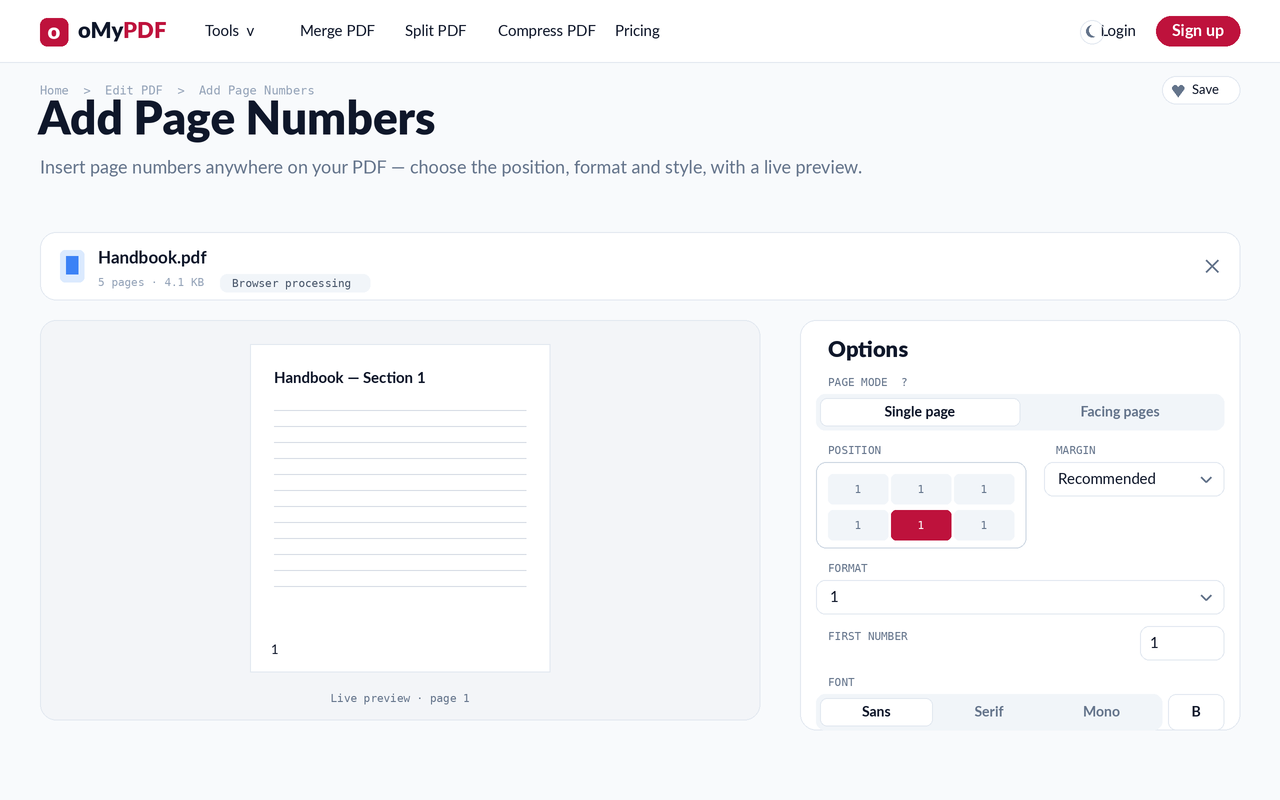
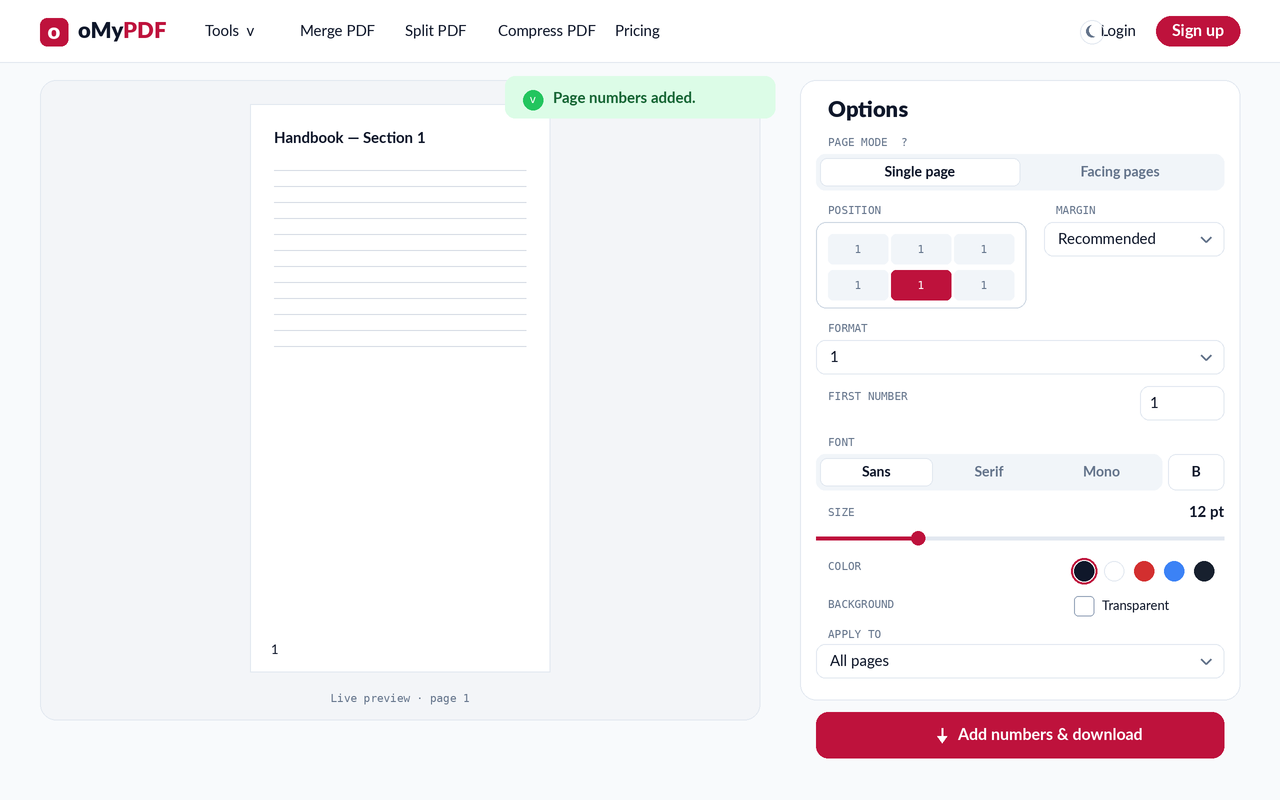
Your PDF opens with a live preview. Pick one of six positions (top or bottom — left, center, or right), set the margin, choose a format like 1, Page 1, or 1 of N, and set the first number.
- 3
Style your numbers
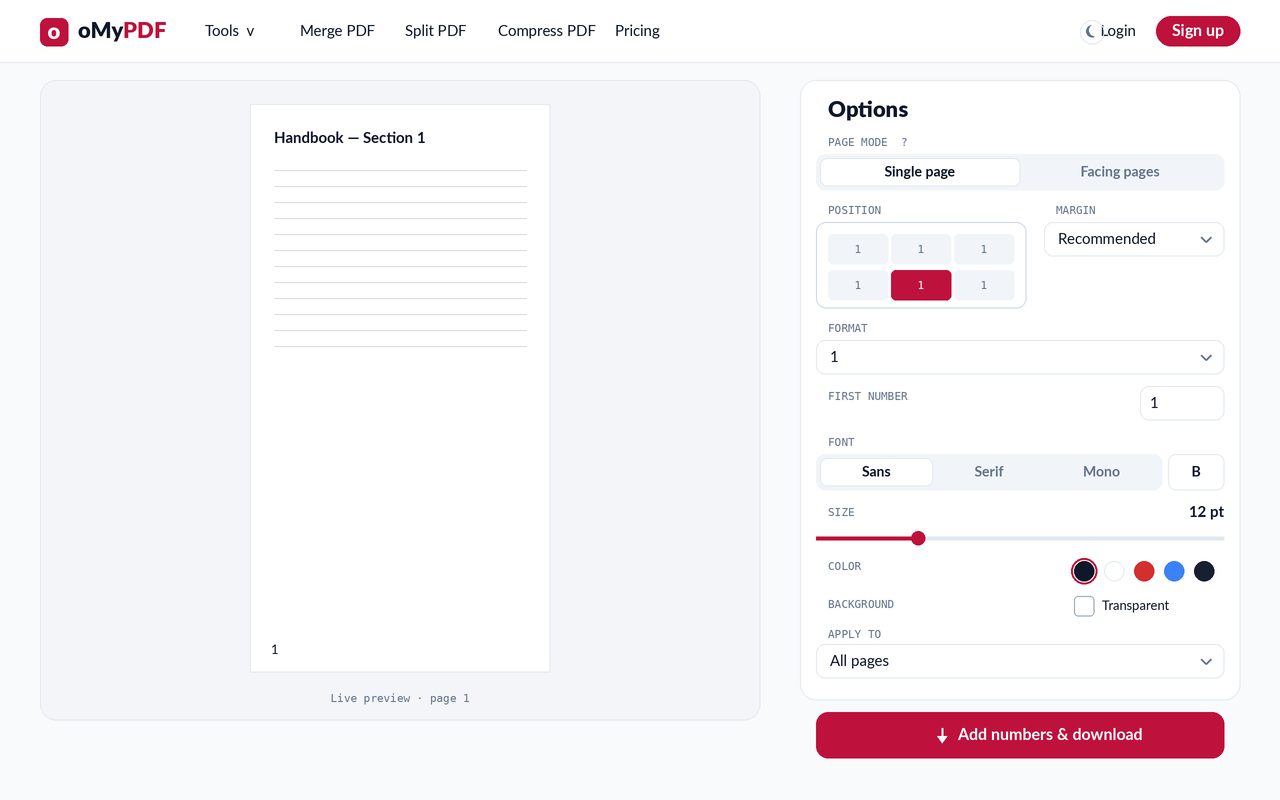
Tune the font, size, and color, toggle a transparent background, and use Apply to (All pages, all except the first, or a custom range). The preview updates instantly so you can confirm before downloading.
- 4
Add & download
Click Add numbers & download. Your numbered PDF saves instantly — with no oMyPDF mark added.
Tips
- Six positions: place numbers at the top or bottom, aligned left, center, or right — whatever suits your document.
- Flexible formats: use a preset like “Page 1 of N”, or pick Custom and write your own with {n} for the number and {N} for the total.
- Skip the cover: set Apply to “All except first page”, or enter a custom range like 2-10, to leave the title page unnumbered.
- Start anywhere: set the first number when your document continues from another one.
Ready to number your PDF?
Free, private, and no sign-up required.