Guide · 2 min read
How to Extract Pages from a PDF
The oMyPDF Extract PDF Pages tool pulls exactly the pages you need into a new PDF — pick them visually or by range. Files under 60 MB are processed right in your browser, so nothing leaves your device.
Quick overview
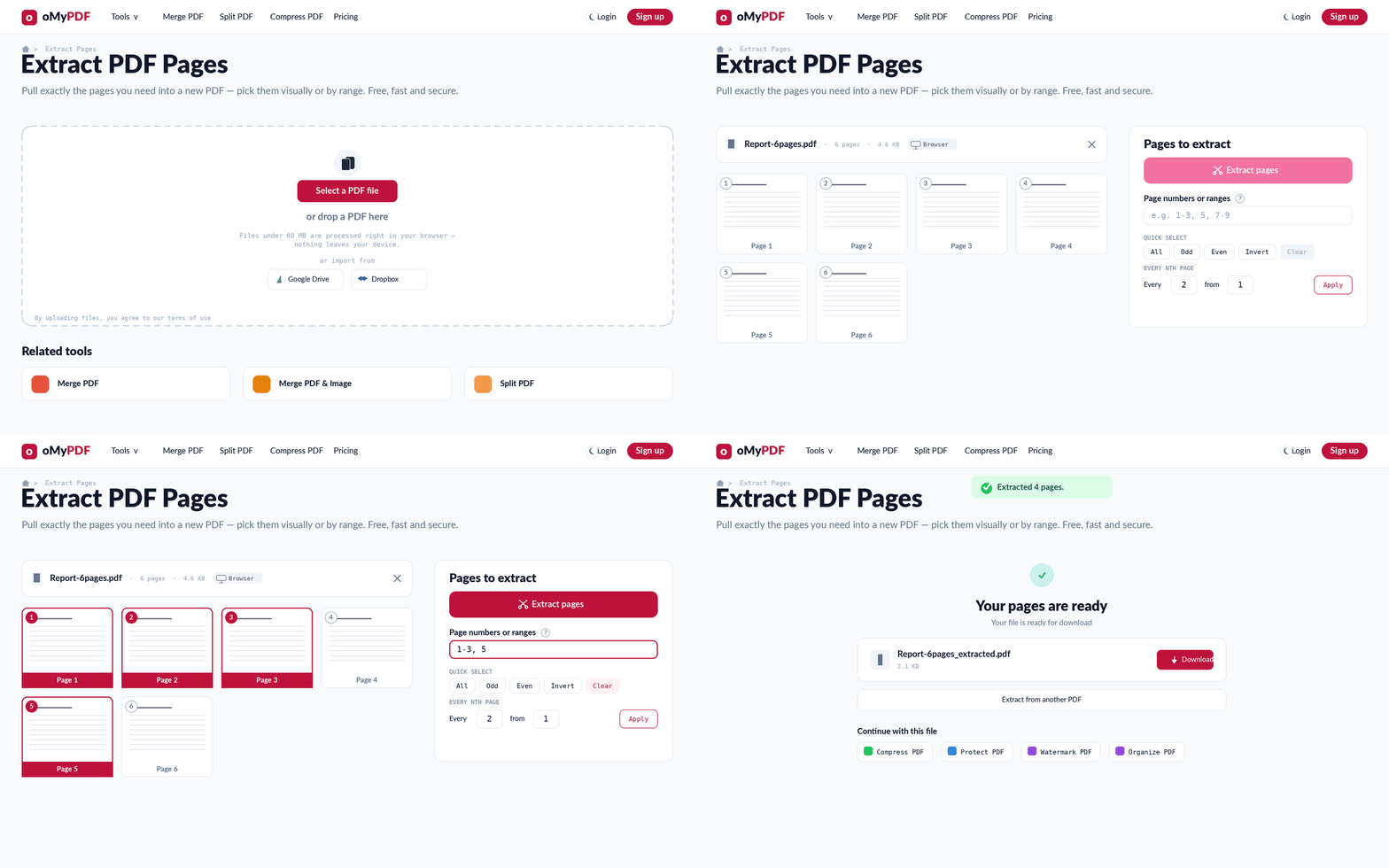
The full workflow: add a PDF, pick the pages to keep, then extract and download a new PDF.
Step-by-step
- 1
Open the tool
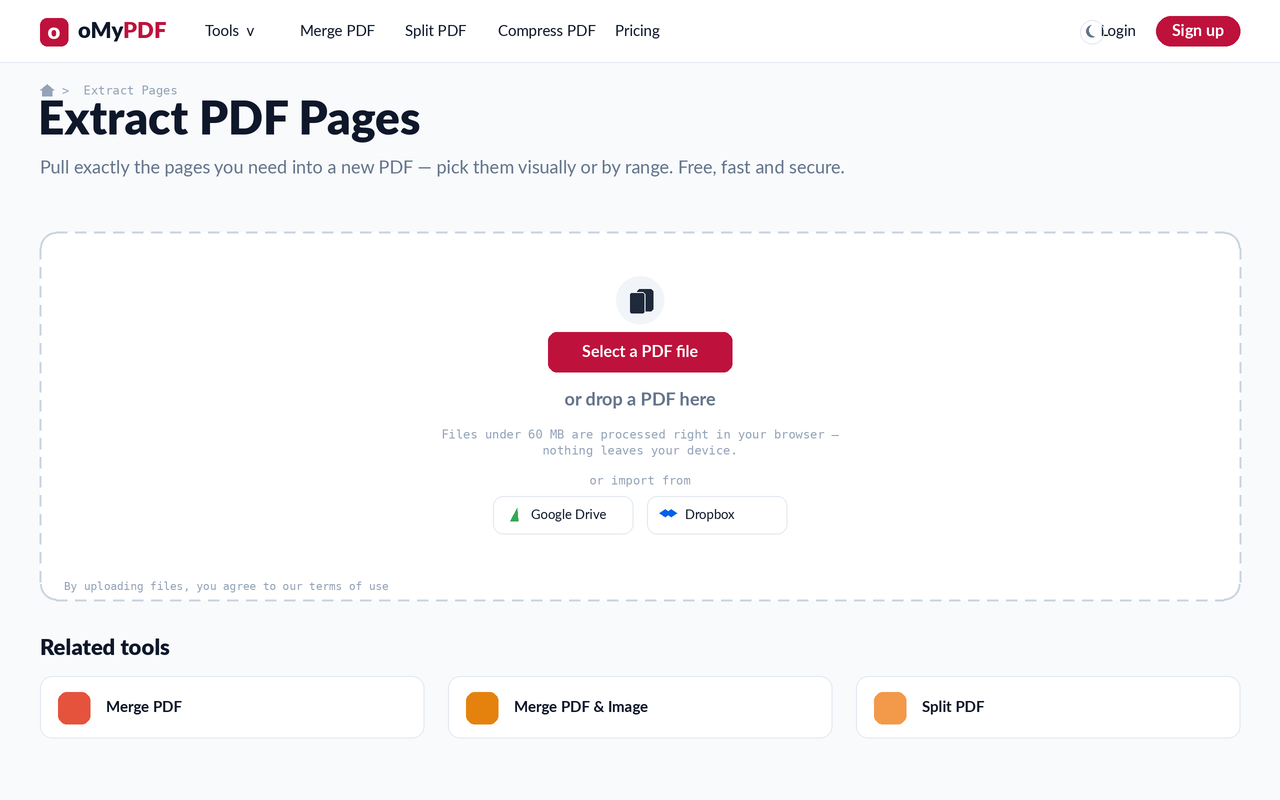
Go to the Extract PDF Pages page. Click Select a PDF file, or drag a PDF onto the upload area.
- 2
See every page
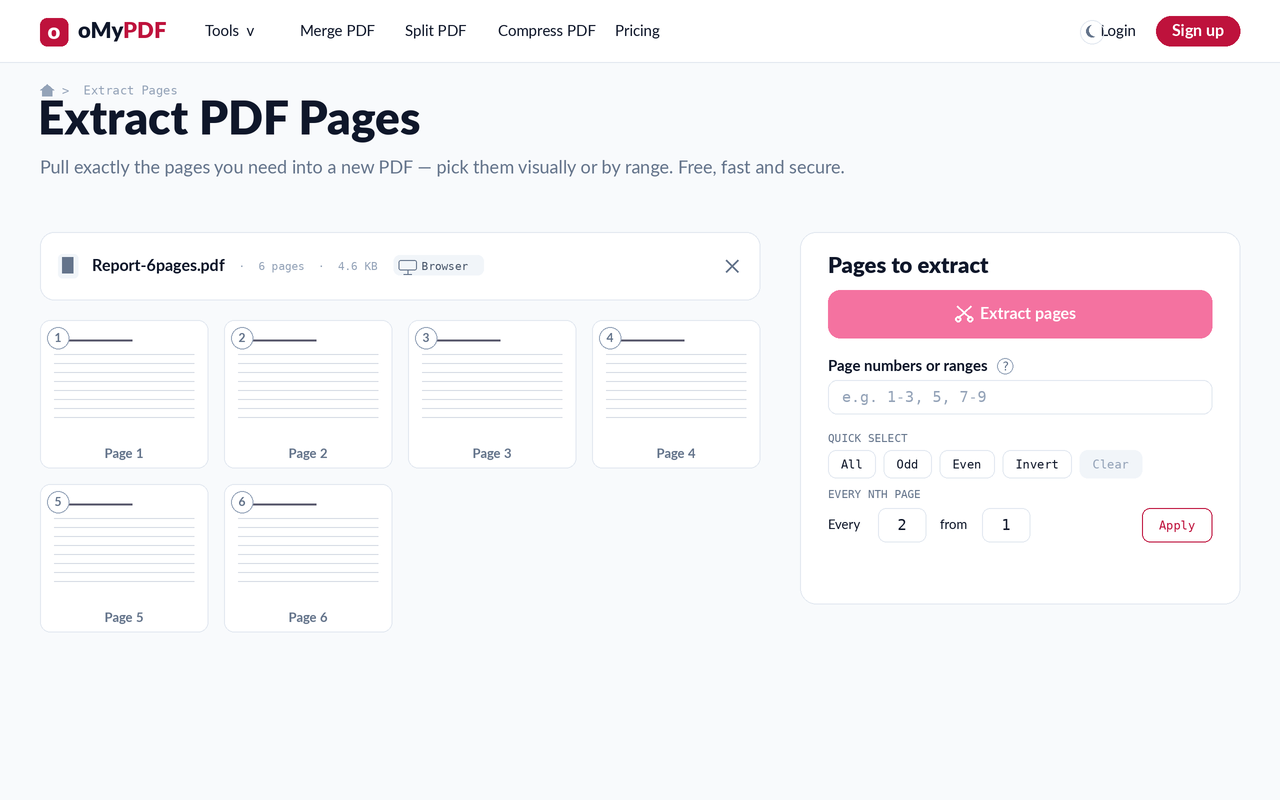
Your PDF opens as a grid of numbered page thumbnails, with a Pages to extract panel on the right — so you can find exactly the pages you want to pull out.
- 3
Pick the pages to keep
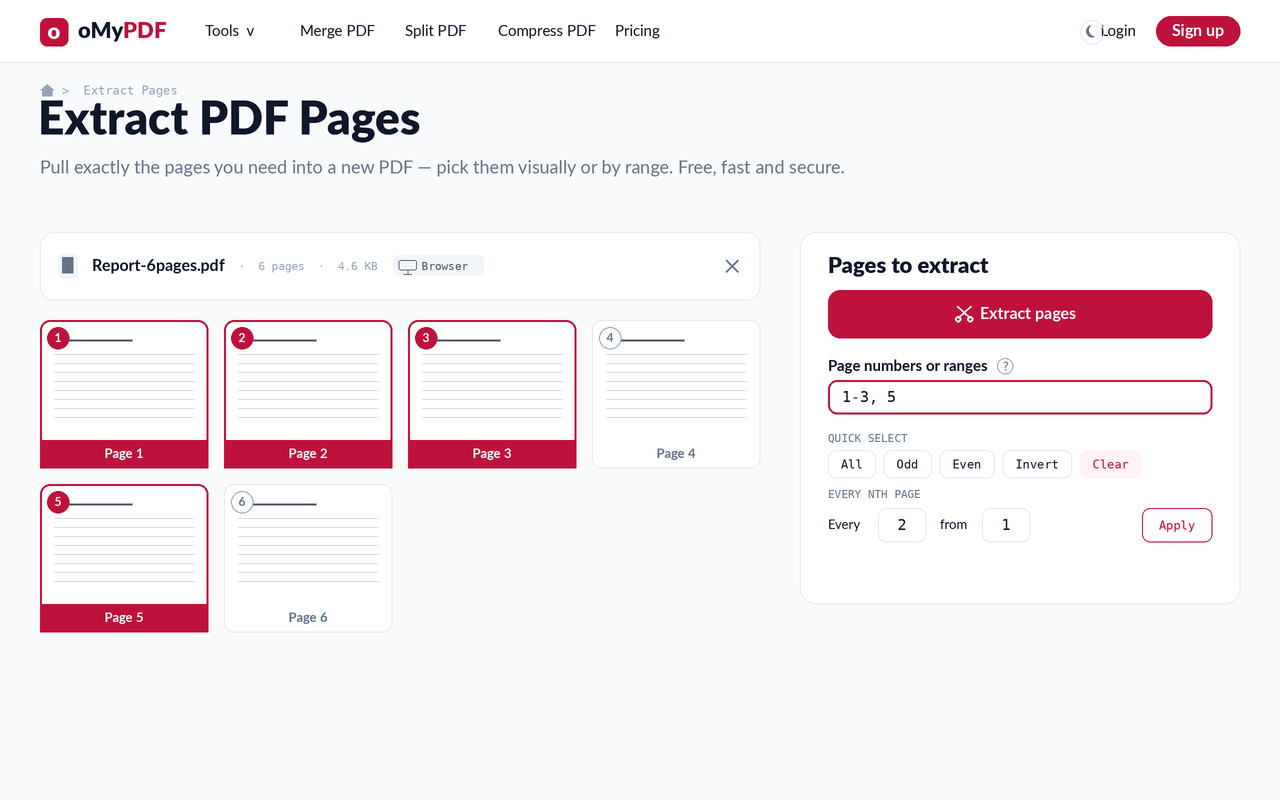
Click page thumbnails, or type page numbers and ranges like 1-3, 5 — the picker and the range box stay in sync. Use Quick Select (All, Odd, Even, Invert) or the Every Nth page helper to select fast.
- 4
Extract & download
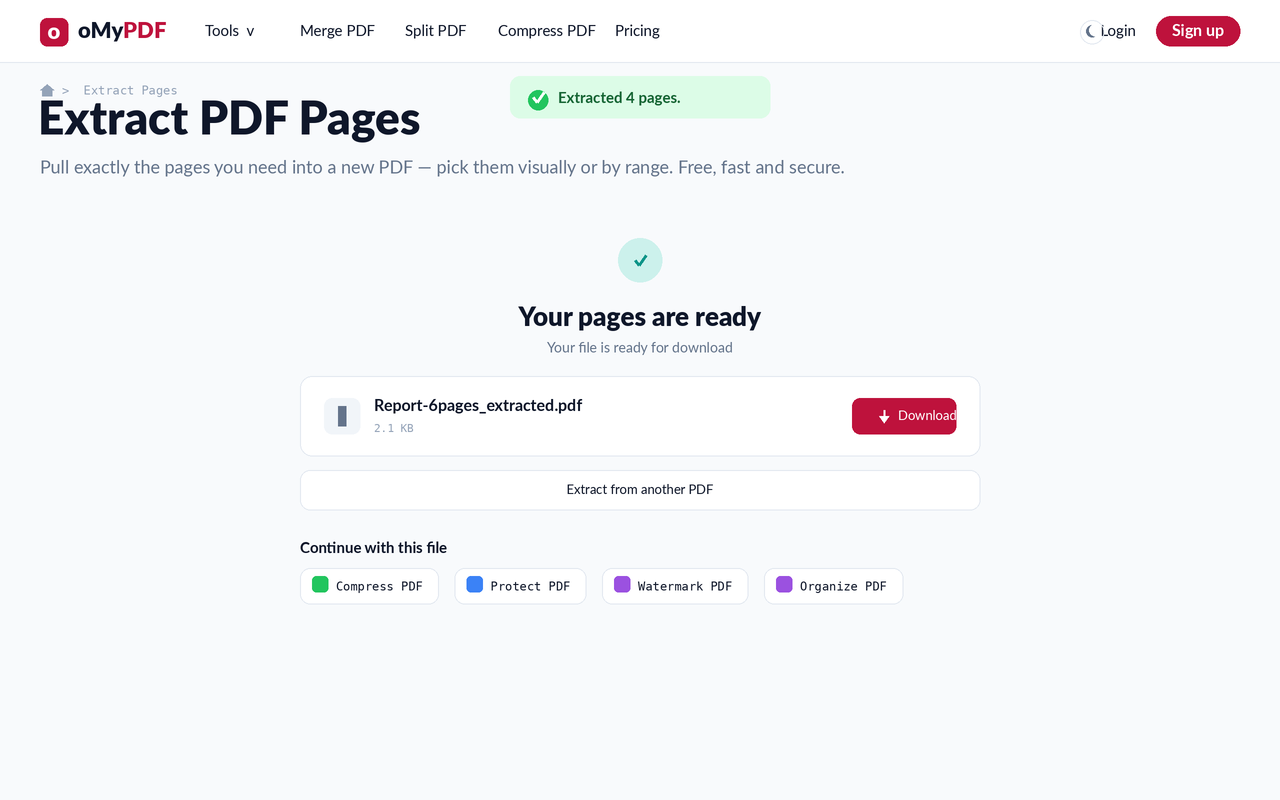
Click Extract pages. A new PDF is built from only the pages you chose, in order — then download it from the Result panel.
Tips
- Two ways to choose: click thumbnails in the picker, or type page numbers and ranges like 1-3, 5, 8-10 — both stay in sync.
- Extract vs. split: extract pulls the pages you pick into one new PDF; if you want to break a document into several files, use Split PDF instead.
- Quick Select: use All, Odd, Even, or Invert to build your selection in one click.
- Private & free: files under 60 MB are processed entirely in your browser and never uploaded.
Ready to extract your pages?
Free, private, and no sign-up required.