Guide · 3 min read
How to Convert a Jupyter Notebook to PDF
Jupyter's own PDF export runs your notebook through LaTeX, which is why it so often ends in a 500 error or a missing-template message. This guide shows the shortcut: convert the .ipynb file directly in your browser, keeping your markdown, syntax-highlighted code, outputs, charts and LaTeX math — with no LaTeX, no nbconvert and nothing to install.
Quick overview
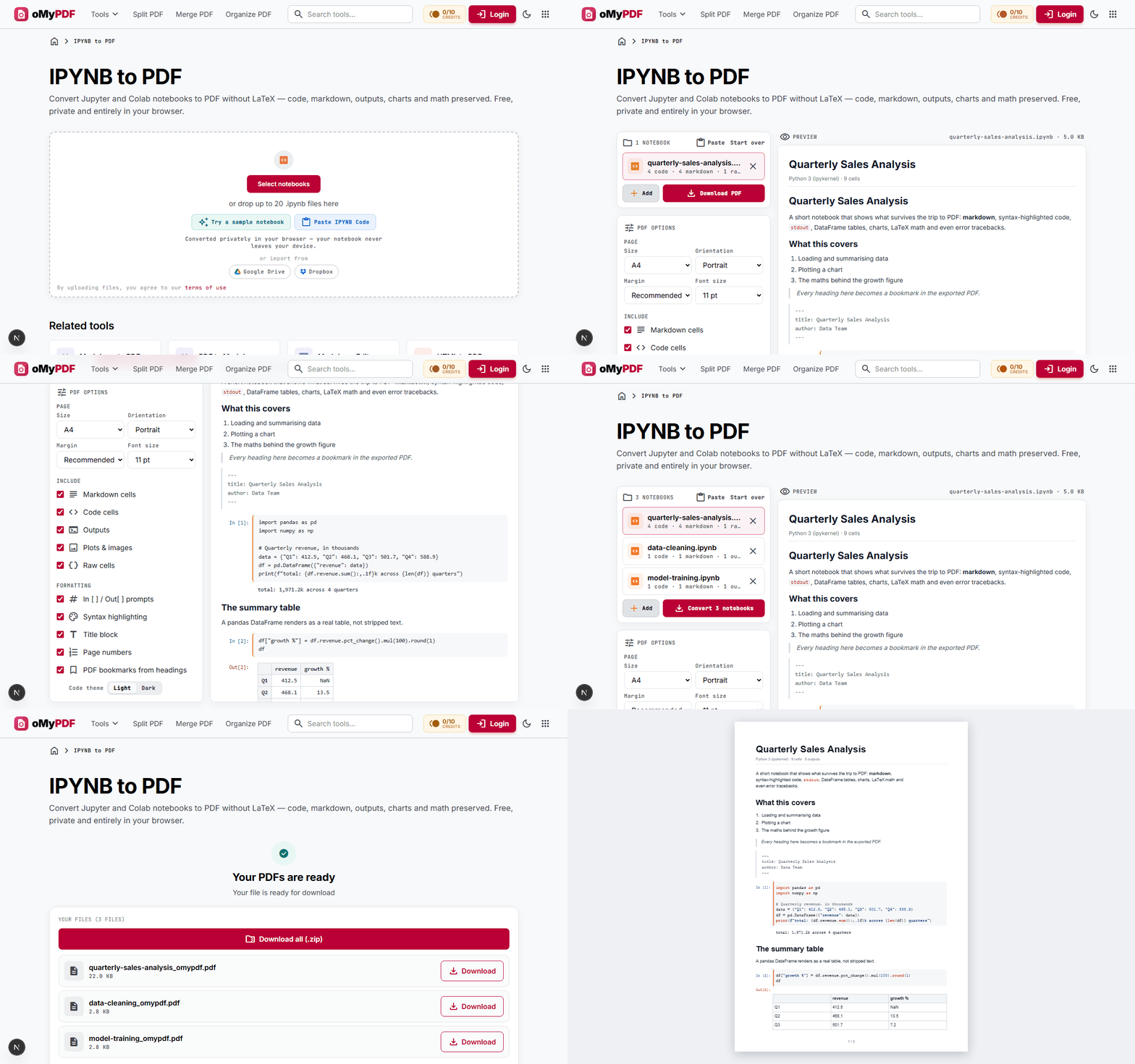
The whole workflow: add your notebook, check the preview, choose what to include, convert one file or a batch, then download the finished PDF.
Step-by-step
- 1
Open the tool and add your notebook
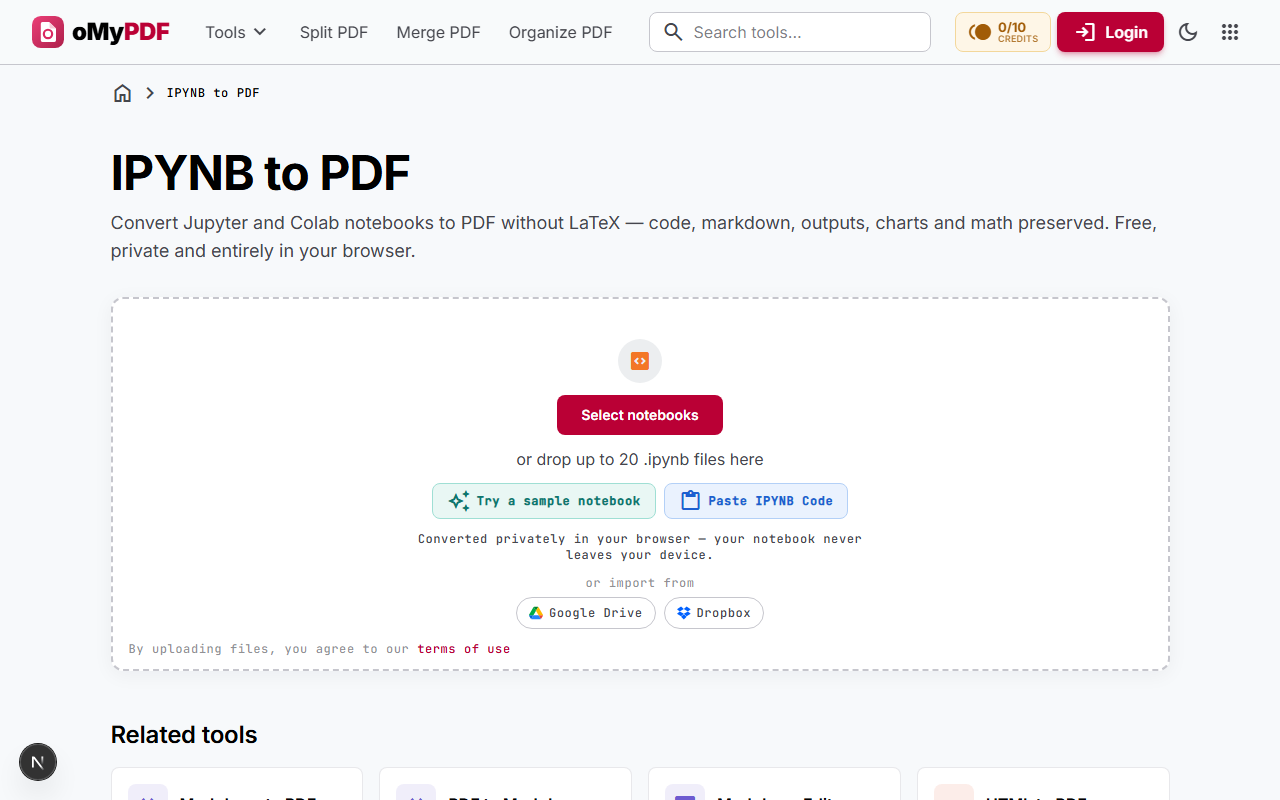
Go to the IPYNB to PDF page and drop your .ipynb file onto the upload area, or click Select notebooks to browse for it. You can also pull one in from Google Drive or Dropbox. No file to hand? Click Paste IPYNB Code and paste your source — or a whole notebook — straight in. Nothing is uploaded to a server; it's all read and converted on your own device. In a hurry, Try a sample notebook shows the whole flow first.
- 2
Check the live preview
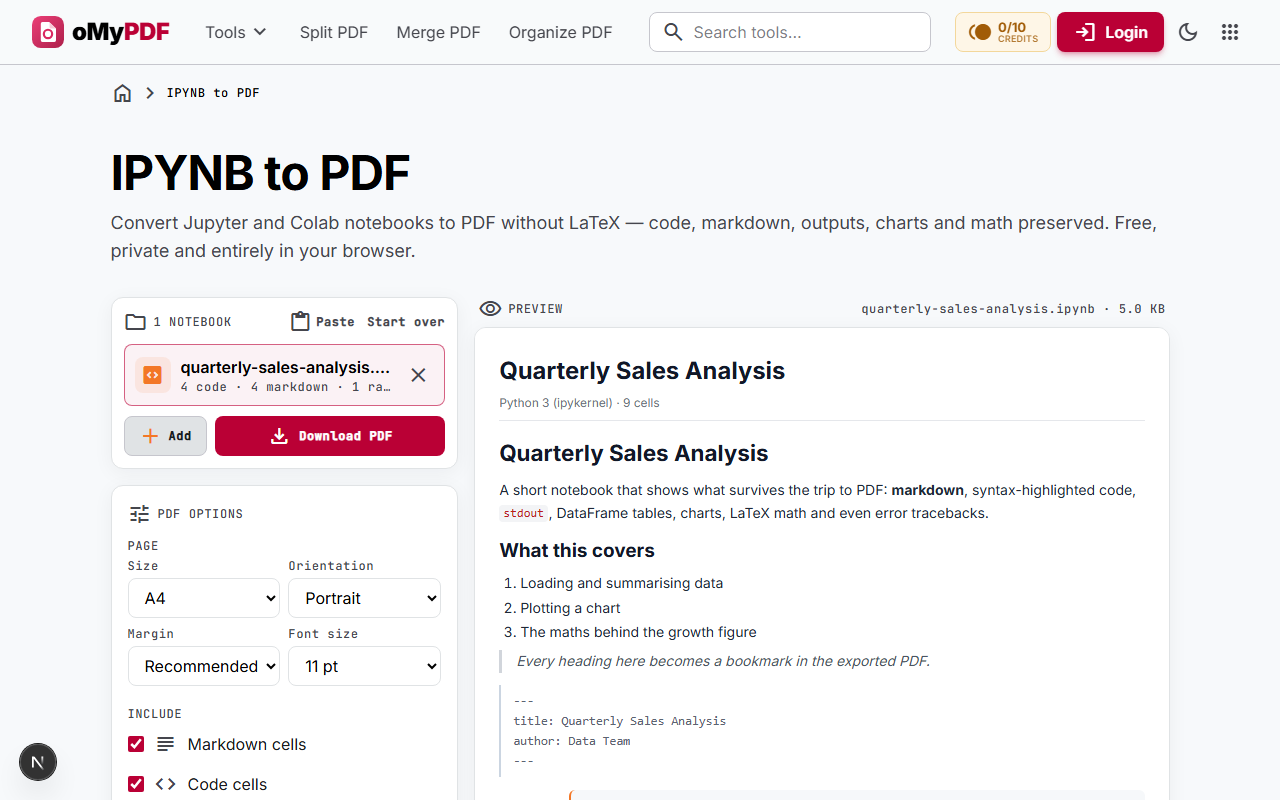
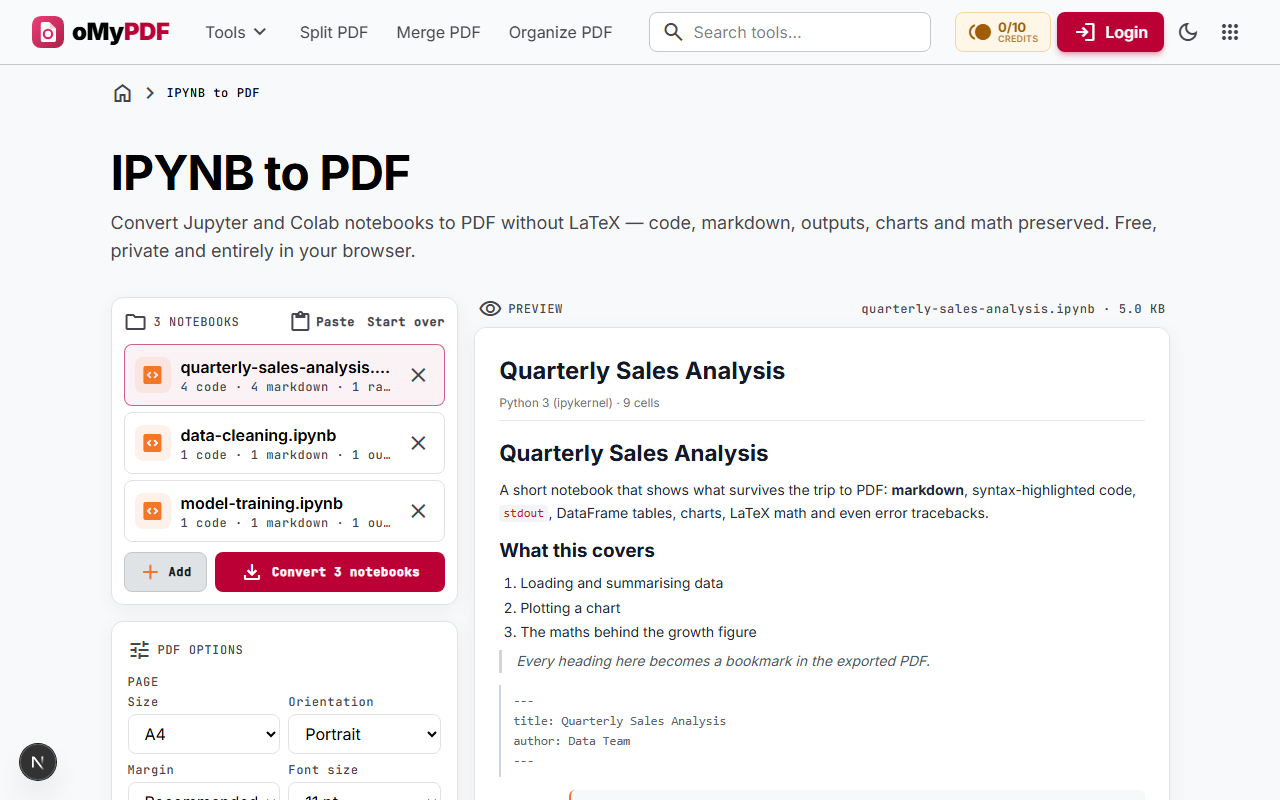
Your notebook renders straight away in a JupyterLab-style preview, so you can see exactly what will land in the PDF before you convert. Markdown cells, syntax-highlighted code, In [ ] and Out[ ] prompts, printed output, DataFrame tables, charts and LaTeX math all appear just as they will in the finished document.
- 3
Choose what goes into the PDF
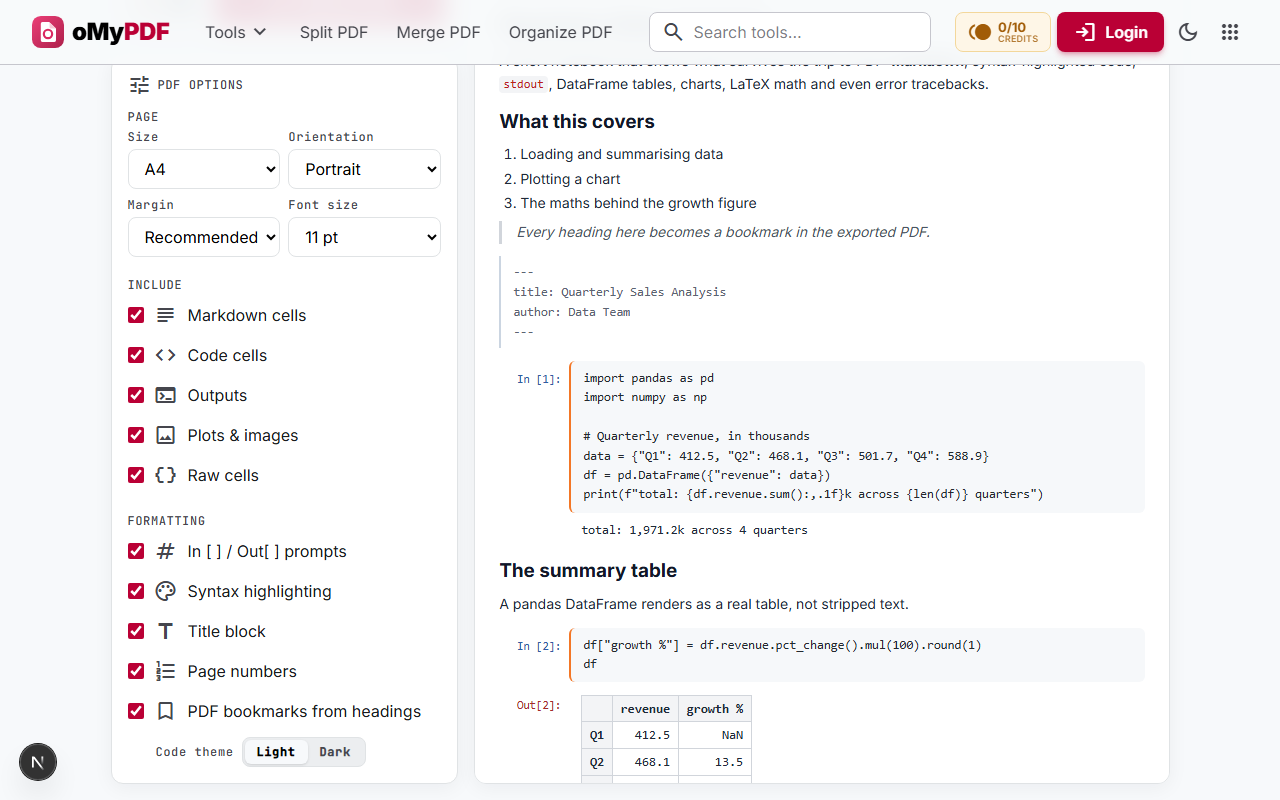
Set the page size, orientation, margin and font size, then pick exactly which parts of the notebook to include: markdown cells, code cells, outputs, plots and images, and raw cells. Under Formatting you can toggle the In [ ] / Out[ ] prompts, syntax highlighting (light or dark code blocks), a title block, page numbers, and PDF bookmarks built from your markdown headings.
- 4
Convert one notebook, or a whole batch
Click Download PDF and you're done. To convert several notebooks at once, use Add to queue up to 20 of them — the button changes to Convert 3 notebooks (or however many you've added) and every file uses the same settings, so a whole project or course folder comes out consistent.
- 5
Download your PDFs
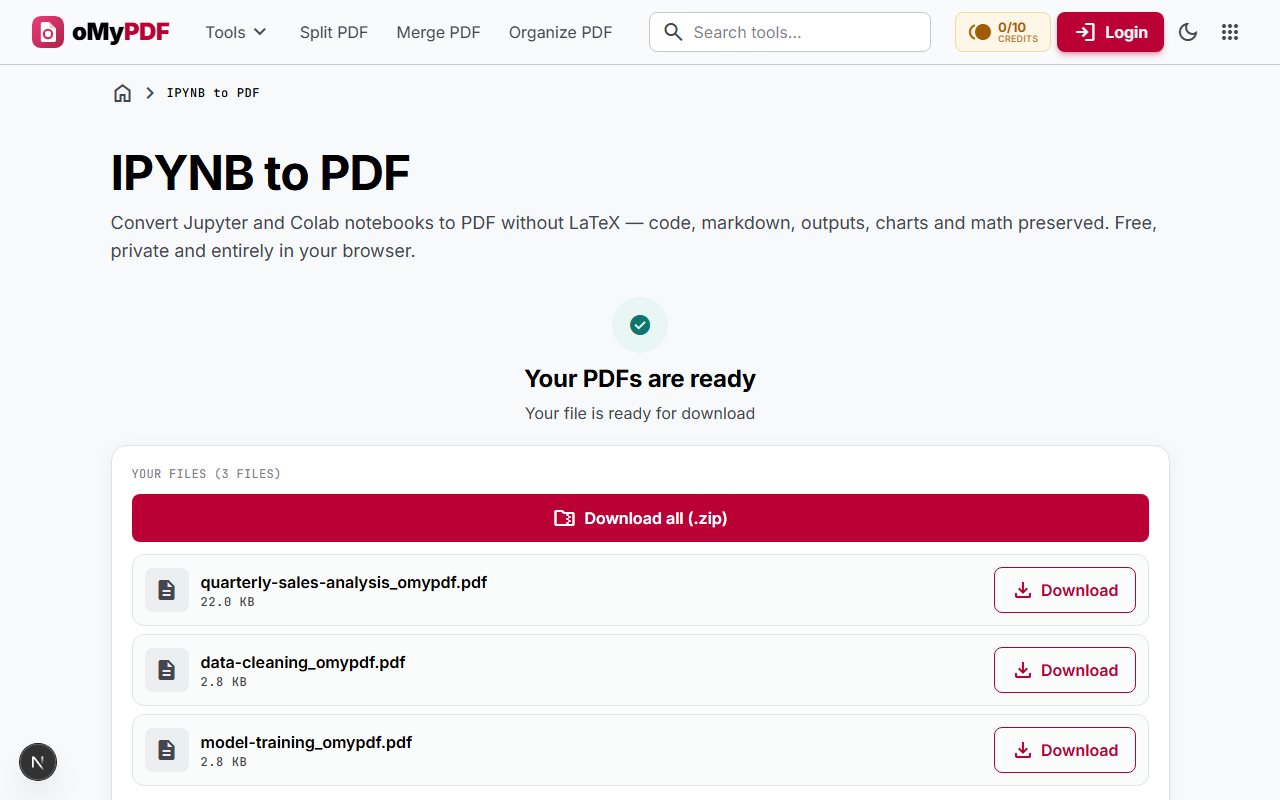
Each notebook becomes its own PDF, ready to download individually — or grab the lot in one go with Download all (.zip). From here you can also send the result straight into another tool, such as Compress PDF or Protect PDF.
- 6
Open the finished PDF
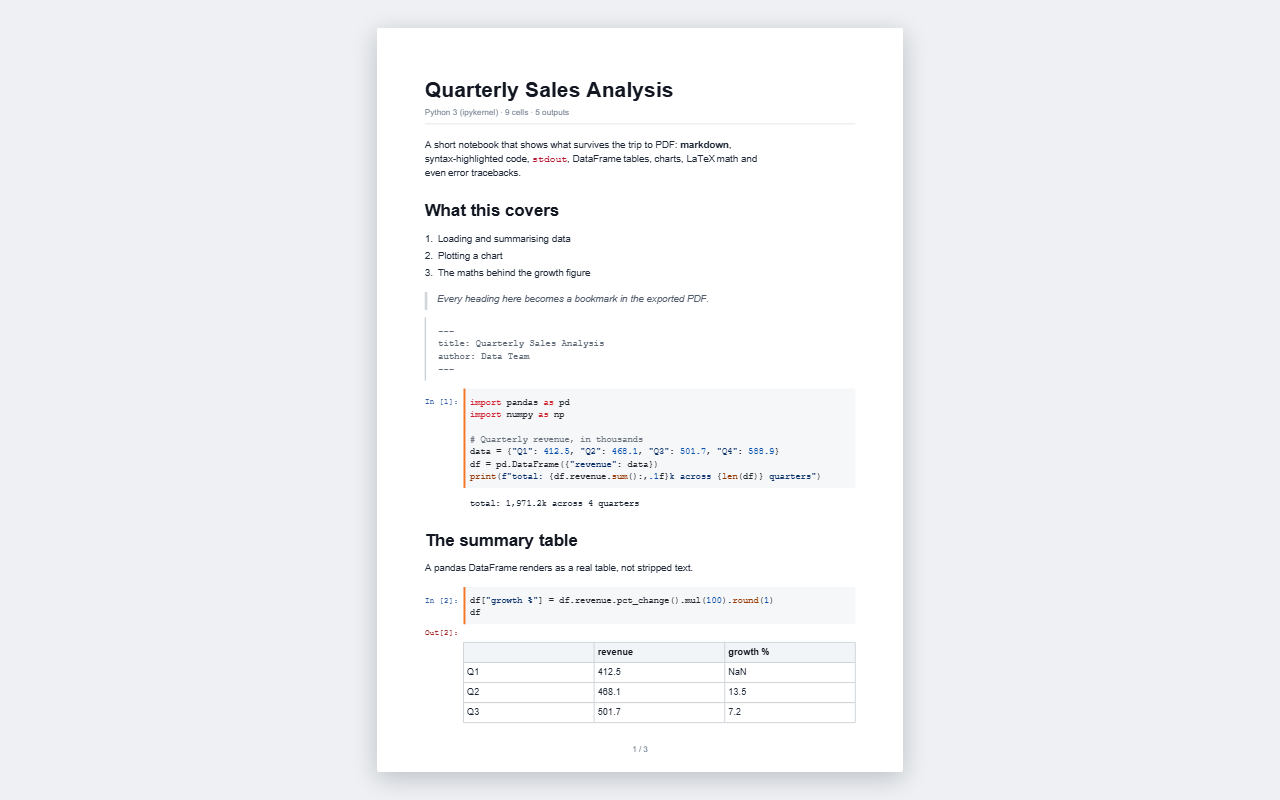
The result is a proper document, not a screenshot: the text is selectable and searchable, code keeps its syntax colours, the DataFrame is a real table, and every markdown heading appears as a bookmark in your PDF reader's sidebar. Print it, email it, or submit it as-is.
What gets converted
A notebook PDF is only useful if it keeps the parts you actually ran. Here's what carries across:
- Markdown cellsHeadings, bold and italic, links, nested lists, blockquotes, tables and horizontal rules.
- Code cellsSyntax-highlighted for Python, R, Julia, SQL, JavaScript and more, in a light or dark code theme, wrapped to the page width.
- Printed outputstdout as plain monospace, stderr warnings tinted, and execution results labelled Out[n] — exactly as Jupyter shows them.
- pandas DataFramesRebuilt as genuine PDF tables with borders and a header row, rather than being flattened into unreadable text.
- Charts and imagesmatplotlib and Seaborn figures, plus any embedded PNG, JPEG or SVG output, at their original resolution.
- LaTeX mathInline and display equations typeset properly, so formulas look the way they do in the notebook.
- Error tracebacksKept in a red block with the exception name and message on the first line — useful when the notebook is coursework or a bug report.
- Bookmarks from headingsEvery markdown heading becomes an entry in the PDF outline, giving a long analysis a clickable table of contents.
The one thing a static PDF can't hold is anything that needs a live JavaScript runtime — ipywidgets sliders, and interactive Plotly or Bokeh charts. The converter counts them and tells you how many it found, so nothing disappears without warning. Re-run those cells with a static renderer and they'll come through as ordinary images.
Troubleshooting
The four problems people hit most often when exporting a notebook, and what actually fixes them.
Jupyter shows “500: Internal Server Error” when you export to PDF
Why: Jupyter's own PDF export runs the notebook through LaTeX. The error almost always means TeX Live, MiKTeX or Pandoc isn't installed — not that anything is wrong with your notebook.
Fix: Convert the .ipynb here instead. There's no LaTeX step at all, so there's nothing to install and nothing to configure.
The PDF is missing your outputs
Why: The notebook was saved before the cells finished running, so no outputs were stored in the file — or a nbconvert template dropped them on the way through.
Fix: Restart the kernel, run all cells, save, then convert again with Outputs enabled. Whatever you can see in Jupyter is what lands in the PDF.
An interactive chart or widget comes out blank
Why: ipywidgets, Plotly and Bokeh views need a live JavaScript runtime to draw themselves, and a static PDF has nowhere to run one.
Fix: Re-run those cells with a static renderer (for example a matplotlib figure, or Plotly's static image export) and convert again. The tool tells you how many interactive outputs it found so nothing disappears silently.
Google Colab has no “Download as PDF” option
Why: Colab only offers .ipynb and .py downloads. Printing the browser page is the usual workaround, but it clips long outputs and adds browser headers and footers.
Fix: In Colab choose File → Download → Download .ipynb, then convert that file here for proper pagination and searchable text.
Tips
- Run everything first: restart the kernel and run all cells before you export, so no cell shows a stale result from an earlier run.
- Go landscape for wide content: if your notebook has wide DataFrames or charts, switch the orientation to landscape (or the page size to A3) and they'll breathe.
- Use headings deliberately: markdown headings become the PDF's bookmark outline, which is what makes a long analysis navigable for whoever you send it to.
- Hide the code for a report: turn off Code cells and the In [ ] / Out[ ] prompts to produce a clean document of just the narrative and the charts.
- Keep the light code theme for print: dark code blocks look great on screen but use a lot of ink on paper.
- Private by default: the notebook is parsed and the PDF built entirely in your browser, so proprietary code and unpublished research never leave your device.
Ready to convert your notebook?
Free, private, and no LaTeX required.