Guide · 2 min read
How to Resize a PDF
The oMyPDF Resize PDF tool changes a PDF's page size to A4, Letter, Legal or any custom dimension, and lets you choose how the content scales to fit. Smaller files are resized right in your browser, so nothing leaves your device.
Quick overview
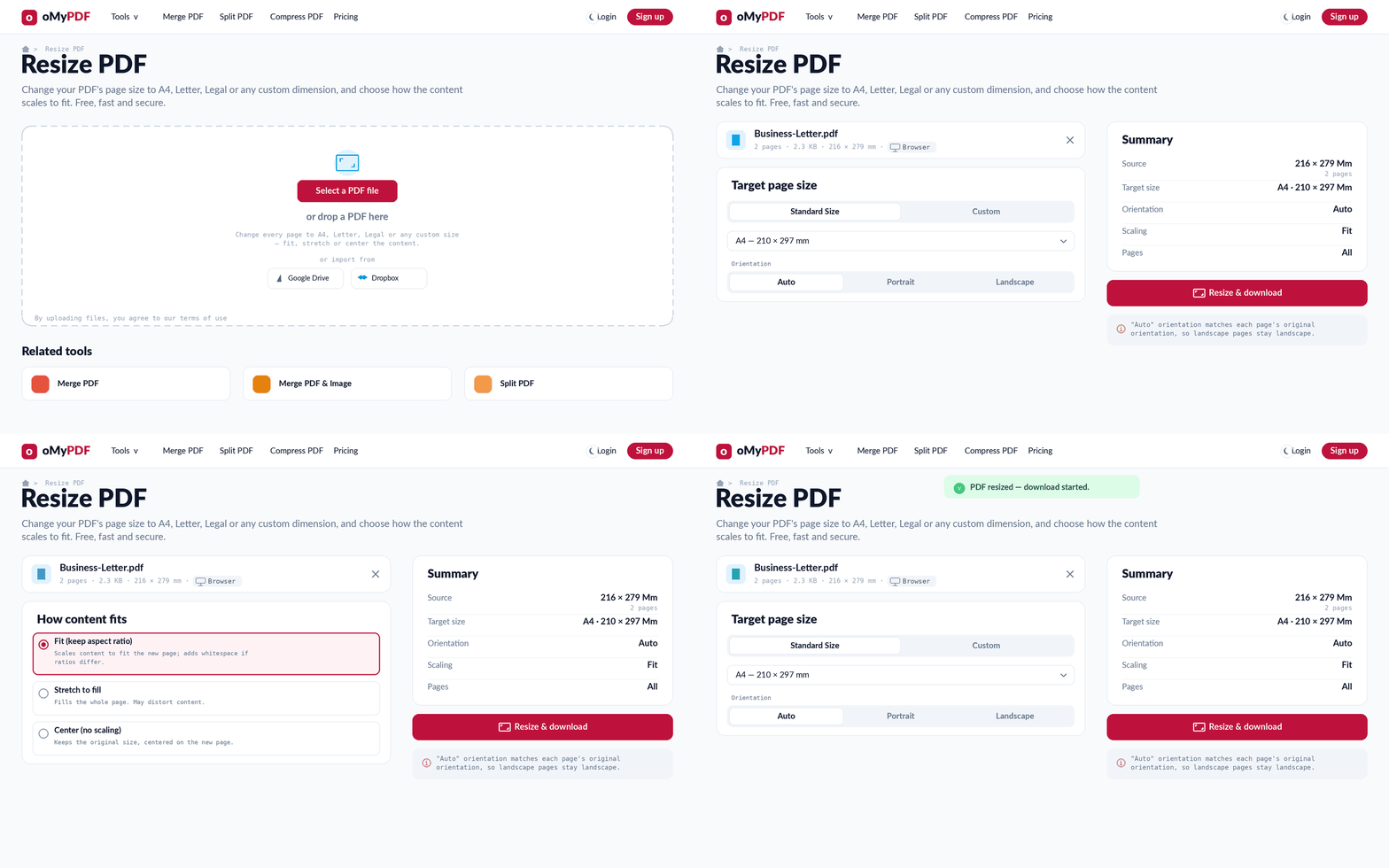
The full workflow: add a PDF, choose the target size, set how the content fits, then resize and download.
Step-by-step
- 1
Open the tool
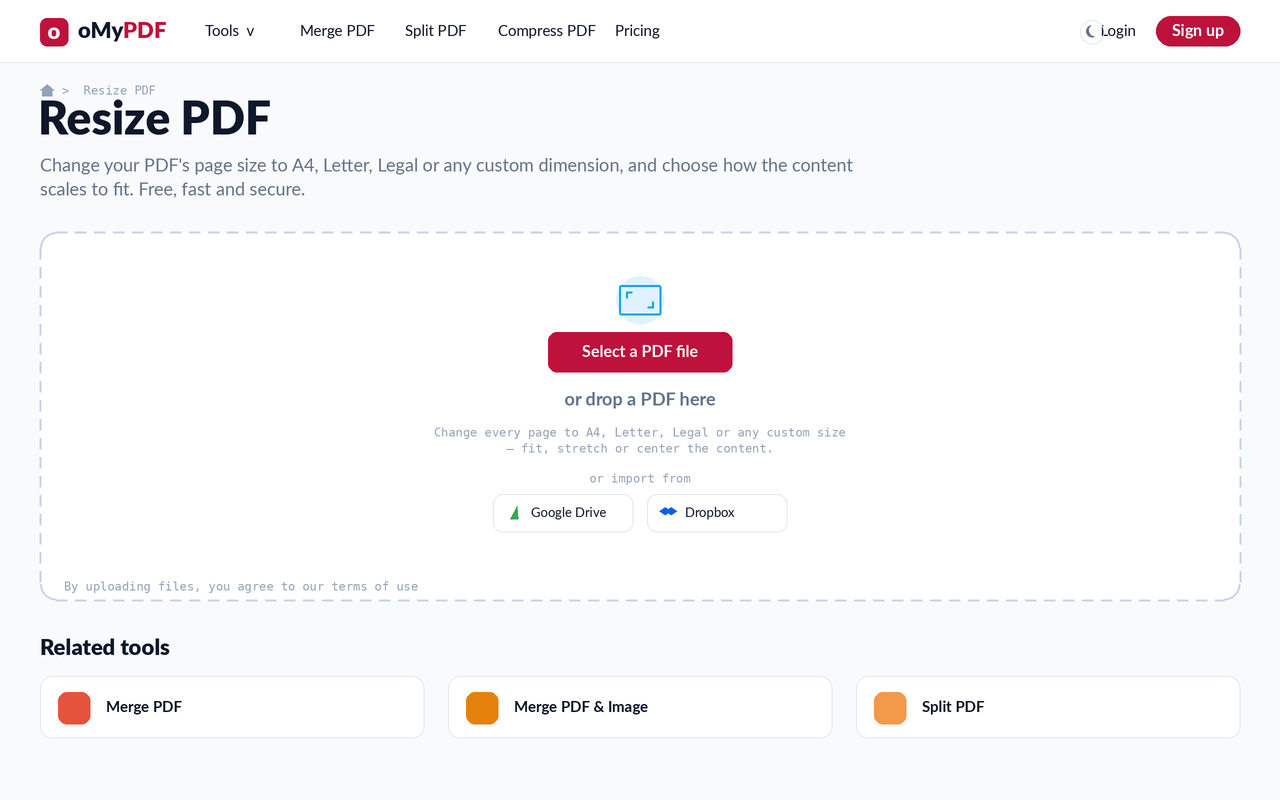
Go to the Resize PDF page. Click Select a PDF file, or drag a PDF onto the upload area.
- 2
Choose the target size
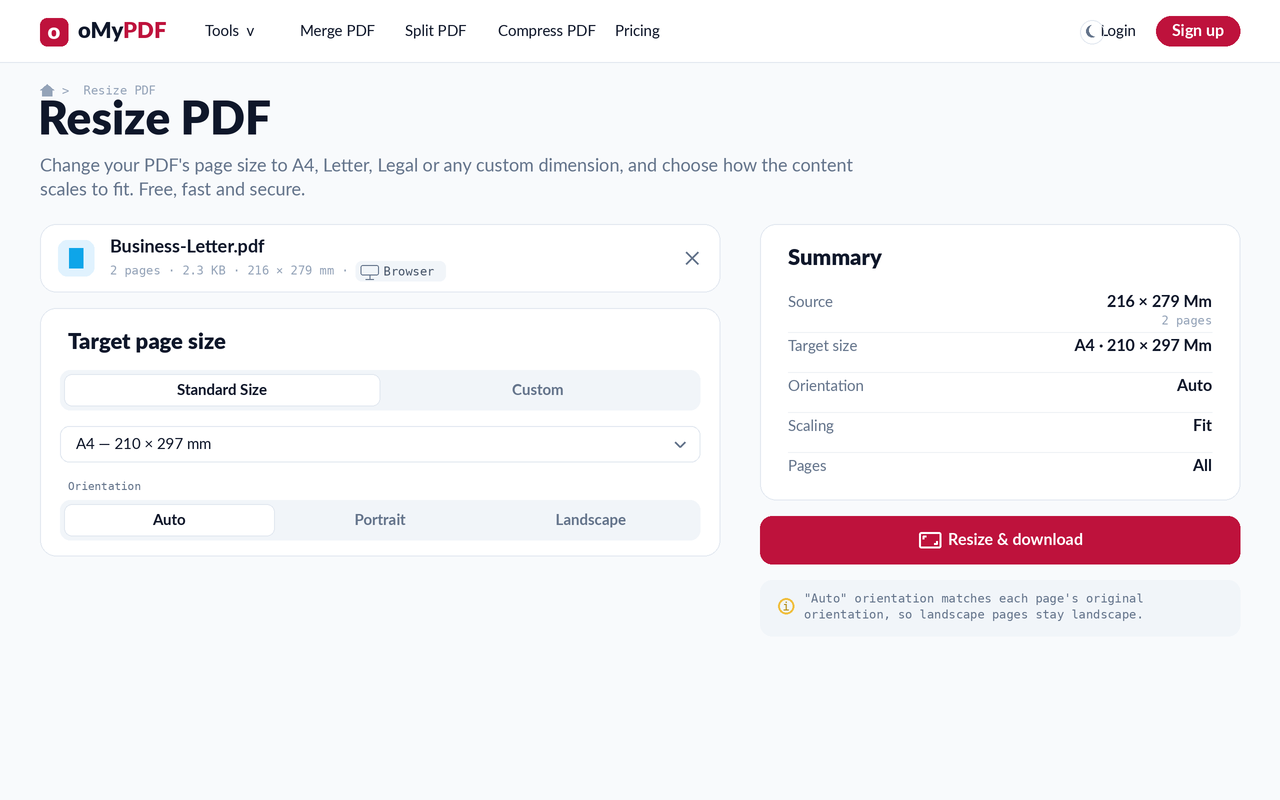
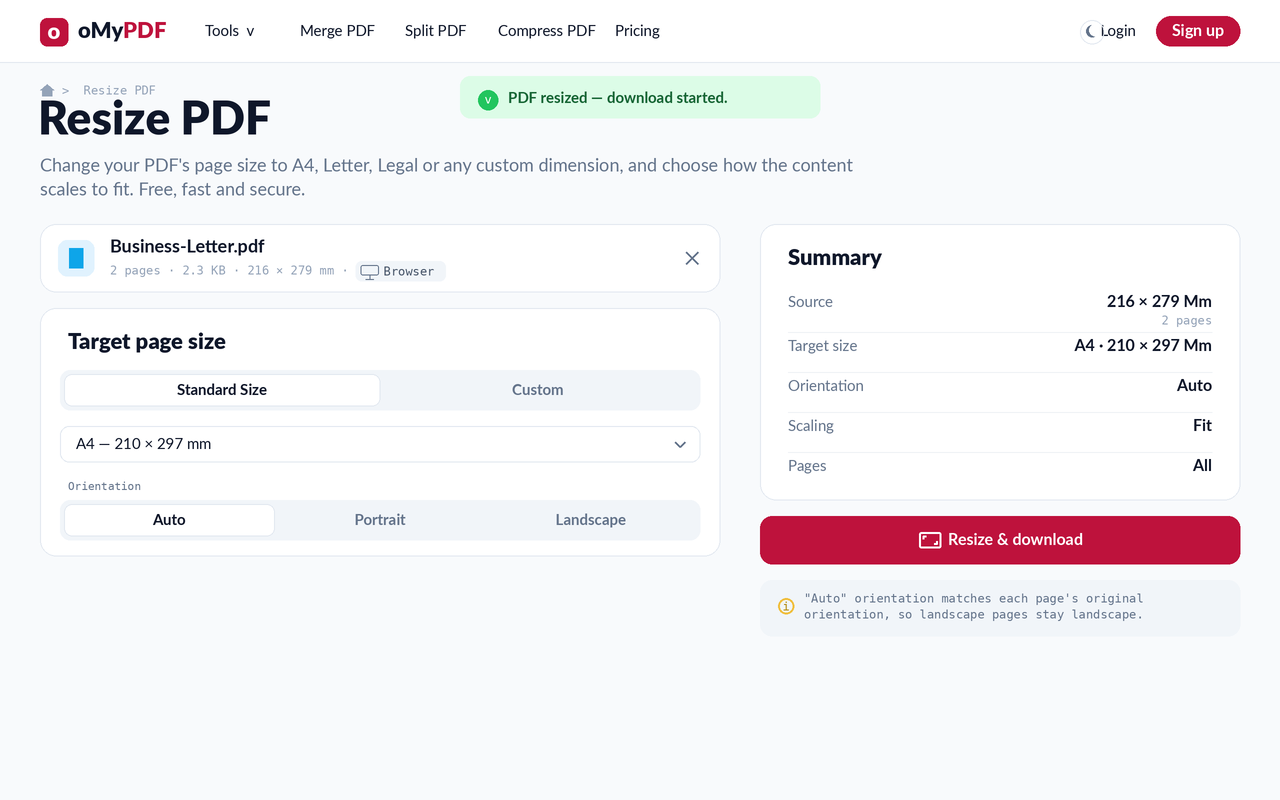
Pick a Standard size like A4, Letter or Legal from the dropdown (or switch to Custom for exact dimensions), then set the orientation — Auto, Portrait, or Landscape. A live Summary shows the source and target sizes.
- 3
Choose how content fits
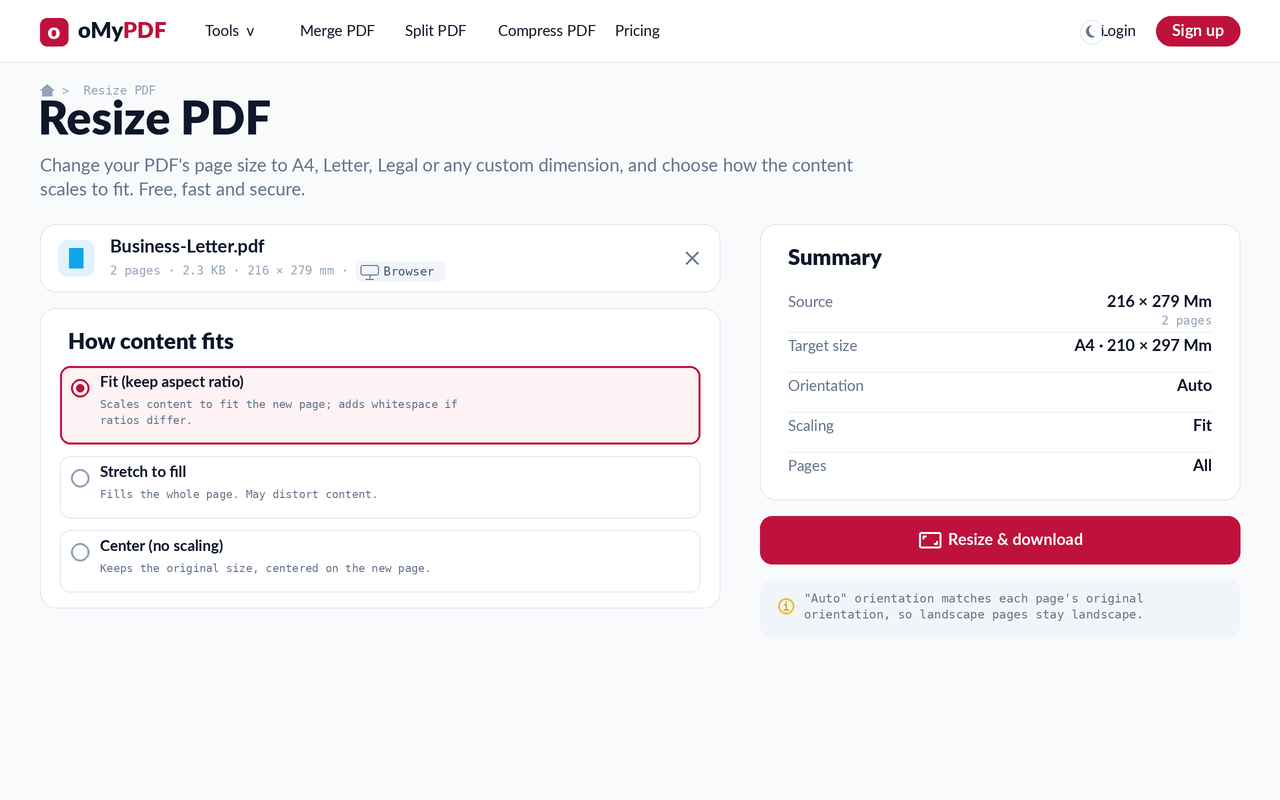
Under How content fits, choose Fit (keep aspect ratio, adds whitespace), Stretch to fill (may distort), or Center (no scaling). You can also limit which pages are resized.
- 4
Resize & download
Click Resize & download. Every page is set to the new size and your resized PDF downloads instantly.
Tips
- Standard or custom: choose A0–A6, B4/B5, Letter, Legal, Tabloid and photo sizes — or enter any custom width and height.
- Fit vs. stretch vs. center: Fit keeps the aspect ratio (adding whitespace), Stretch fills the page (may distort), and Center keeps the original size on the new page.
- Resize only some pages: enter page numbers or ranges like 1-3, 5, 8-10 to resize just those pages and leave the rest untouched.
- Auto orientation: it matches each page's original orientation, so landscape pages stay landscape and portrait pages stay portrait.
Ready to resize your PDF?
Free, private, and no sign-up required.