Guide · 2 min read
How to Unlock a PDF
The oMyPDF Unlock PDF tool removes the password from a PDF you own — enter the password you already know and download a fully decrypted copy that opens without a prompt. Smaller files are unlocked entirely in your browser, so your password never leaves your device.
Quick overview
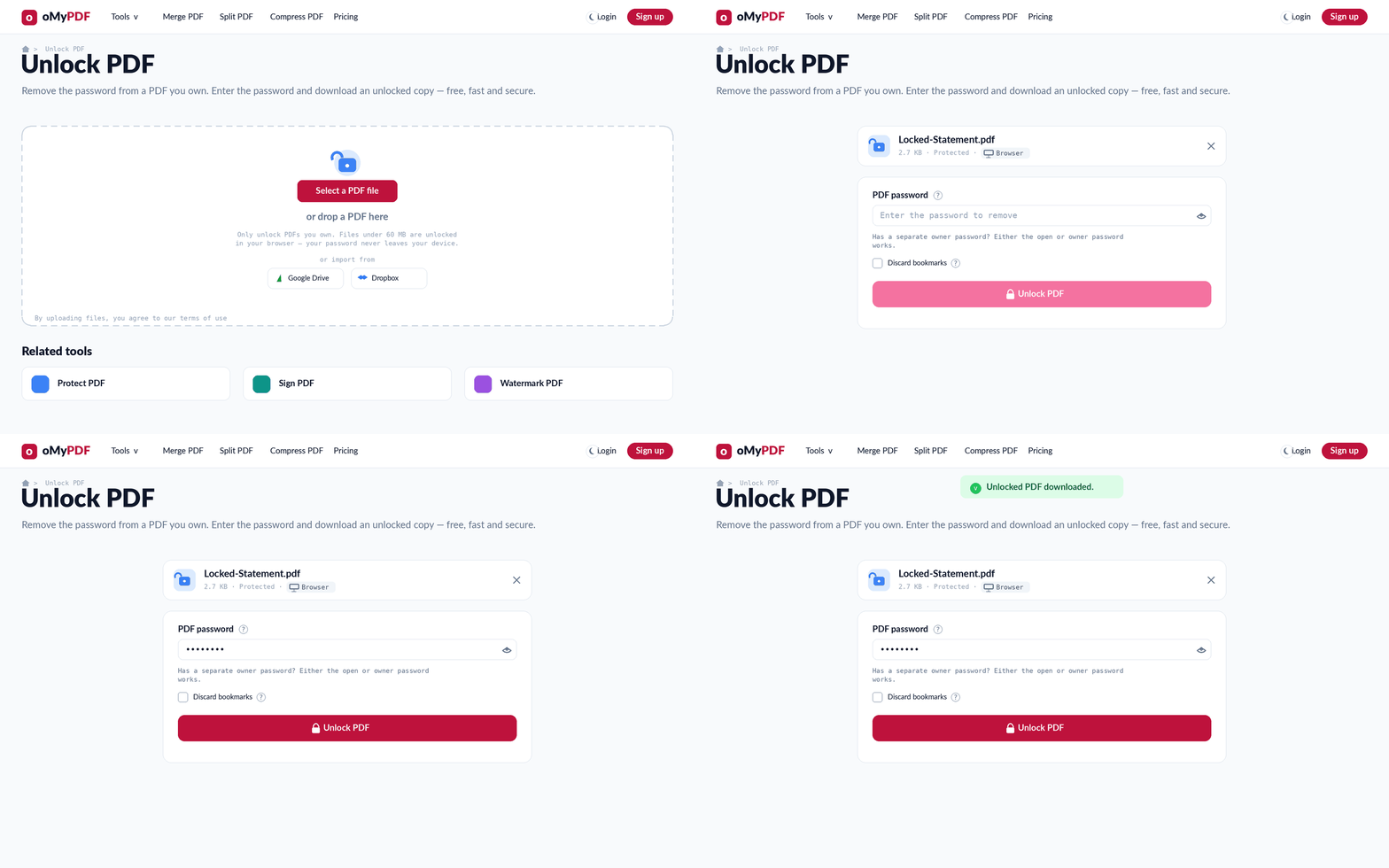
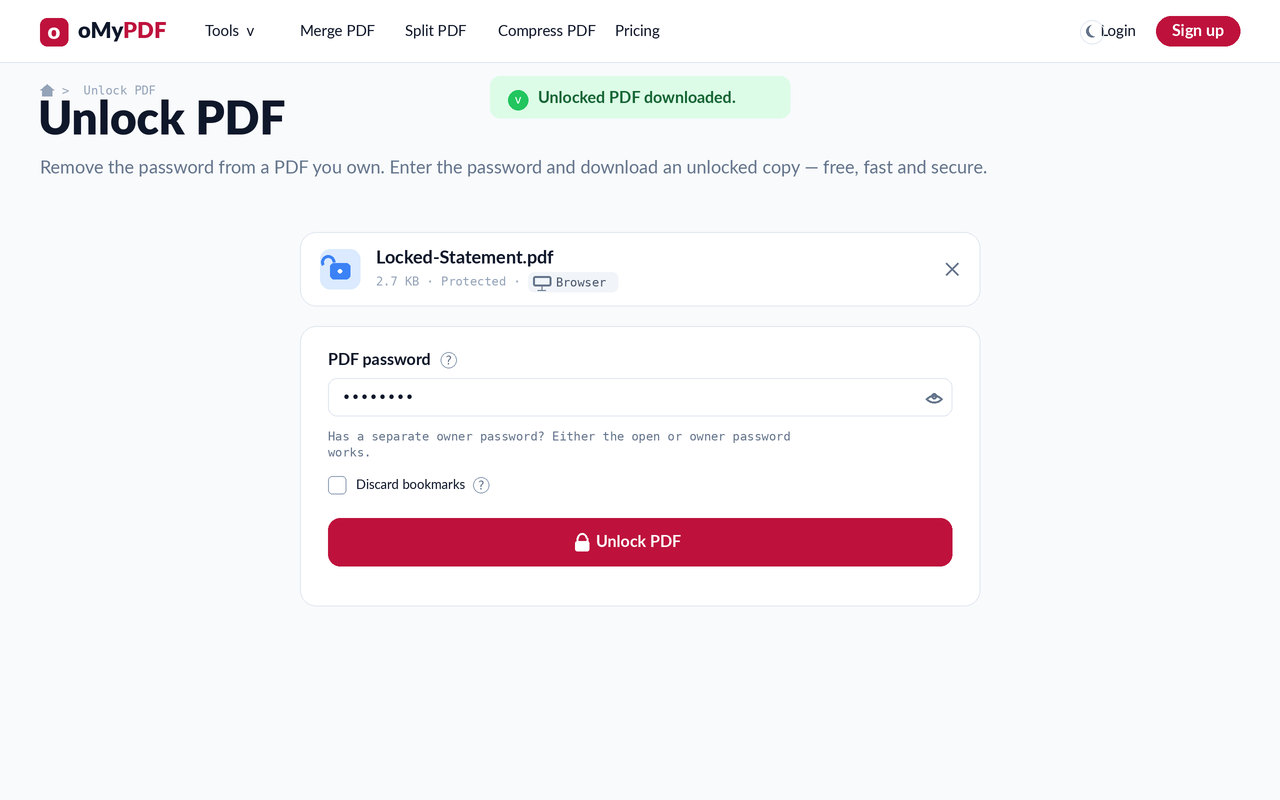
The full workflow: add the protected PDF, enter the password, then unlock and download.
Step-by-step
- 1
Open the tool
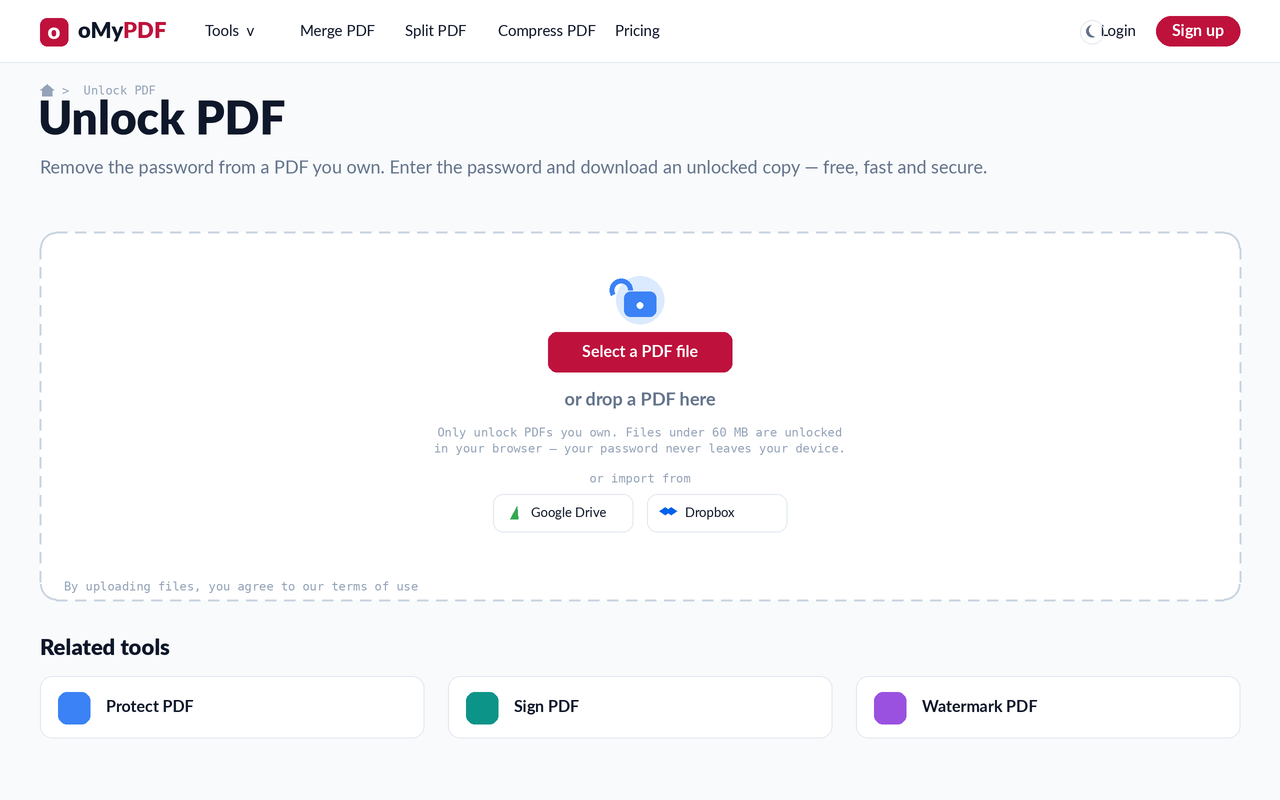
Go to the Unlock PDF page. Click Select a PDF file, or drag the password-protected PDF onto the upload area. You only unlock PDFs you own.
- 2
See the password prompt
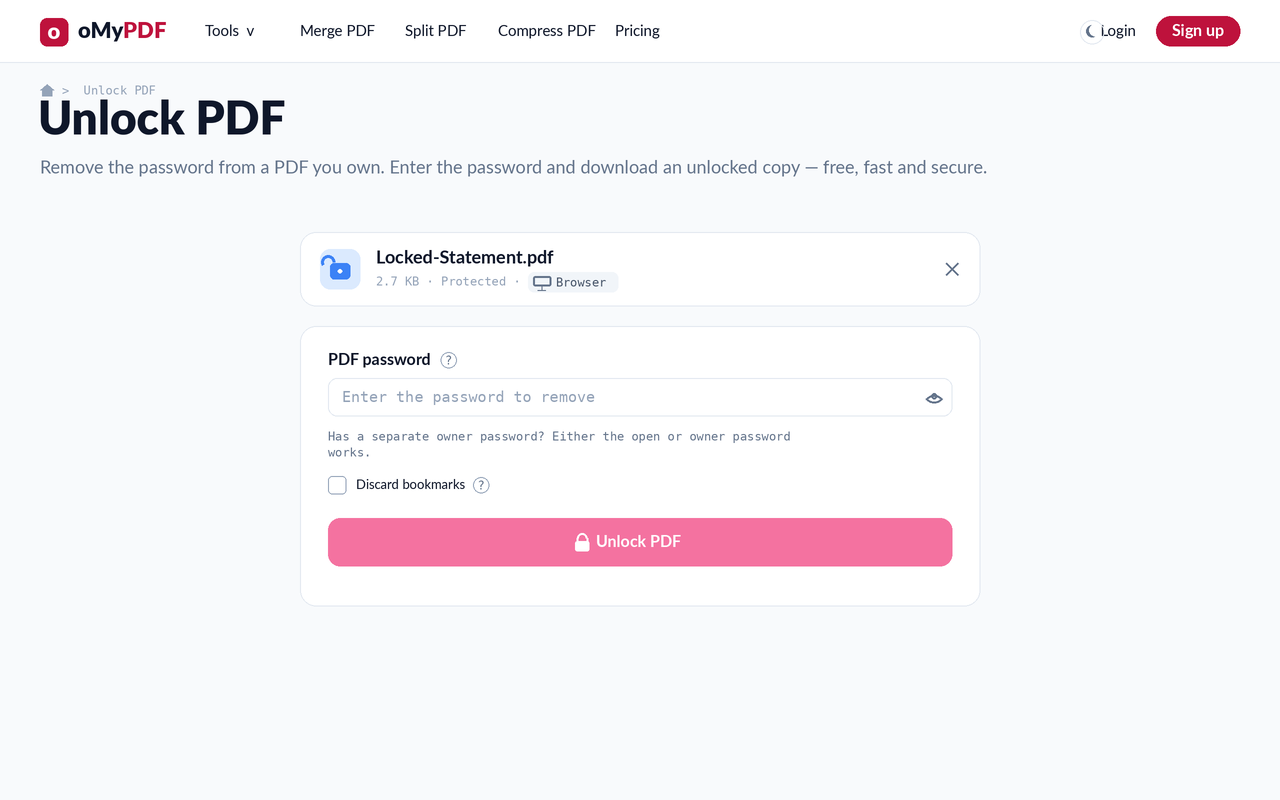
Your file is recognized as Protected and a PDF password field appears. Everything runs in your browser, so your password never leaves your device.
- 3
Enter the password
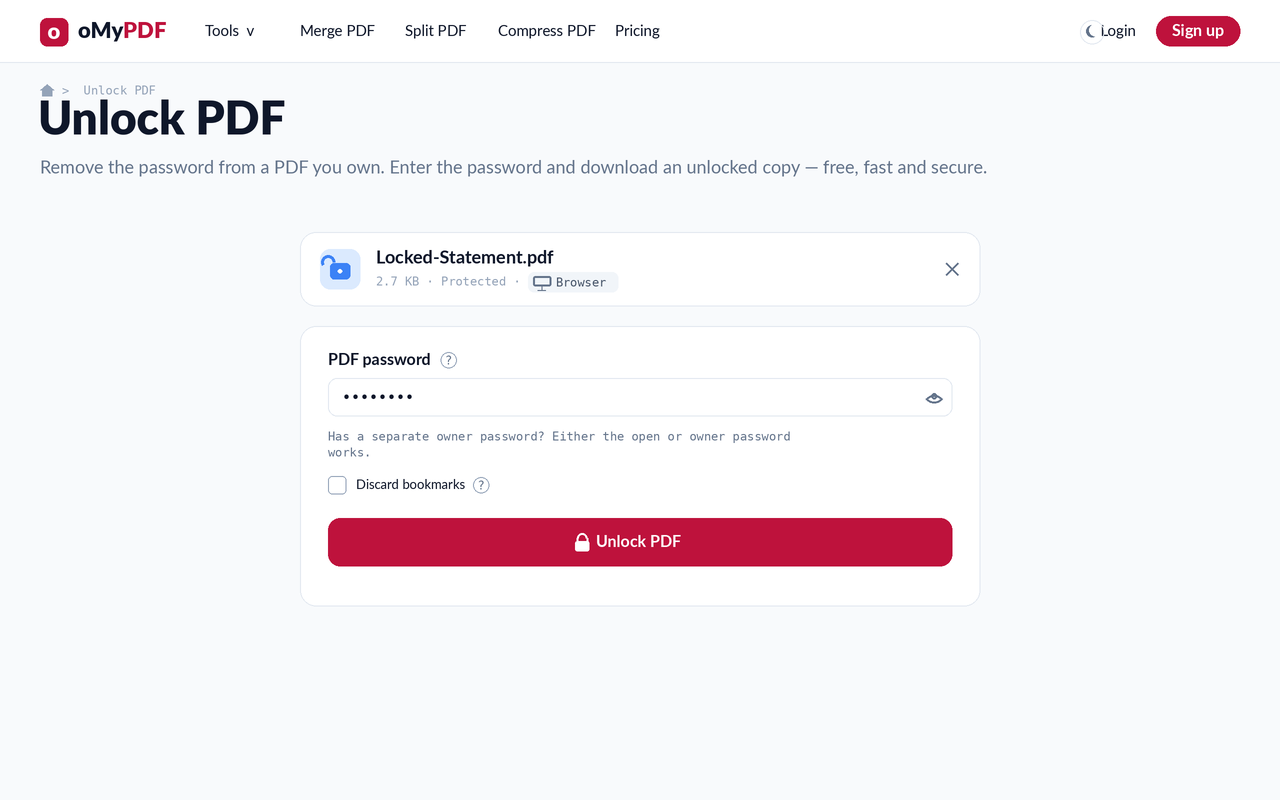
Type the password you already use to open the PDF. If it also has a separate owner (permissions) password, either one works. Optionally discard bookmarks.
- 4
Unlock & download
Click Unlock PDF. You get a fully decrypted copy that opens without asking for a password in any viewer.
Tips
- You need the password: this removes protection from a PDF you can already open — it isn't a way to crack an unknown password.
- Owner or open password: if the PDF has a separate owner (permissions) password as well as the open password, either one works.
- Fully decrypted: the output opens without any prompt in Chrome, Adobe Acrobat, and other viewers — no more re-entering the password.
- Private by design: smaller files are unlocked entirely in your browser — your password and file never leave your device.
Ready to unlock your PDF?
Free, private, and no sign-up required.