Guide · 2 min read
How to Compare Two PDF Files
The oMyPDF Compare tool spots every difference between two documents — PDF or Word — and highlights added, removed and changed text side by side. Browse each change, then export a report or a highlighted PDF. Comparison runs on our servers — which is what makes it thorough — and both files are deleted automatically within an hour.
Quick overview
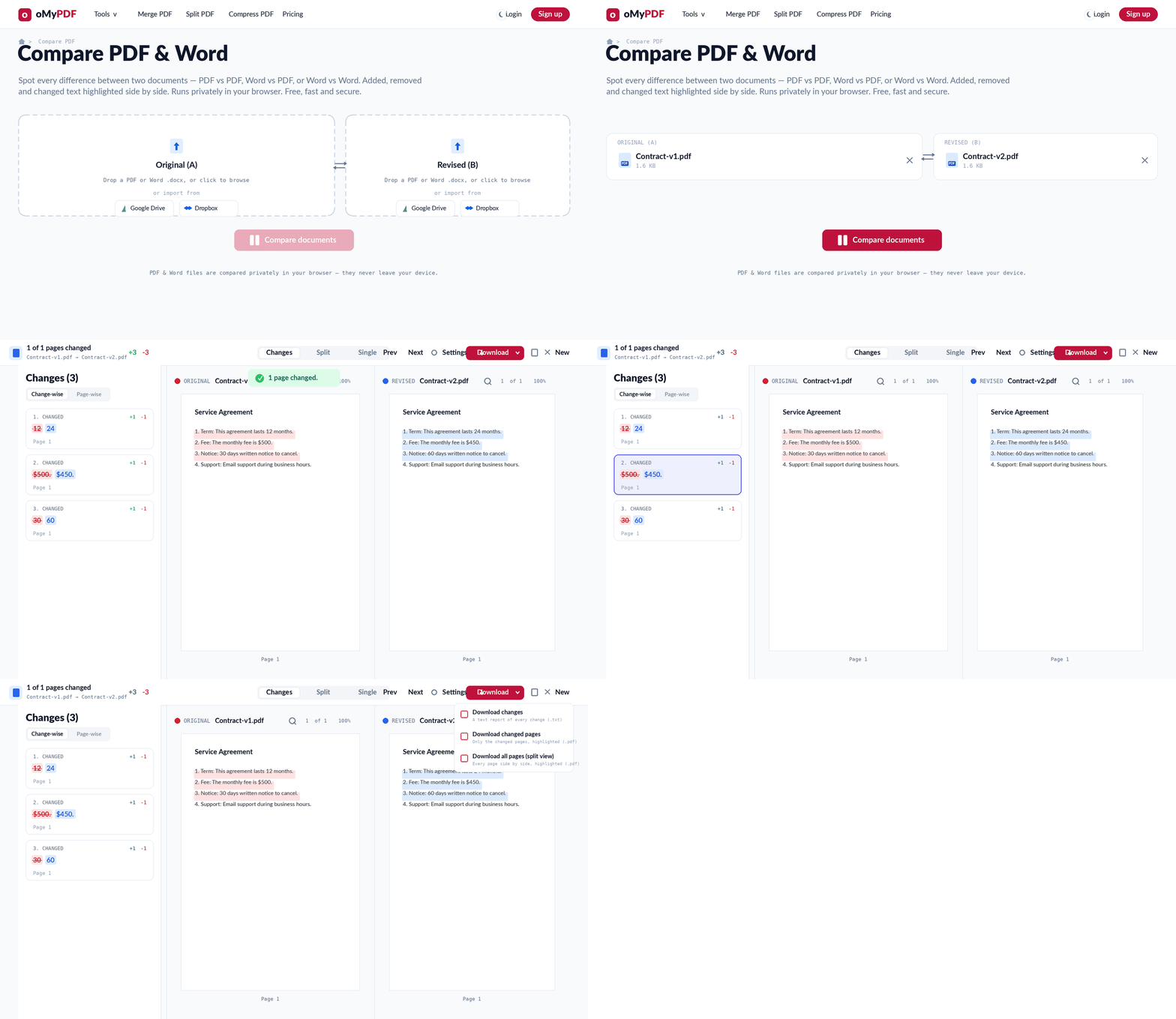
The full workflow: add both documents, compare them, review the highlighted differences side by side, then export the comparison.
Step-by-step
- 1
Add both documents
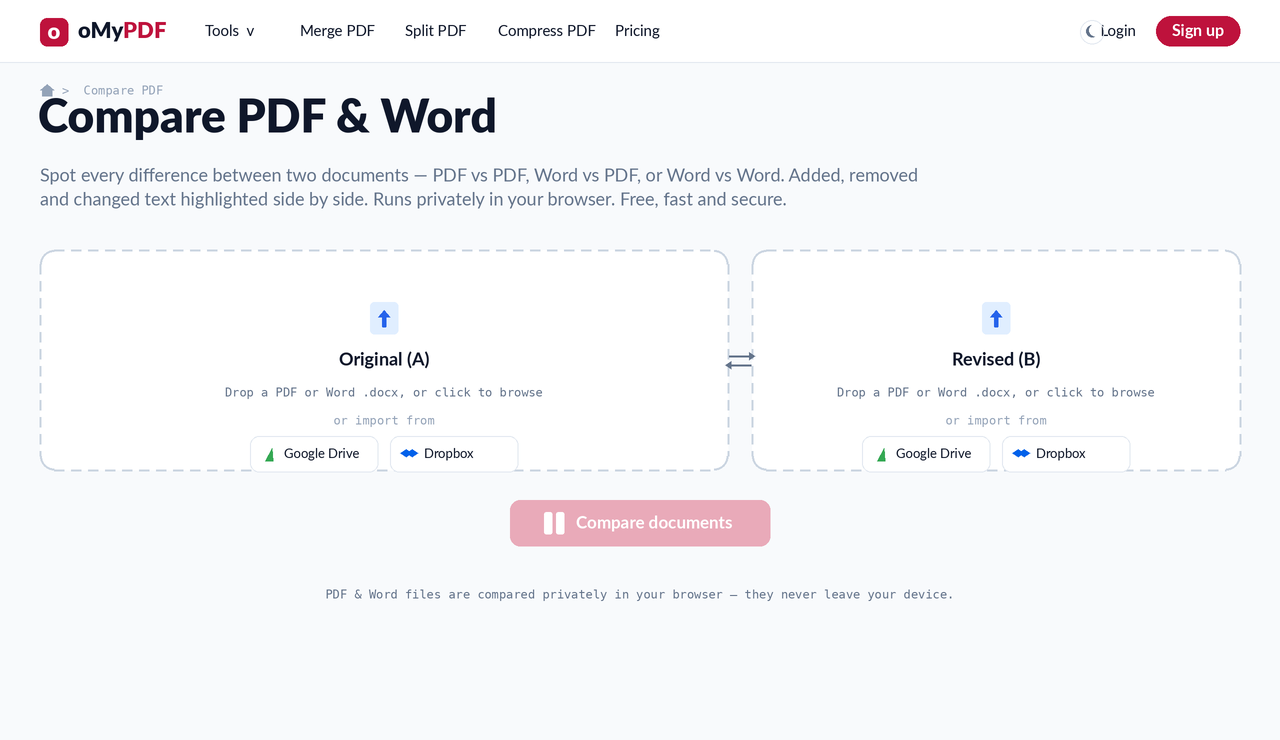
Go to the Compare PDF page. Drop your first file into Original (A) and the second into Revised (B) — each can be a PDF or a Word .docx, so you can compare PDF vs PDF, Word vs PDF or Word vs Word.
- 2
Compare documents
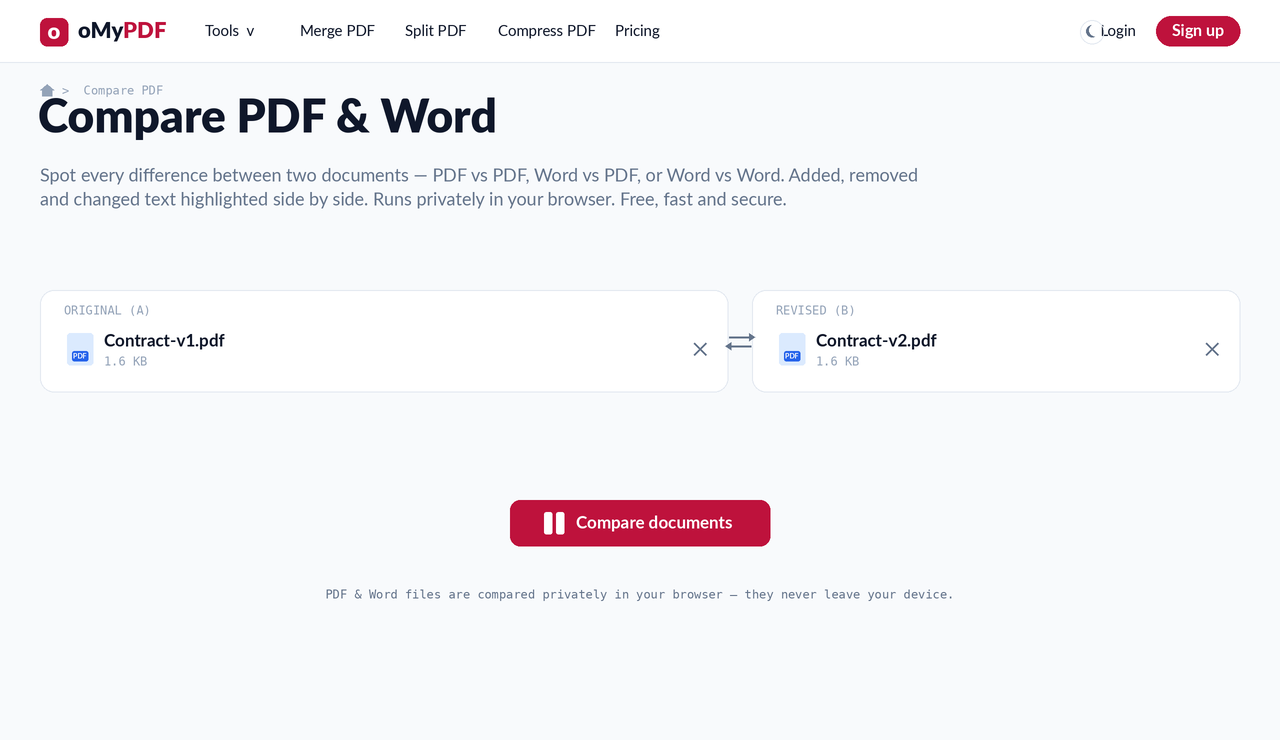
Once both files are loaded you'll see them side by side. Click Compare documents — both files are uploaded over an encrypted connection so the comparison engine can read them, and both are deleted automatically within an hour.
- 3
See the differences side by side
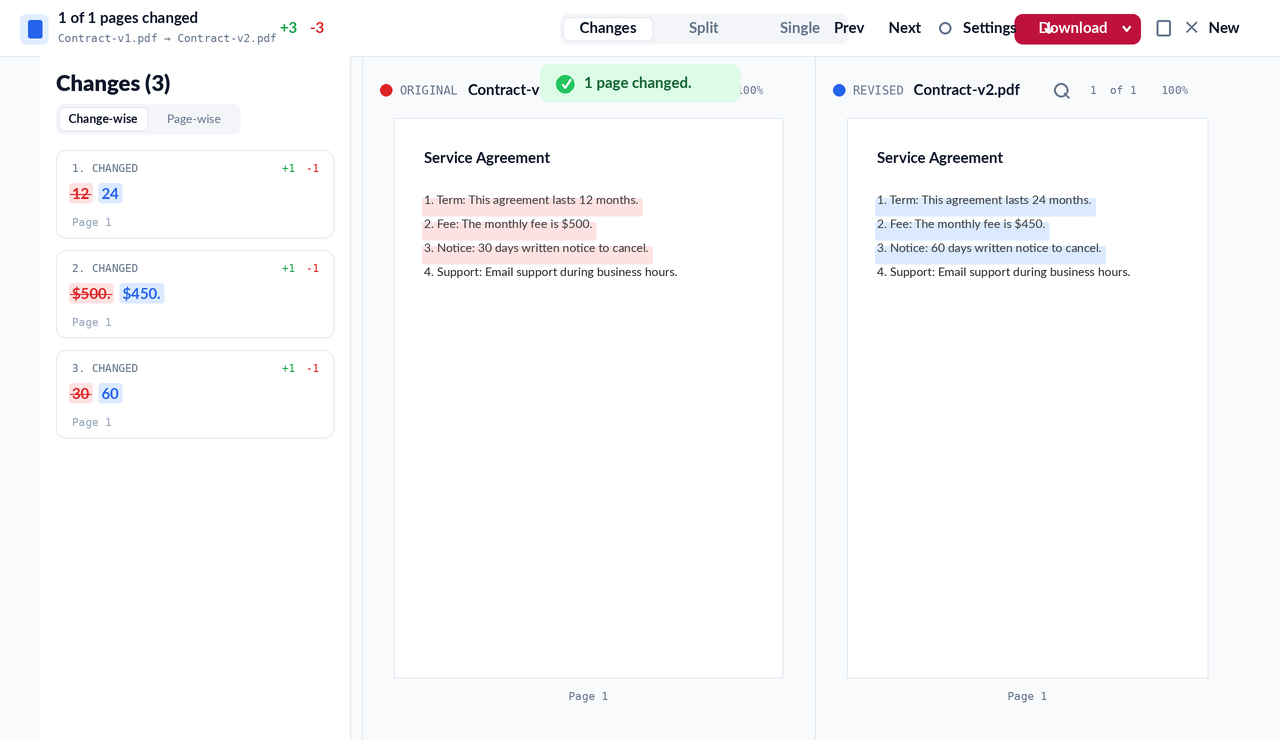
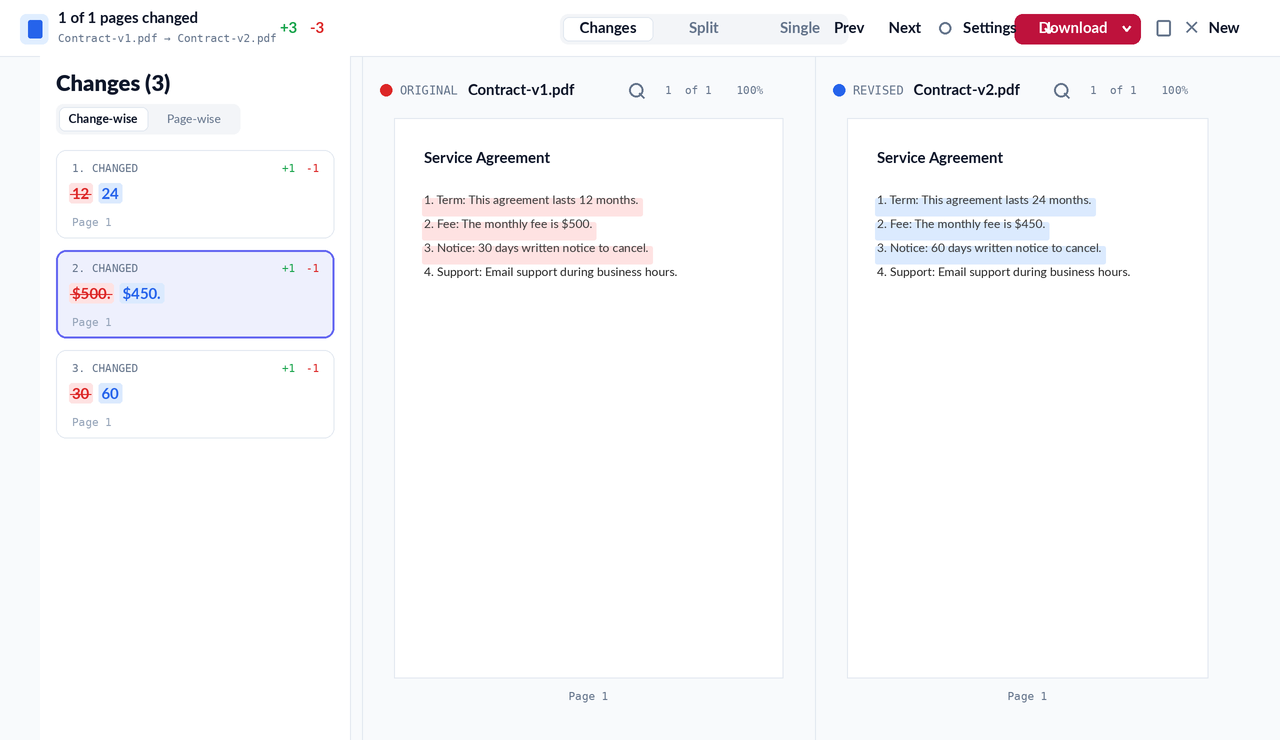
The two documents open side by side with every difference highlighted — removed text in red on the original, added text in blue on the revised copy. A summary shows how many pages changed and the total additions and deletions.
- 4
Review every change
The Changes panel lists each edit — click one to jump straight to it, or use Prev/Next to step through them. Switch between change-wise and page-wise views to review the differences the way that suits you.
- 5
Export the comparison
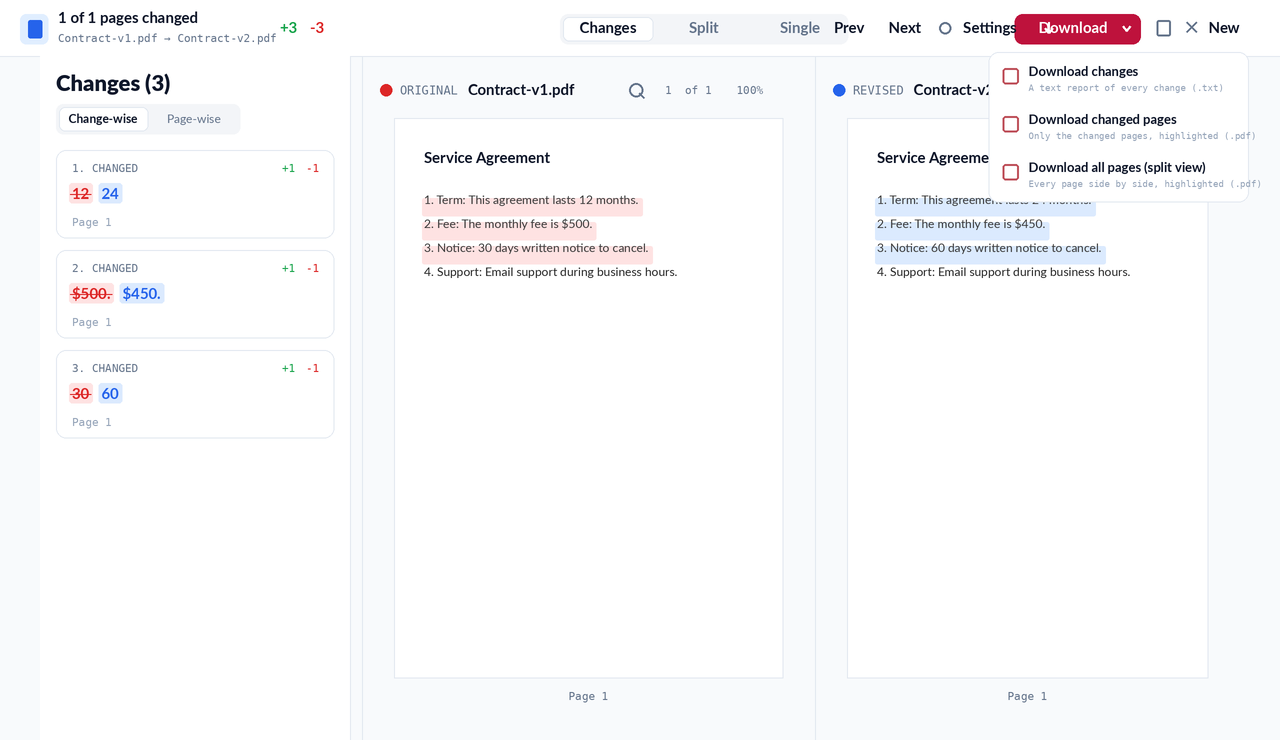
Click Download to save the results — a text report of every change (.txt), just the changed pages highlighted (.pdf), or every page side by side in a highlighted split view (.pdf).
Tips
- PDF or Word, mixed freely: compare PDF vs PDF, Word vs PDF, or Word vs Word — drop a .docx into either side.
- Colour code: removed text is highlighted red on the original, and added text is highlighted blue on the revised copy.
- Jump between edits: use the Changes panel or Prev/Next to move straight to each difference instead of hunting for it.
- Deleted after an hour: both documents are uploaded so the engine can read them, then removed automatically — we never share or keep them.
Ready to compare your documents?
Free, secure, and no sign-up required.